How to Run Windows Games and Programs on Mac
Technical guide about running Windows programs + playing Windows games on macOS with Wine + Game Porting Toolkit (GPTk), DXMT, DXVK, MoltenVK, and more.
This article/tutorial is still under construction (i.e. a rough draft). Feel free to bookmark this post to come back later, as there may be new information by then!
With a little bit of tinkering, it’s possible to run both macOS (i.e. native) AND Windows games on a MacBook Pro (M3 Max, in my case). Playable Windows games include Skyrim, Mass Effect series, Palworld, Schedule I, and many more!
Demo / Examples


❮
❯


This entire process can be quite daunting and confusing, and it is assumed that the reader:
- Has good terminal commands skills and is comfortable with using terminal/CLI
- Understands Wine concepts (e.g.
WINEPREFIX, dll overrides, etc.) - Knows how to launch Windows executables through Wine from terminal
- Knows how to use Vim
If you’re not tech savvy I don’t recommend following this highly technical tutorial.
Instead, try GUI wrappers like Crossover (paid) or Sikarugir (free).
Background
Key concepts that will continue to show up throughout this writeup:
- Wine
- Bottles aka Wine Prefixes (
$WINEPREFIX) - Wine builds
- Graphics APIs (i.e. D3DMetal, DXMT, DXVK, etc.)
Bottles
I store my Wine prefixes, i.e. bottles, in $HOME/Bottles. Each bottle is virtual Windows environment (e.g. Windows 10) with its own C: drive and all its standard folders (e.g. Windows and Program Files), as well as:
- Windows registry
- System settings
- One or more Windows applications/software
- Saved user data
- Fonts
- And more
You can install multiple programs into a bottle, but it’s sometimes better to create a new bottle for each application. Keeping applications in separate bottles prevents them from interacting with or damaging each other. E.g. You can test out a new version of a particular program in one bottle while keeping the original in another. Multiple bottles are also helpful whenever a specific application requires otherwise undesirable settings.
The default Wine bottle, .wine, is located in your home directory (i.e. $HOME/.wine). However, I never use the default Wine bottle/prefix since I always use a specific Wine prefix (i.e. $WINEPREFIX).
I’ve specifically made bottles for each Graphics API: DXMT, DXVK, GPTk, and CrossOver (note: I only use the 1st 3 bottles, i.e. I don’t use CrossOver for gaming).
Builds
wine command loads and runs the given program, which can be a DOS, Windows 3.x, Win32, or Win64 executable (on 64-bit systems).1
Wine is not isolated from your system: if you can access a file or resource with your user account, programs running in Wine can too—see #Running Wine under a separate user account for possible precautions
Wine can also run malware—see Wine FAQ on Malware compatibility
The program name may be specified in DOS format (e.g. C:\\WINDOWS\\SOL.EXE) or in Unix format (e.g. /msdos/windows/sol.exe). You may pass arguments to the program being executed by adding them to the end of the command line invoking wine. E.g.
1
2
3
wine notepad "C:\\Temp\\README.txt"
wine notepad 'C:\Temp\README.txt'
wine notepad "$HOME/Temp/README.txt"
It can also be one of the Windows executables shipped with Wine, in which case specifying the full path is not mandatory, e.g. wine explorer or wine notepad.
I store all my different versions of Wine (i.e. builds) in $HOME/Wine.
Files
Basic Wine files2
wine: Wine program loaderwineconsole: Wine program loader for CUI (console) applicationswineserver: Wine serverwinedbg: Wine debugger$WINEPREFIX/dosdevices: Directory containing the DOS device mappings. Each file in that directory is a symlink to the Unix device file implementing a given device. E.g. ifCOM1is mapped to/dev/ttyS0you'd have a symlink of the form$WINEPREFIX/dosdevices/com1->/dev/ttyS0.
DOS drives are also specified with symlinks; e.g. if driveD:corresponds to the CDROM mounted at/mnt/cdrom, you'd have a symlink$WINEPREFIX/dosdevices/d:->/mnt/cdrom. The Unix device corresponding to a DOS drive can be specified the same way, except with::instead of:. So for the previous example, if the CDROM device is mounted from/dev/hdc, the corresponding symlink would be$WINEPREFIX/dosdevices/d::->/dev/hdc.
Requirements
- Apple Silicon Mac (i.e. M series) with at least 16 GB of RAM or more (recommended since translated games require more resources)
- macOS 15 Sequoia or higher
- Command Line Tools for Xcode 15+ (downloaded via the App Store)
- Game Porting Toolkit from Apple Developers (OPTIONAL)
- Steam (Windows Version)
- Game Controller (OPTIONAL)
Installation
I have different versions of Wine on my system which I use for different purposes.
- Game Porting Toolkit.app: This is a translation layer that combines a patched version of an outdated version of Wine (7.7) with D3DMetal (which supports DirectX 11 and 12). I use this if I want to use D3DMetal graphics API. Only downside is that there are some bugs (e.g. window sizing, unable to download games, etc.) since this build uses an old version of Wine. Don’t use it to install Steam games.
- Wine Devel.app: I use this if I want to use DXMT or DXVK graphics API. This build uses a recent version of Wine (10.18).
- CrossOver.app: I don’t use this, but it contains some useful files that I can use with other Wine builds. See Install CrossOver for more details.
| Prefix | Build Name | Graphics API(s) | Description |
|---|---|---|---|
$HOME/Bottles/GPTk | gptk/3_0_2 | D3DMetal | Game Porting Toolkit 3 |
$HOME/Bottles/DXMT | dxmt/10.18 | DXMT, MoltenVK | DirectX to Metal |
$HOME/Bottles/DXVK | dxvk/10.18 | DXVK, MoltenVK | DirectX to Vulkan |
$HOME/Bottles/CrossOver | crossover/23.7.1 | D3DMetal, DXMT, DXVK, MoltenVK | CrossOver by CodeWeaver |
Since we’ll be working with several different Wine builds, we should create a directory containing each of these Wine builds to keep it organized.
1
2
mkdir -p $HOME/Wine && cd $HOME/Wine
mkdir dxmt dxvk gptk crossover
Your $HOME directory should now look similar to this (where ... denotes all other directories and files, which are currently irrelevant for this tutorial)
1
2
3
4
5
6
7
8
9
10
11
12
13
$HOME/
├── ...
├── Bottles/
│   ├── DXMT/
│   ├── DXVK/
│   ├── GPTk/
│   └── CrossOver/
├── ...
└── Wine/
    ├── dxmt/
    ├── dxvk/
    ├── gptk/
    └── crossover/
Ensure you’re in an x86_64 shell. If not, run:
To set version of Wine depending on type, add to PATH. This way, which wine outputs $HOME/Wine/10.12/bin/wine. E.g.
1
export PATH="$HOME/Wine/DXMT/bin:$PATH"
Create a new Wine prefix; e.g. if you have bottle $HOME/Games, set WINEPREFIX like so:
1
WINEPREFIX="$HOME/Games" wine winecfg
Once a “Wine configuration” shows up, change the version to Windows 10, then click Apply and OK to save and exit
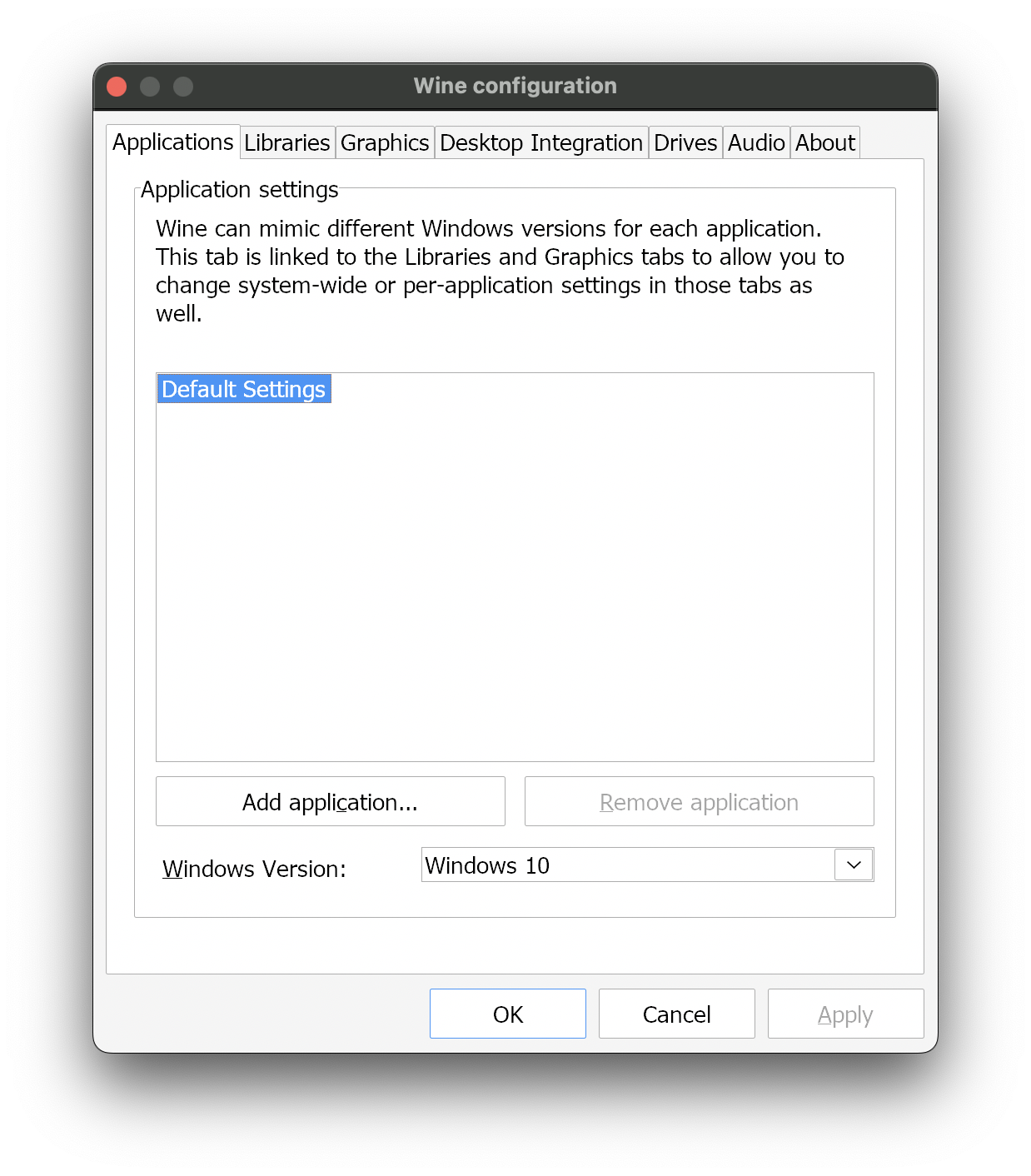
If the “Wine configuration” window does not appear and no new icon appears in the Dock, make sure you’ve correctly installed:
x86_64version of Homebrewgame-porting-toolkitformula
// TODO: Rewrite these instructions
- download latest wine build https://github.com/Gcenx/macOS_Wine_builds/releases
- get wine folder (path:
$HOME/Downloads/Wine Devel.app/Contents/Resources/wine) and move into$HOME/Wine/dxmt(or some other dir inWine) - Rename moved
winefolder and add new dirlogs - download and unzip dxmt https://github.com/3Shain/dxmt
- move files as described https://github.com/3Shain/dxmt/wiki/DXMT-Installation-Guide-for-Geeks
- download and unzip (
MoltenVK-macos.taronly) https://github.com/KhronosGroup/MoltenVK/releases - move
libMoltenVK.dylibfrom$HOME/Downloads/MoltenVK/MoltenVK/dynamic/dylib/macOSto$HOME/Wine/dxmt/10.19/lib
Install Wine
This version of Wine can be used with DXMT and DXVK.
Extract compressed download (v10.18 is named
wine-devel-10.18-osx64.tar.xz)1
tar -xvzf $HOME/Downloads/wine-devel-10.18-osx64.tar.xz
Copy the
winedirectory into DXMT and DXVK1 2
cp -r "$HOME/Downloads/Wine Devel.app/Contents/Resources/wine" "$HOME/Wine/dxmt" cp -r "$HOME/Downloads/Wine Devel.app/Contents/Resources/wine" "$HOME/Wine/dxvk"
Rename
wineto its version number (aka release version of macOS Wine builds), which is10.18in this case1 2
mv "$HOME/Wine/dxmt/wine" "$HOME/Wine/dxmt/10.18" mv "$HOME/Wine/dxvk/wine" "$HOME/Wine/dxvk/10.18"
Continue to Install DXMT and Install DXVK, since we will need our Wine build(s) for those steps.
// TODO: Instead of creating separate Wine copies for each graphics API, why not just use the same Wine build with all graphics API files (dlls, so, etc.), e.g. winemetal_dxmt.dll vs winemetal_dxvk.dll, winemetal_orig.dll, etc. When setting a specific build (e.g. DXMT, DXVK, etc.), the relevant file(s) will be renamed (e.g. current winemetal.dll is renamed to winemetal_xyz.dll, then winemetal_dxmt.dll is renamed to winemetal.dll in order to enable DXMT).
Install Graphics APIs
Install DXMT
Make sure to download Wine before continuing; see Install Wine for instructions.
DXMT is a Metal-based translation layer for Direct3D 11 (d3d11) and Direct3D 10 (d3d10), which allows running 3D applications on macOS using Wine.
If you want to build DXMT yourself, skip steps 1 – 4 and refer to the “Build” section in DXMT repository’s
README.md.Refer to DXMT installer for a Bash script to automatically install DXMT into your Wine build.
Find the most recent release (which, as of this writing, is Version 0.70)
Under Assets, download the attached GitHub Actions artifact (built with
-Dwine_builtin_dll=true) named similarly todxmt-v0.70-builtin.tar.gz(do not download the Source code!)Unzip the downloaded artifact by double-clicking it or running the following command (change path/filename if needed)
1
tar -xvzf $HOME/Downloads/dxmt-v0.70-builtin.tar.gz
You should now have a directory containing
i386-windows,x86_64-unix, andx86_64-windowssubdirectories, each of which contains various filesBefore proceeding, make sure you have the right path of the libraries for the version of Wine you’re using! We’ll set that path to environment variable
WINELIBto make the following commands easier to follow; be sure to change the actual path if needed. If correctly set, the commandsecho $WINELIBandecho $DXMT_PATHshould print their respective specified path.1 2 3 4
export WINEPATH="$HOME/Wine/dxmt/10.18" export WINELIB="$WINEPATH/lib/wine" export DXMT_PATH="$HOME/Downloads/v0.70" export WINEPREFIX="$HOME/Bottles/DXMT"
Move
$DXMT_PATH/x86_64-unix/winemetal.sointox86_64-unixdirectory in your Wine library1
mv -i $DXMT_PATH/x86_64-unix/winemetal.so $WINELIB/x86_64-unix/
Copy
$DXMT_PATH/x86_64-windows/winemetal.dllintox86_64-windowsdirectory in your Wine library ANDsystem32directory in yourWINEPREFIX1 2
cp -i $DXMT_PATH/x86_64-windows/winemetal.dll $WINELIB/x86_64-windows/winemetal.dll mv -i $DXMT_PATH/x86_64-windows/winemetal.dll $WINEPREFIX/drive_c/windows/system32/
Using
cp(copy) command instead ofmv(move) sincewinemetal.dllwill be used in 2 separate locations.mvrequires a destination directory, whilecpshould be destination file.Move
$DXMT_PATH/x86_64-windows/d3d11.dllintox86_64-windowsdirectory in your Wine library1
mv -i $DXMT_PATH/x86_64-windows/d3d11.dll $WINELIB/x86_64-windows/
Move
$DXMT_PATH/x86_64-windows/dxgi.dllintox86_64-windowsdirectory in your Wine library1
mv -i $DXMT_PATH/x86_64-windows/dxgi.dll $WINELIB/x86_64-windows/
Optionally move
$DXMT_PATH/x86_64-windows/d3d10core.dllintox86_64-windowsdirectory in your Wine library1
mv -i $DXMT_PATH/x86_64-windows/d3d10core.dll $WINELIB/x86_64-windows/
Ensure NONE of these dlls are set overrides
native,builtinIf you use CrossOver 25+, you can replace the files in
/Applications/CrossOver.app/Contents/SharedSupport/CrossOver/lib/dxmt/with files from the Github Actions artifact.However, DO NOT open a support ticket to CodeWeavers if you have replaced these files.
Execute this command to avoid running into issues when trying to use
winecommand1
xattr -dr com.apple.quarantine "$WINEPATH"
If all steps are successfully completed, you should be able to run your Wine commands as normal, e.g.
1
MTL_HUD_ENABLED=1 D3DM_SUPPORT_DXR=1 ROSETTA_ADVERTISE_AVX=1 WINEESYNC=1 WINEDLLOVERRIDES="dinput8=n,b" DXMT_LOG_LEVEL=error DXMT_LOG_PATH=$HOME/Wine/dxmt/10.18/logs WINEPREFIX=$HOME/Bottles/DXMT wine "C:\Program Files (x86)\Steam\Steam.exe"
To run with Steam options, e.g.
--no-sandbox --in-process-gpu --disable-gpu1
steam.exe -noverifyfiles -nobootstrapupdate -skipinitialbootstrap -norepairfiles -overridepackageurl
The full command would be:
1 2 3
MTL_HUD_ENABLED=0 D3DM_SUPPORT_DXR=1 ROSETTA_ADVERTISE_AVX=1 WINEESYNC=1 WINEDLLOVERRIDES="dinput8=n,b;d3d11,d3d10,d3d12,dxgi=b" wine "C:\windows\system32\cmd.exe" cd "Games\drive_c\Program Files (x86)\Steam" steam.exe -noverifyfiles -nobootstrapupdate -skipinitialbootstrap -norepairfiles -overridepackageurl
64 bit is default, so if switching to 32 bit games, rename current
winemetal.dlltowinemetal_x86_64-windows.dll, then renamewinemetal_i386-windows.dlltowinemetal.dll
Install DXVK
Make sure to download Wine before continuing; see Install Wine for instructions.
DXVK is a Vulkan-based translation layer for Direct3D 8/9/10/11 (Linux) // Direct3D 10/11 (macOS), which allows running 3D applications with Wine.
MoltenVK doesn’t provide the required Vulkan extensions to use upstream DXVK, so use modified fork DXVK-macOS.
DXVK/Vulkan use the following env:
export MVK_CONFIG_RESUME_LOST_DEVICE=1(wine doesn’t handleVK_ERROR_DEVICE_LOSTcorrectly)
Download and unpack the latest DXVK package for macOS
Install the downloaded DXVK package into a given wine prefix (i.e. copy or symlink the DLLs into the following directories as follows)
1 2 3 4
export WINEPREFIX="$HOME/Bottles/DXVK" cd "$HOME/Downloads/dxvk-macOS-async" mv -i x64/*.dll "$WINEPREFIX/drive_c/windows/system32" mv -i x32/*.dll "$WINEPREFIX/drive_c/windows/syswow64"
Execute this command to avoid running into issues when trying to use
winecommand1
xattr -dr com.apple.quarantine "$HOME/Wine/dxvk/10.18"
Open
winecfgand manually add DLL overrides ford3d11andd3d10core1
WINEPREFIX="$HOME/Bottles/DXVK" "$HOME/Wine/dxvk/10.18/bin/wine" winecfg
Verify that your application uses DXVK instead of WineD3D by enabling the HUD
1
DXVK_CONFIG_FILE="$HOME/Wine/dxvk/10.18/dxvk.conf" DXVK_HUD=full
To remove DXVK from a prefix, remove the DLLs and DLL overrides, then restore original DLL files
1
wineboot -u
There shouldn’t be (i.e. don’t add, b/c it didn’t originally come w/) a
winemetal.dllin DXVK’S$WINEPREFIX
Install Game Porting Toolkit
Setup Game Porting Toolkit
Downloading Game Porting Toolkit via Apple Developer is no longer a necessary requirement; I’m keeping this here for posterity
Go to the official page for Game Porting Toolkit, scroll down to “Evaluate your Windows executable on Apple silicon”, and click Download the evaluation environment for Windows games
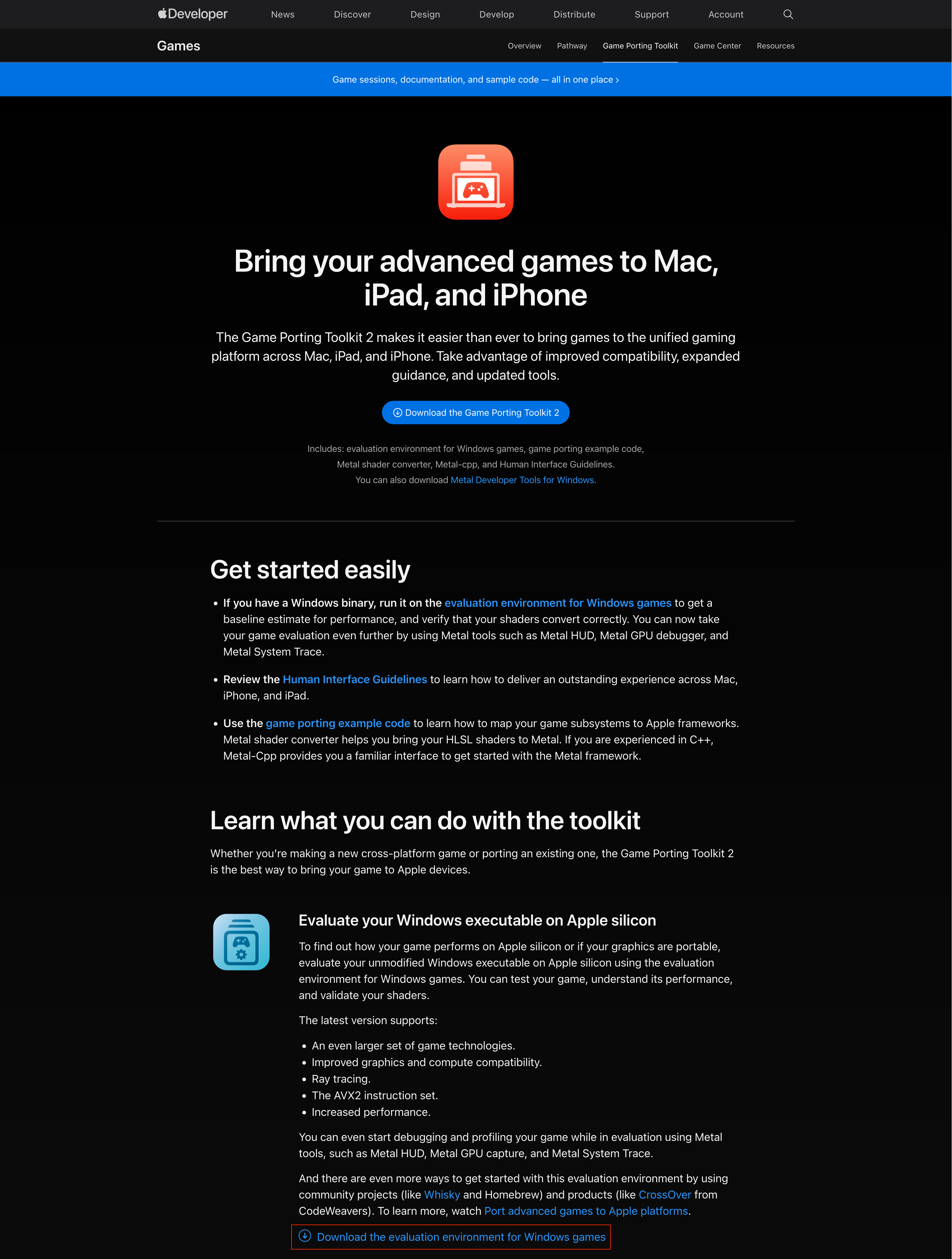
You can also download Game Porting Toolkit in its entirety since it includes the evaluation environment, but it’ll also include a bunch of stuff that you most likely won’t use, such as example code, human interface guidelines, etc.
You’ll be prompted to sign into your Apple account and create an Apple Developer account if you don’t have one already (don’t worry, it’s free)
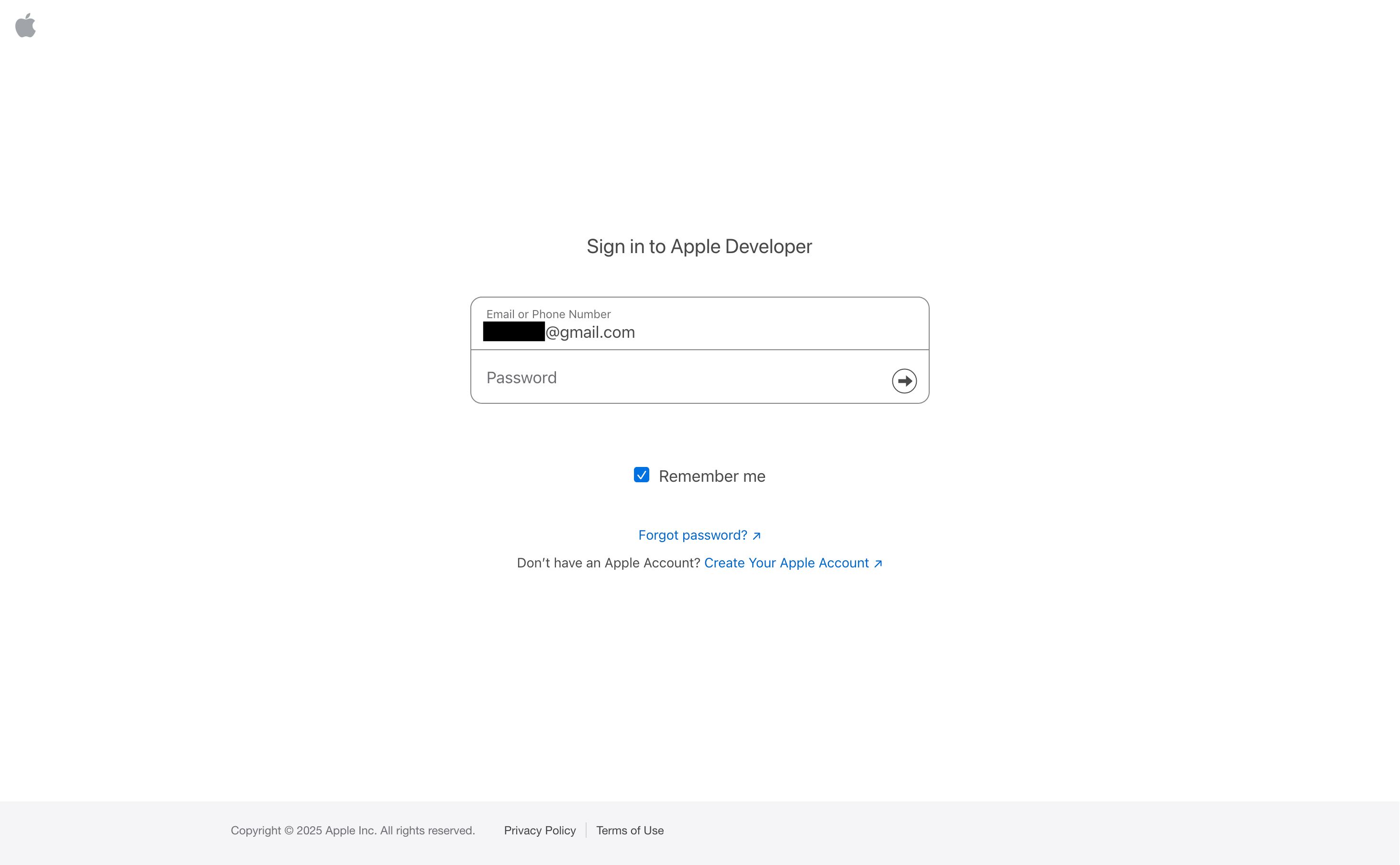
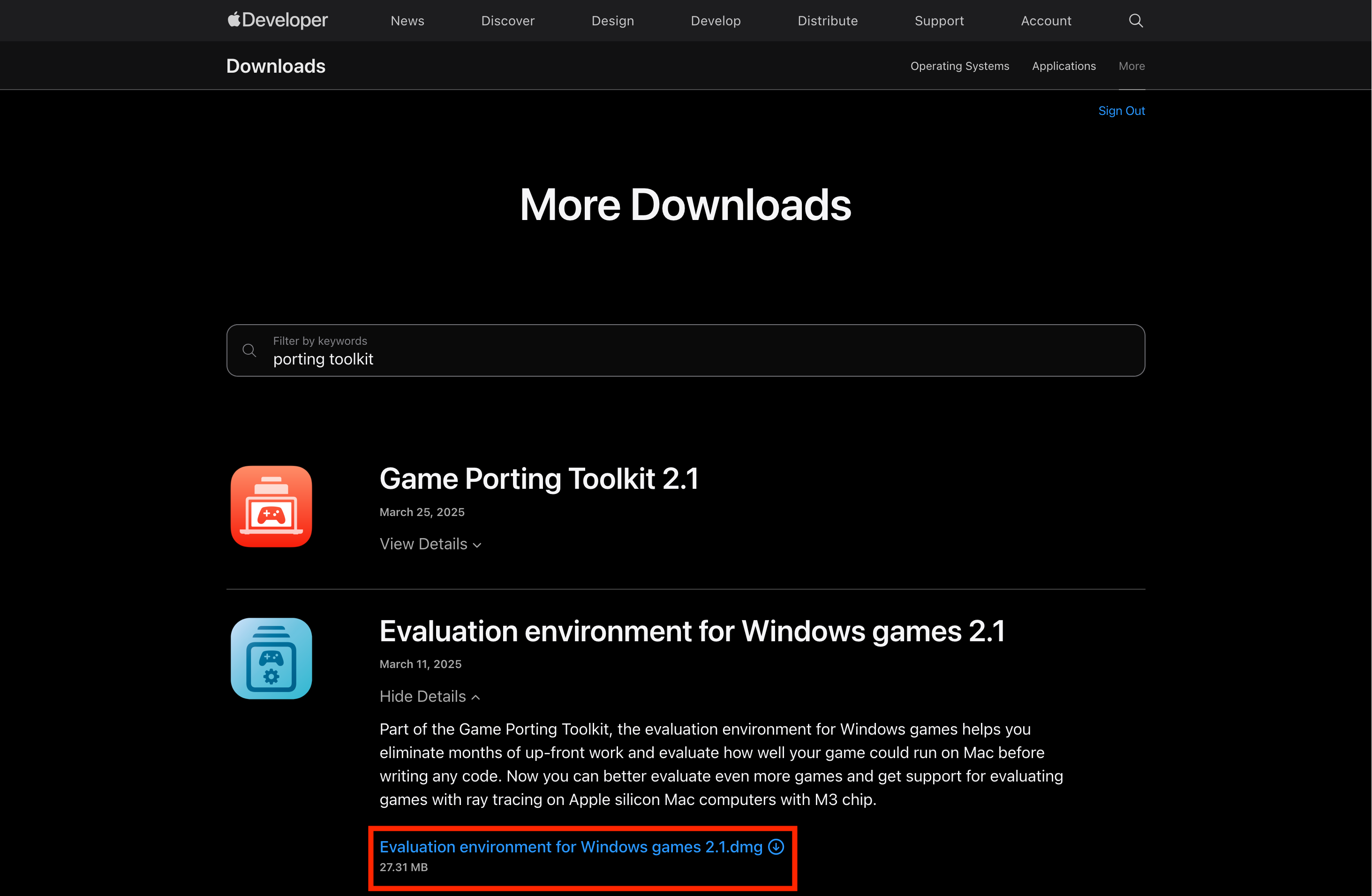
Once redirected to the downloads page, click Evaluation environment for Windows games 2.1.dmg to download the evaluation environment
Double-click the
.dmgafter it’s downloaded to open/mount it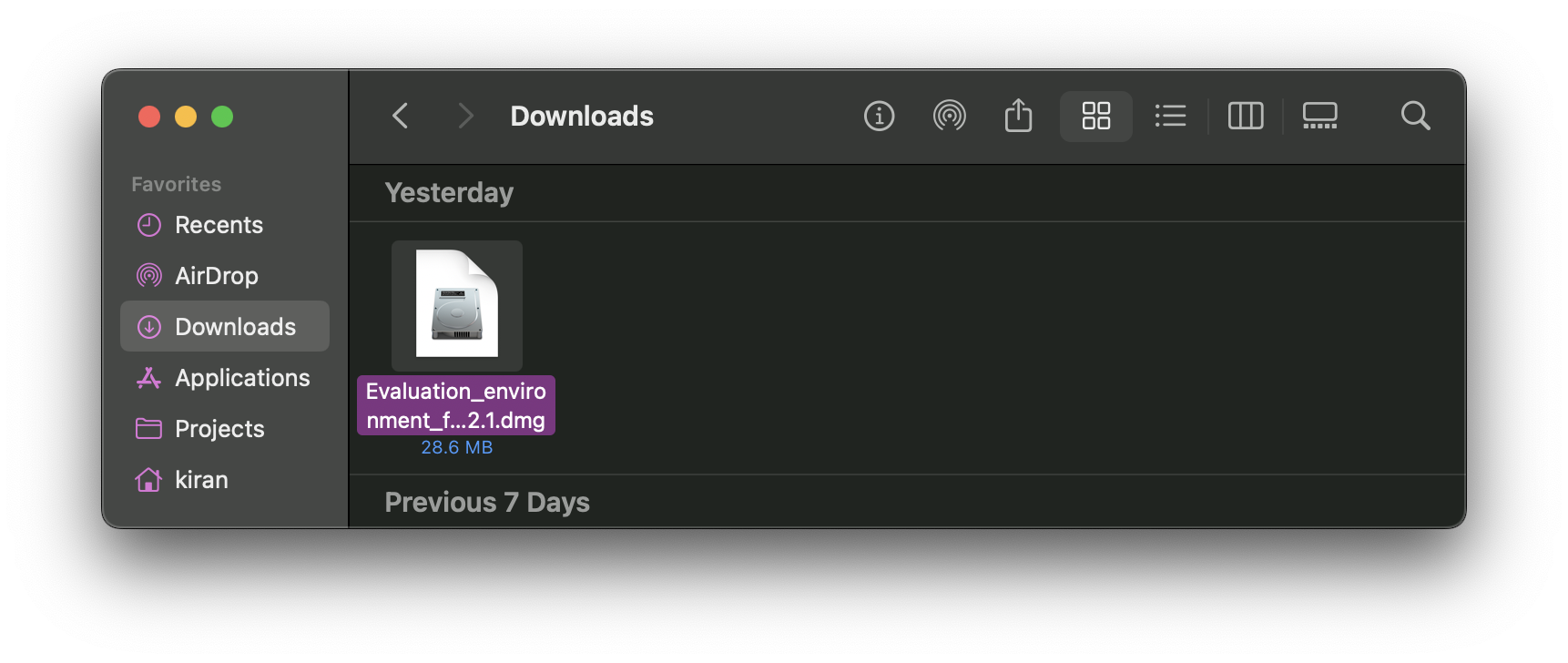
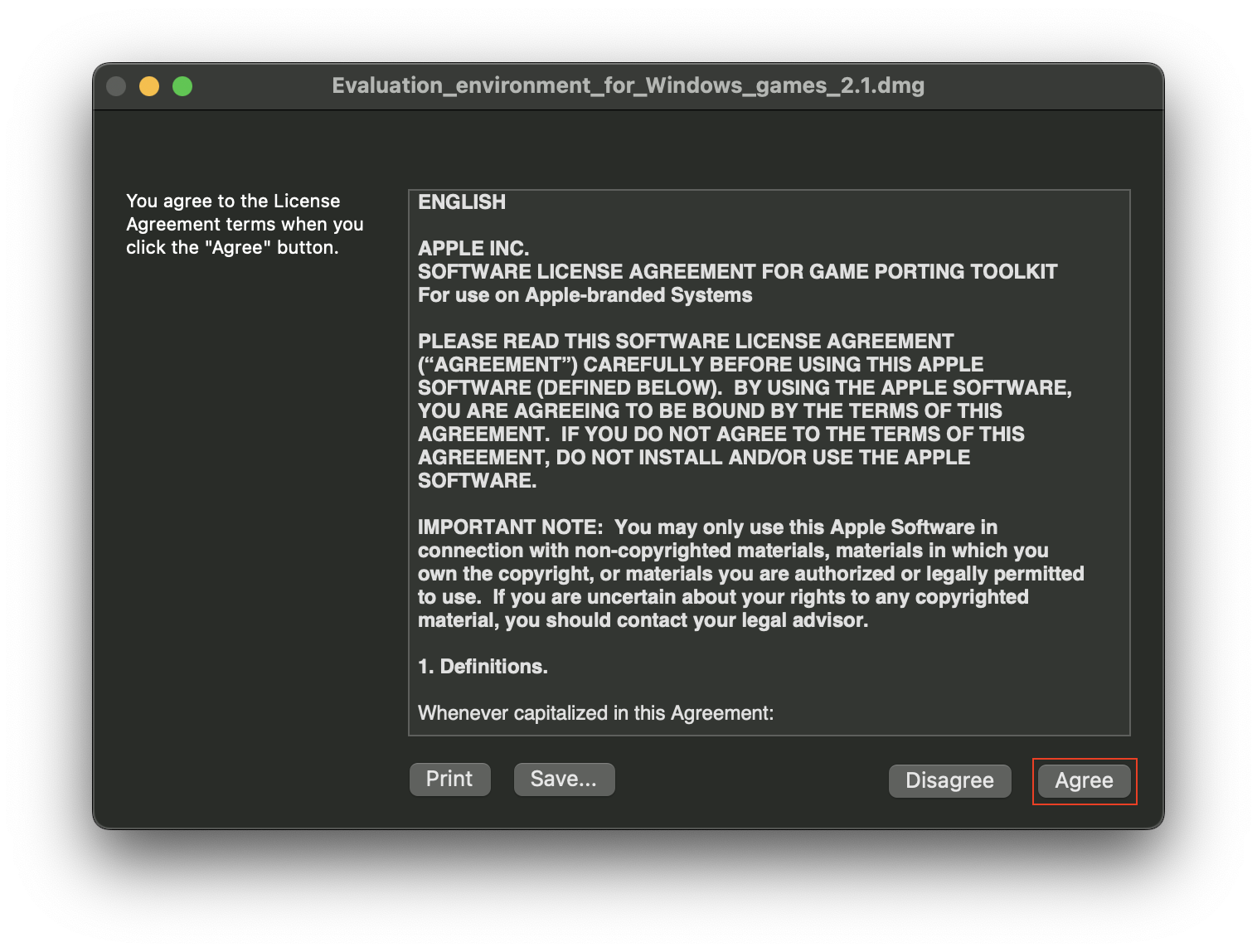
Click Agree to the license agreement
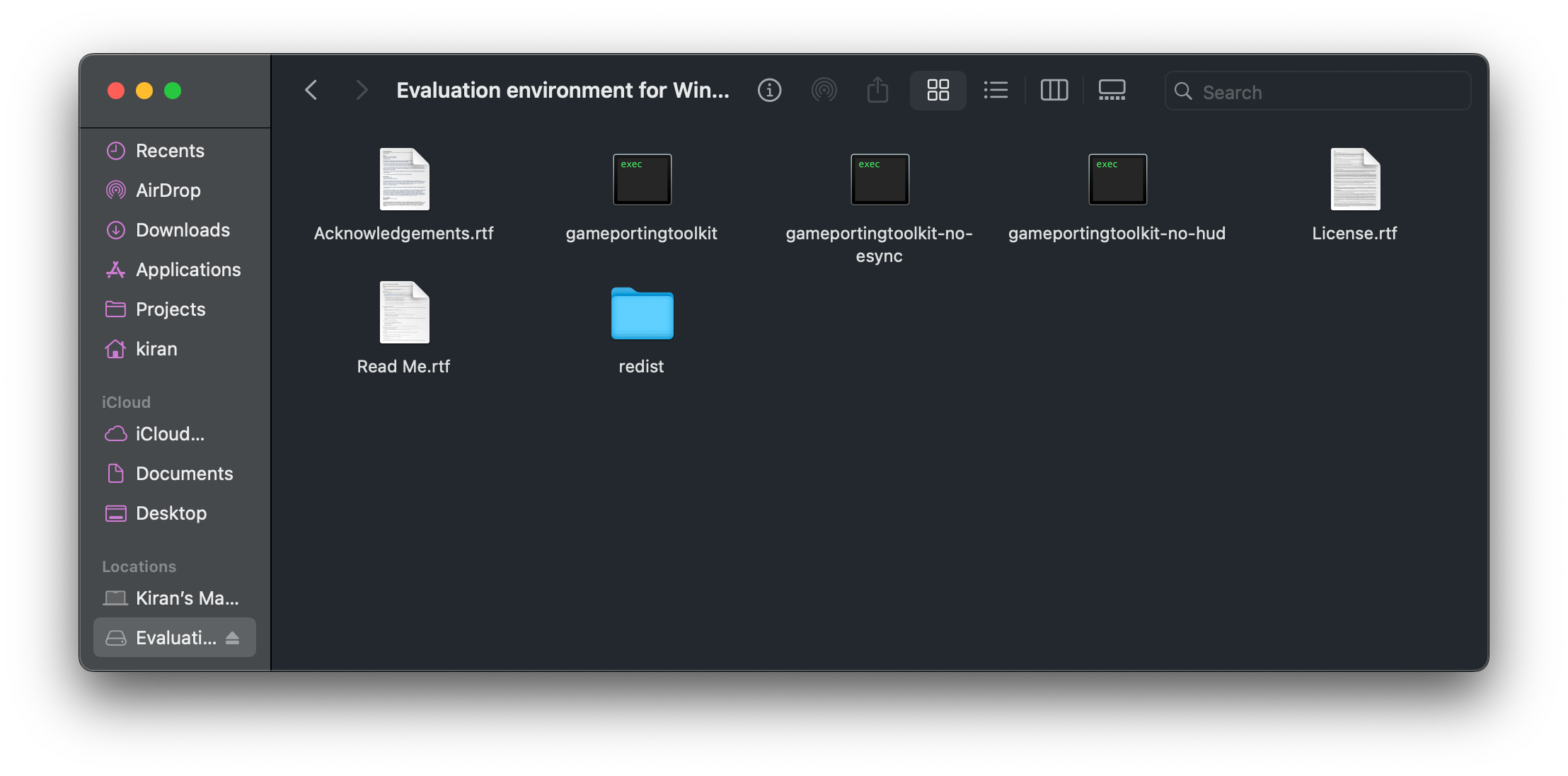
Once mounted, it’ll open a window that should look similar to this

You should also be able to see it in “Finder”
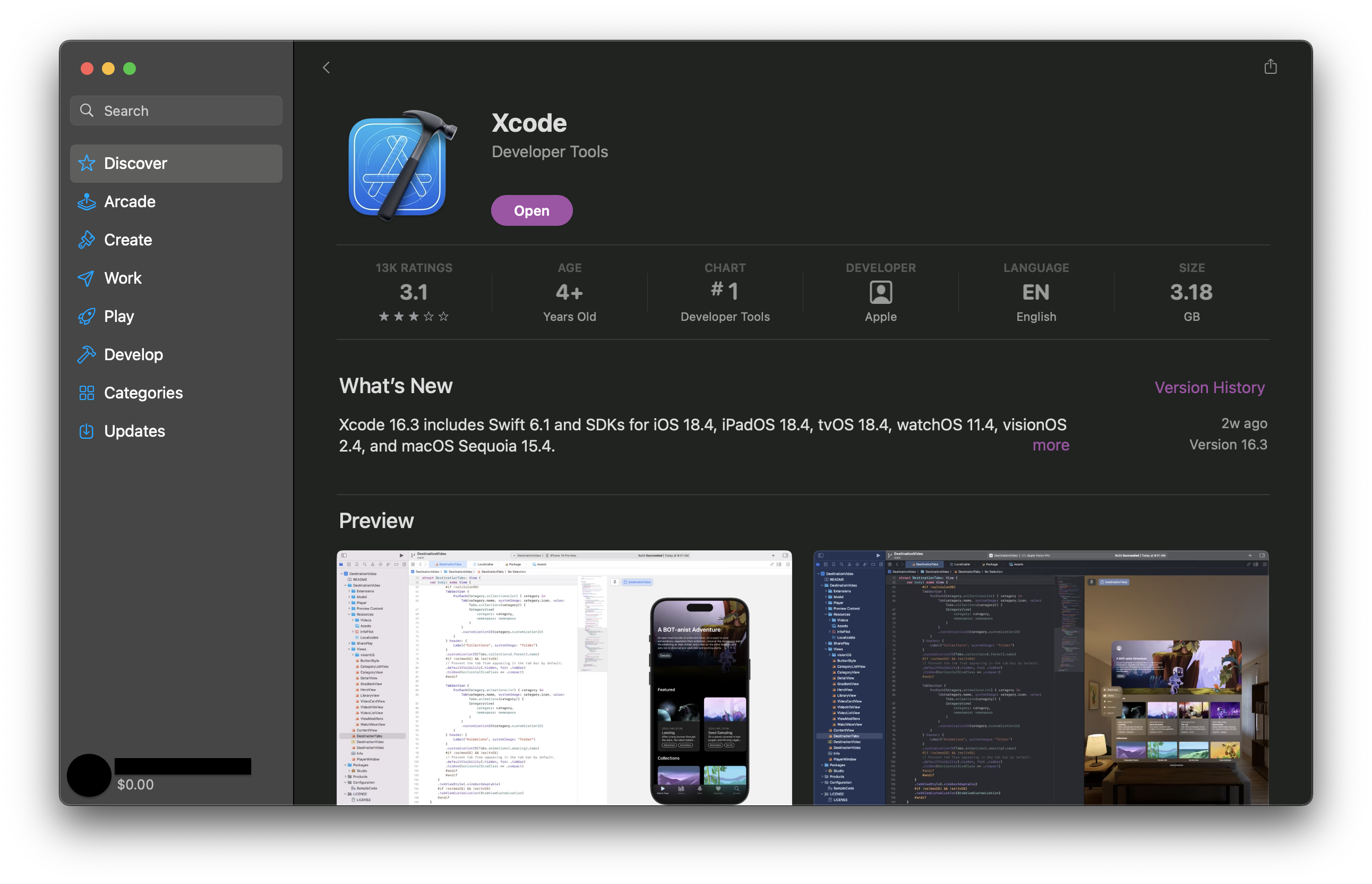
Download Command Line Tools for Xcode, which you will need to download via the App Store
- Run the
.pkgfile- Manually: Double-click the
.pkgfile - Via command line (where
PKG_PATHis the path to the.pkgfile):installer -pkg PKG_PATH -target <target_path>
- Manually: Double-click the
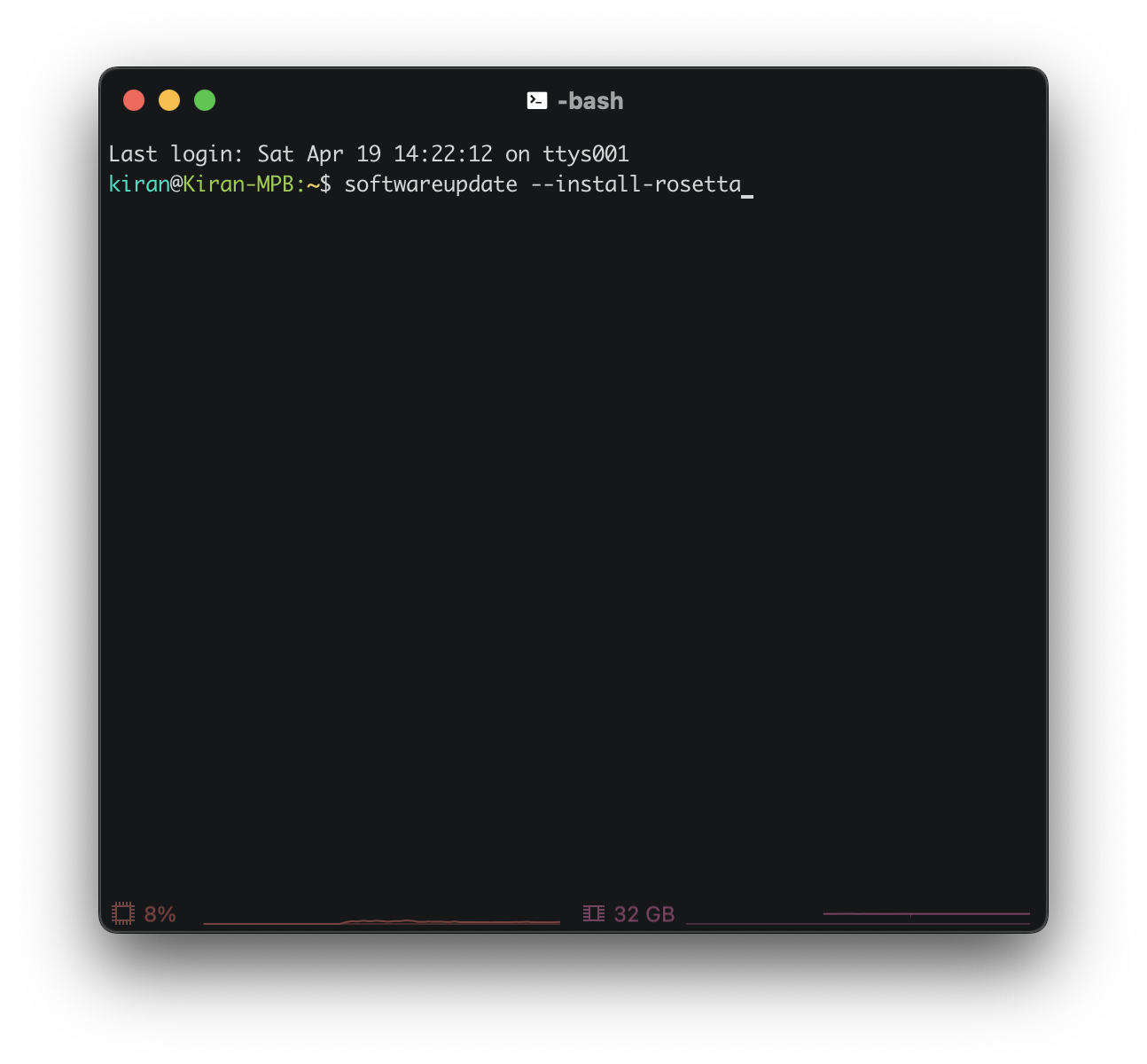
Open your terminal, then install Rosetta
1
softwareupdate --install-rosettaIf you want to automatically agree to license, add
--agree-to-licenseto command1
softwareupdate --install-rosetta --agree-to-license
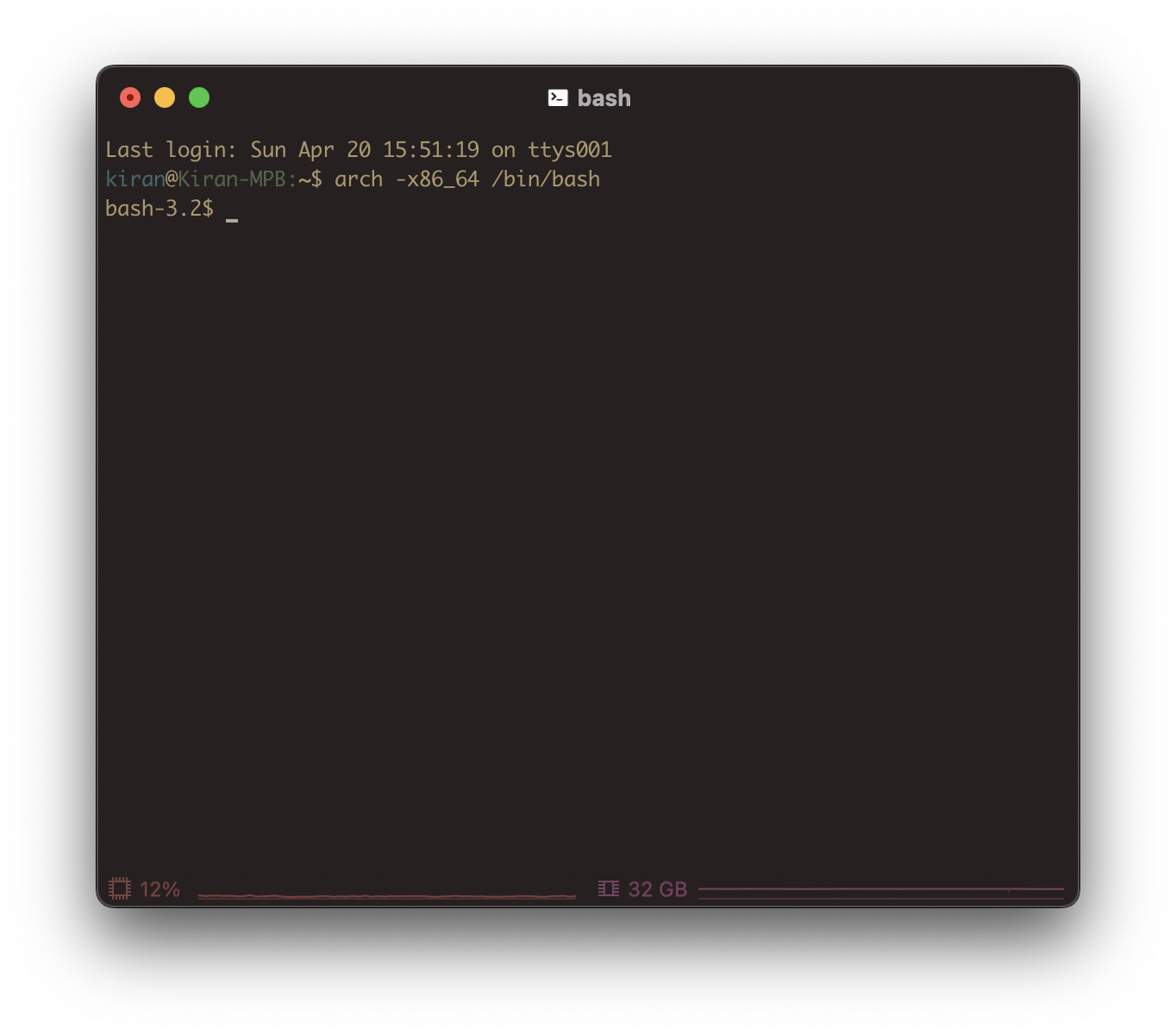
Enter x86_64 shell; all subsequent commands must be run in this shell
1
arch -x86_64 /bin/bash
Install x86 version of Homebrew
1
/bin/bash -c "$(curl -fsSL https://raw.githubusercontent.com/Homebrew/install/HEAD/install.sh)"

- Set the path, depending on the number of Homebrew versions you have
If you use both x86 and ARM64 versions of Homebrew, you can add the following to .bashrc (or your preferred shell config file) so it automatically switches based off architecture type
1
2
3
4
5
6
if [ "$(arch)" = "arm64" ]; then
eval "$(/opt/homebrew/bin/brew shellenv)"
else
eval "$(/usr/local/bin/brew shellenv)"
export PATH="/usr/local/bin:${PATH}"
fi
If you only have x86 version of Homebrew (which was installed in the previous step), execute this command to append the path (eval "$(/usr/local/bin/brew shellenv)") to .bash_profile
1
2
(echo; echo 'eval "$(/usr/local/bin/brew shellenv)"') >> $HOME/.bash_profile
eval "$(/usr/local/bin/brew shellenv)"
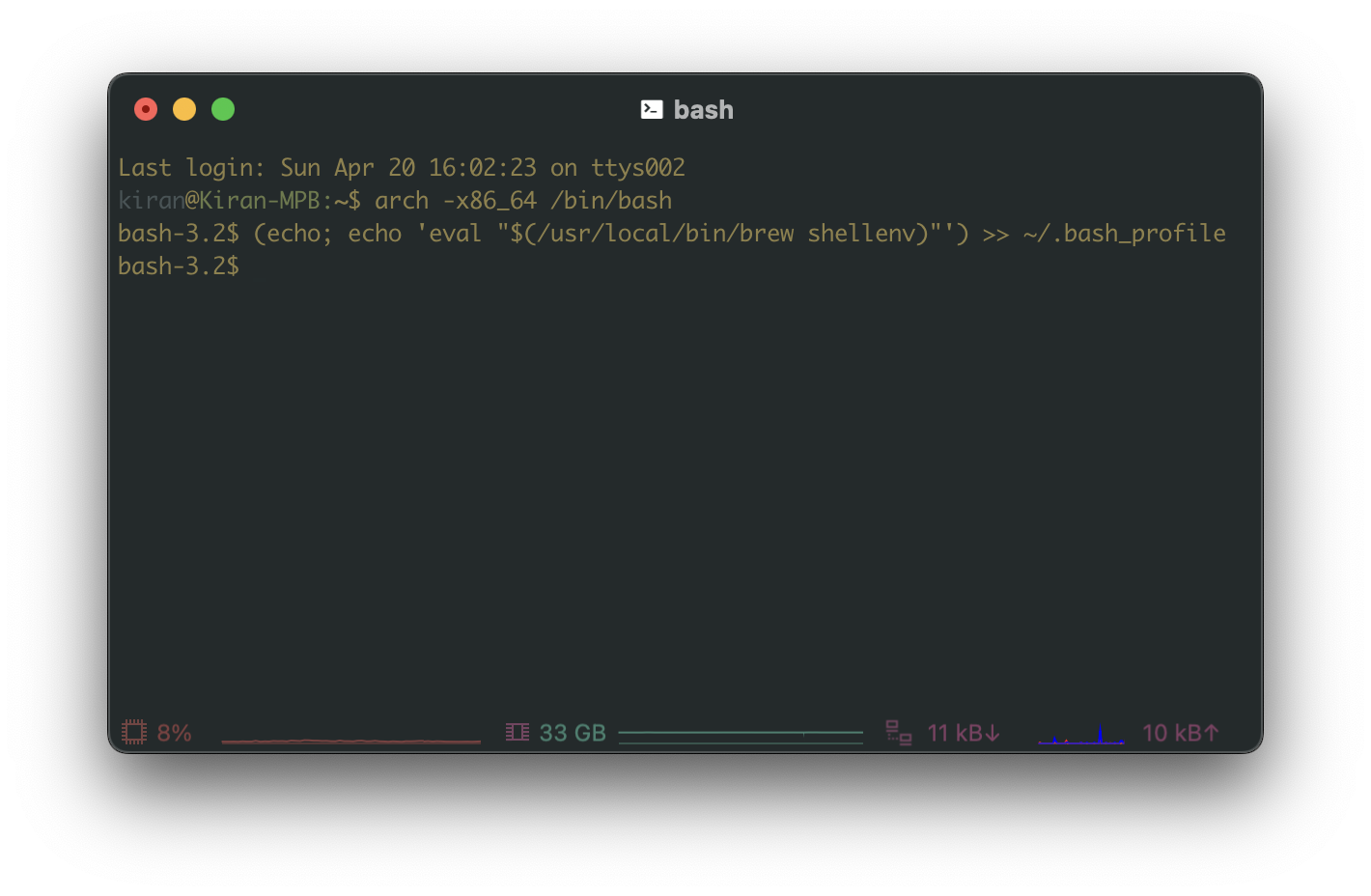
Since your shell config file has been updated, restart the terminal and return to x86_64 shell
1
arch -x86_64 /bin/bash
Confirm path
1
which brew
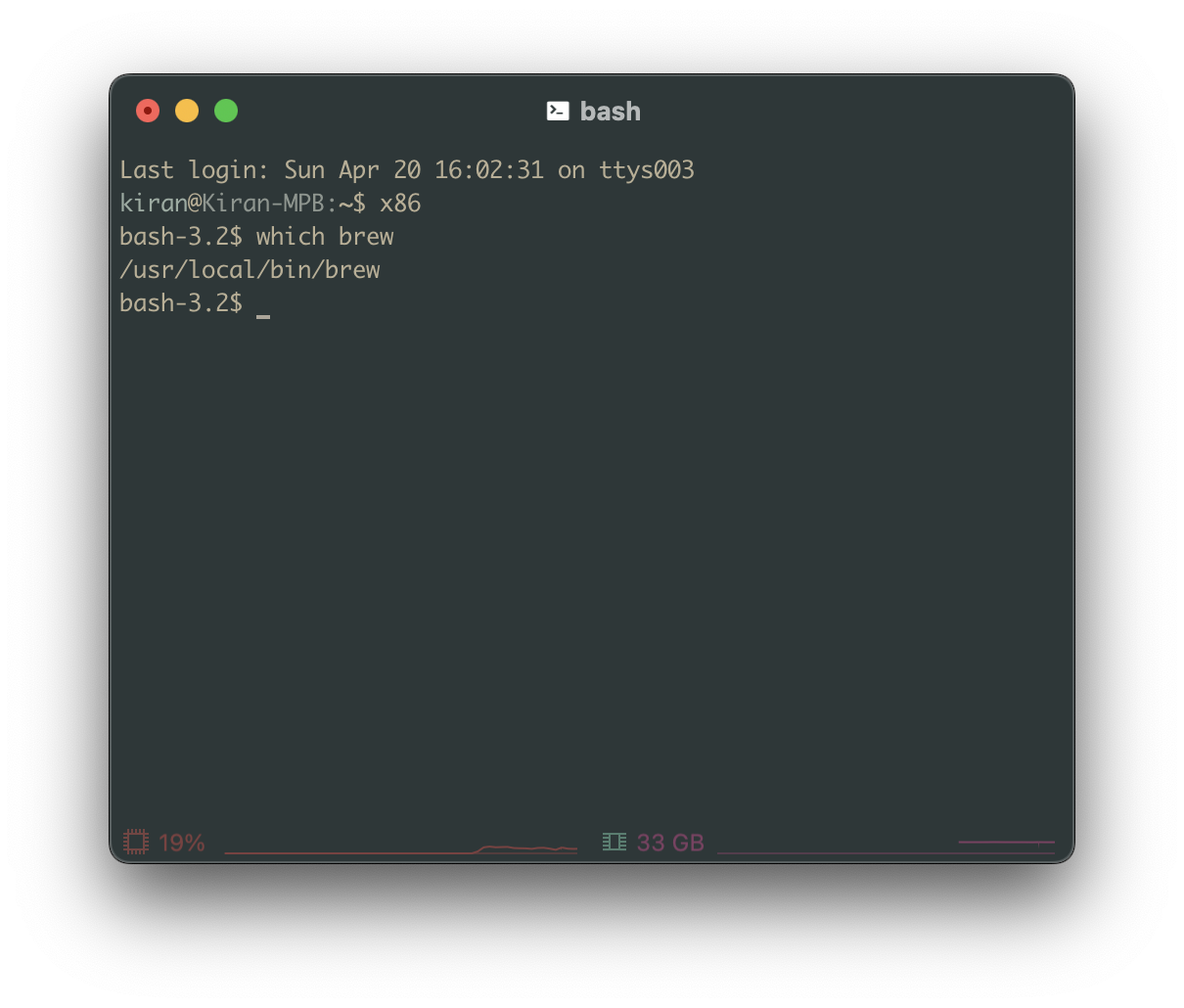
Update
PATHenvironment variable (in your shell config file) if the previous command doesn’t print/usr/local/bin/brew; alternatively, you can fully specify the path to brew in the subsequent commandsMake sure that GPTk’s
.dmg(downloaded from Apple’s website) is already mounted; it should be located in/Volumesdirectory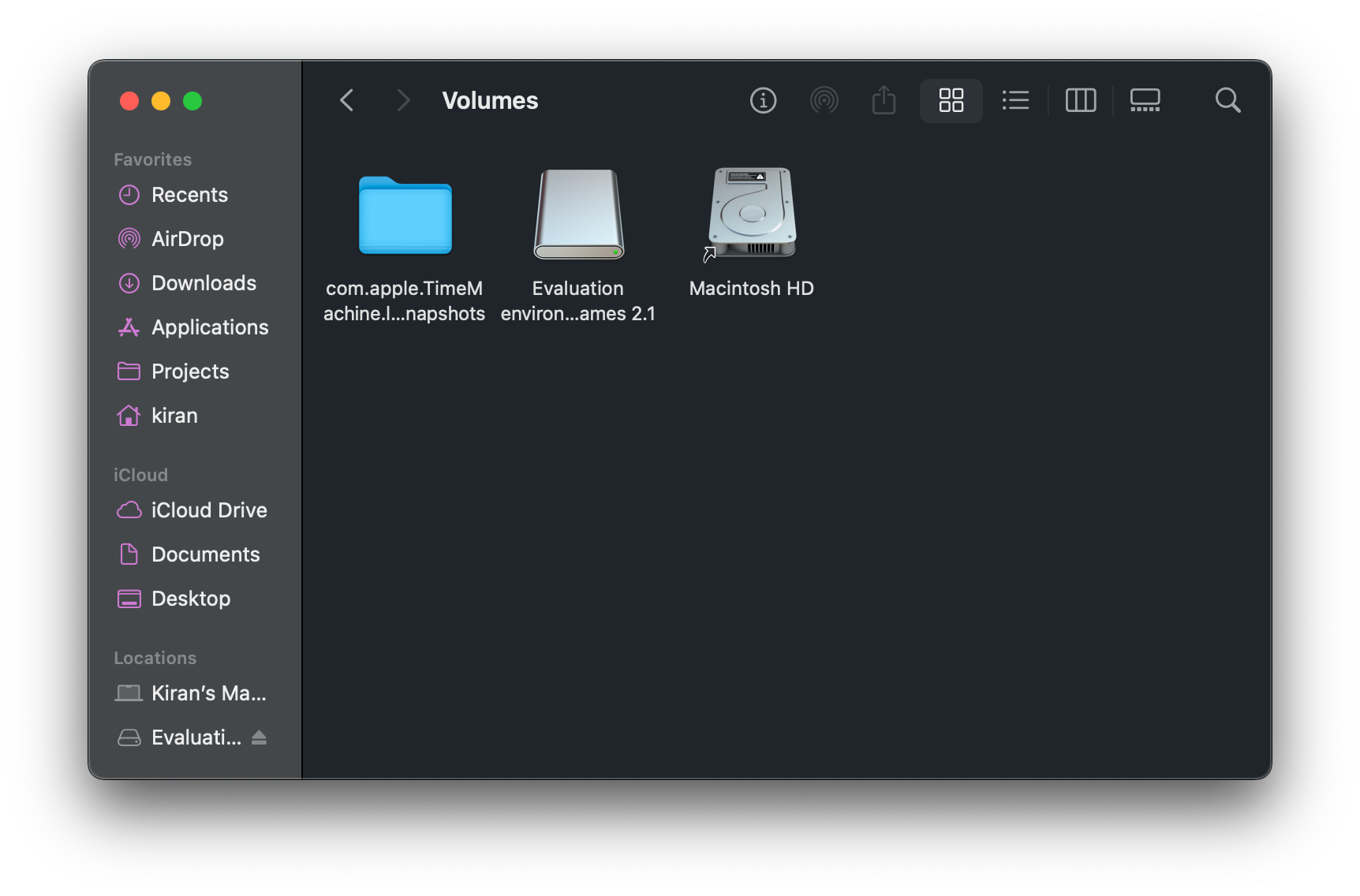
Method 1: Prebuilt
Install Dean Greer’s game-porting-toolkit via x86 version of Homebrew (/usr/local/bin/brew)
1
brew install --cask --no-quarantine gcenx/wine/game-porting-toolkit
The wine executable is located in: /Applications/Game Porting Toolkit.app/Contents/Resources/wine/bin/wine64
Early in the macOS 16 Tahoe beta period these pre-built tools may still be carrying the prior version of D3DMetal. You can temporarily update these tools to use the latest version:
Method 2: Build
You can’t build any versions after Version 2.1 since it’s out of date, so refer to Method 1 Prebuilt instead and ignore this section
Download Apple tap
1
brew tap apple/apple http://github.com/apple/homebrew-apple
Install the
game-porting-toolkitformula. The 1st time you run this command, you’ll get an error. We’ll fix it in the next step, but we’re running this step 1st so we have the formulas (i.e.game-porting-toolkitandgame-porting-toolkit-compiler). We need the formulas since that’s what we’ll be editing.1
brew install apple/apple/game-porting-toolkitIf during installation you see an error such as “Error: game-porting-toolkit: unknown or unsupported macOS version: :dunno”, your version of Homebrew doesn’t have macOS Sonoma support. Update to the latest version of Homebrew and try again.
1
brew update ; brew install apple/apple/game-porting-toolkit
Edit
game-porting-toolkitformula (location/usr/local/Homebrew/Library/Taps/apple/homebrew-apple/Formula/game-porting-toolkit.rb)1
brew edit game-porting-toolkit
Rename
"[email protected]"to"openssl@3"Then, edit
game-porting-toolkit-compilerformula (location/usr/local/Homebrew/Library/Taps/apple/homebrew-apple/Formula/game-porting-toolkit-compiler.rb)1
brew edit game-porting-toolkit-compiler
Add the following after Line 423
1
"-DCMAKE_POLICY_VERSION_MINIMUM=3.5",
Reinstall the
game-porting-toolkitformula1
brew install apple/apple/game-porting-toolkitCopy the Game Porting Toolkit library directory into Wine’s library directory
1
ditto /Volumes/Evaluation\ environment\ for\ Windows\ games\ 2.1/redist/lib/ $(brew --prefix game-porting-toolkit)/lib/
Link directory
1
ln -s "$(brew --prefix game-porting-toolkit)" "$HOME/Wine/gptk/2_1"
Install Steam
Make sure the Windows version of Steam is located in your
Downloadsfolder before installing
You can use the installer script in Steam Installer, or complete the following steps.
Install the Windows version of Steam
1
wine "$HOME/Downloads/SteamSetup.exe"
Run the Windows version of Steam to make sure it works
1
wine "C:\Program Files (x86)\Steam\steam.exe"
If it works, continue to Usage section. Otherwise, follow the steps in steamwebhelper not responding section before moving onto the Usage section.
Install CrossOver
This is the most compatible option (compared to the others), as it has all the aforementioned graphics APIs. You can either purchase it from CodeWeavers, or install it via Homebrew:
Install pre-built version of CrossOver v23.7.1 (Wine 8.0.1) via
x86version of Homebrew (/usr/local/bin/brew)1
brew install --cask --no-quarantine gcenx/wine/wine-crossover
Create symlink
1
ln -s "/Applications/Wine Crossover.app/Contents/Resources/wine" "$HOME/Wine/23.7.1-crossover"
CrossOver’s game porting toolkit lib path:
/Applications/CrossOver.app/Contents/SharedSupport/CrossOver/lib64/apple_gptk/external/CrossOver’s wine path:
/Applications/CrossOver.app/Contents/SharedSupport/CrossOver/CrossOver-Hosted Application/wine
Install Winetricks
According to the Winetricks GitHub repository4, “Winetricks is an easy way to work around problems in Wine. It has a menu of supported applications for which it can do all the workarounds automatically. It also allows the installation of missing DLLs and tweaking of various Wine settings.”
Method 1: Homebrew
The most straightforward method is to download via Homebrew.
1
brew install winetricks
Method 2: Manually
Uninstall any previous versions of Winetricks (if applicable)
Download the latest version
For previous versions, check out their releases
Extract the archive
cdinto the extracted folderRun the following:
1
sudo make install
Method 3: Installer Script
Refer to the installer script at Winetricks Installer.
Configuration
Configuring Wine is typically accomplished using:
- control — Wine’s implementation of the Windows Control Panel, which can be started by running
wine control - regedit — Wine’s registry editing tool, which can be started by running
regedit—see also Useful Registry Keys - winecfg — a GUI configuration tool for Wine, which can be started by running
winecfg
See Programs for the full list.
Usage
Ensure you’re in an x86_64 shell. If not, run:
- Steam:
"C:\Program Files (x86)\Steam\steam.exe" - Game:
"C:\Program Files (x86)\Steam\steamapps\common\MyGame\MyGame.exe"
Launch Steam
If you want to play the game via Steam. This is the basic command; it runs Steam with Wine. You can add additional environment variables. Refer to Environment Variables section for a list of compatible environment variables.
1
wine "C:\Program Files (x86)\Steam\steam.exe"
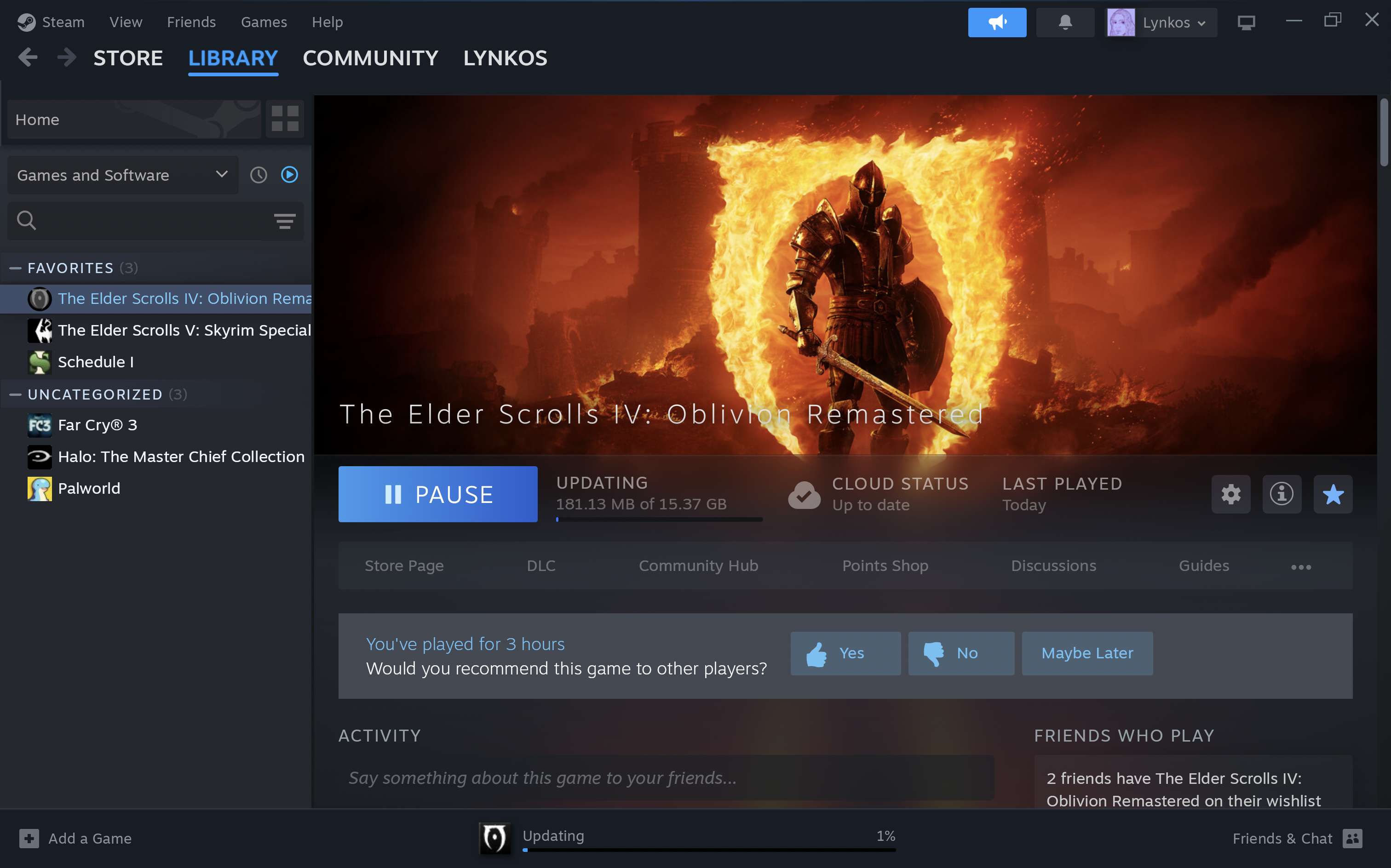 Steam example
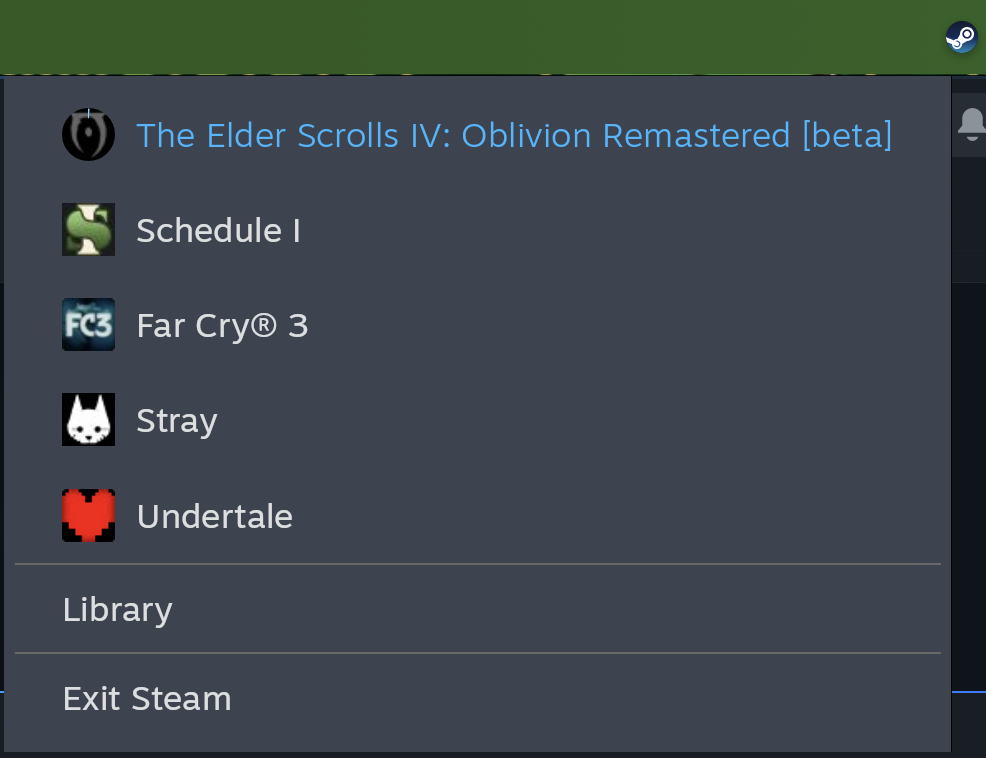 Steam menubar
 Comparison between native Steam app for macOS and Windows Steam running on macOS via DXMT
 Logging output when running Windows version of Steam via GPTk
Launch Directly
You can launch the game directly to avoid Steam’s extra processes. This may improve performance, but you won’t be able to use certain Steam features (e.g. Steam Cloud, online, etc.).
1
wine "C:\Program Files (x86)\Steam\steamapps\common\MyGame\MyGame.exe"
Replace
MyGamewith the name of your game; if it isn’t in Steam or its path is different, update the command path accordingly.
For example, if you want to enable e-sync and disable the Metal Performance HUD when running MyGame.exe.
1
MTL_HUD_ENABLED=0 WINEESYNC=1 wine "C:\Program Files (x86)\Steam\steamapps\common\MyGame\MyGame.exe"
Feel free to add and remove environment variables as you like; you’re not constrained to the aforementioned ones. Refer to Environment Variables section for a list of compatible environment variables.
 Screenshot of Palworld running via DXMT
 Screenshot of Far Cry 3 running via DXMT
Stop Running Wine
Method 1: CLI
All running wine and wineconsole processes are stopped at once using the wineserver -k command.
1
wineserver -k 15
This command is WINEPREFIX-dependent, so when using a custom Wine prefix, run i.e.
1
WINEPREFIX="$HOME/Games" wineserver -k
Alternatively, try this command:
1
killall -9 wineserver && killall -9 wine64-preloader
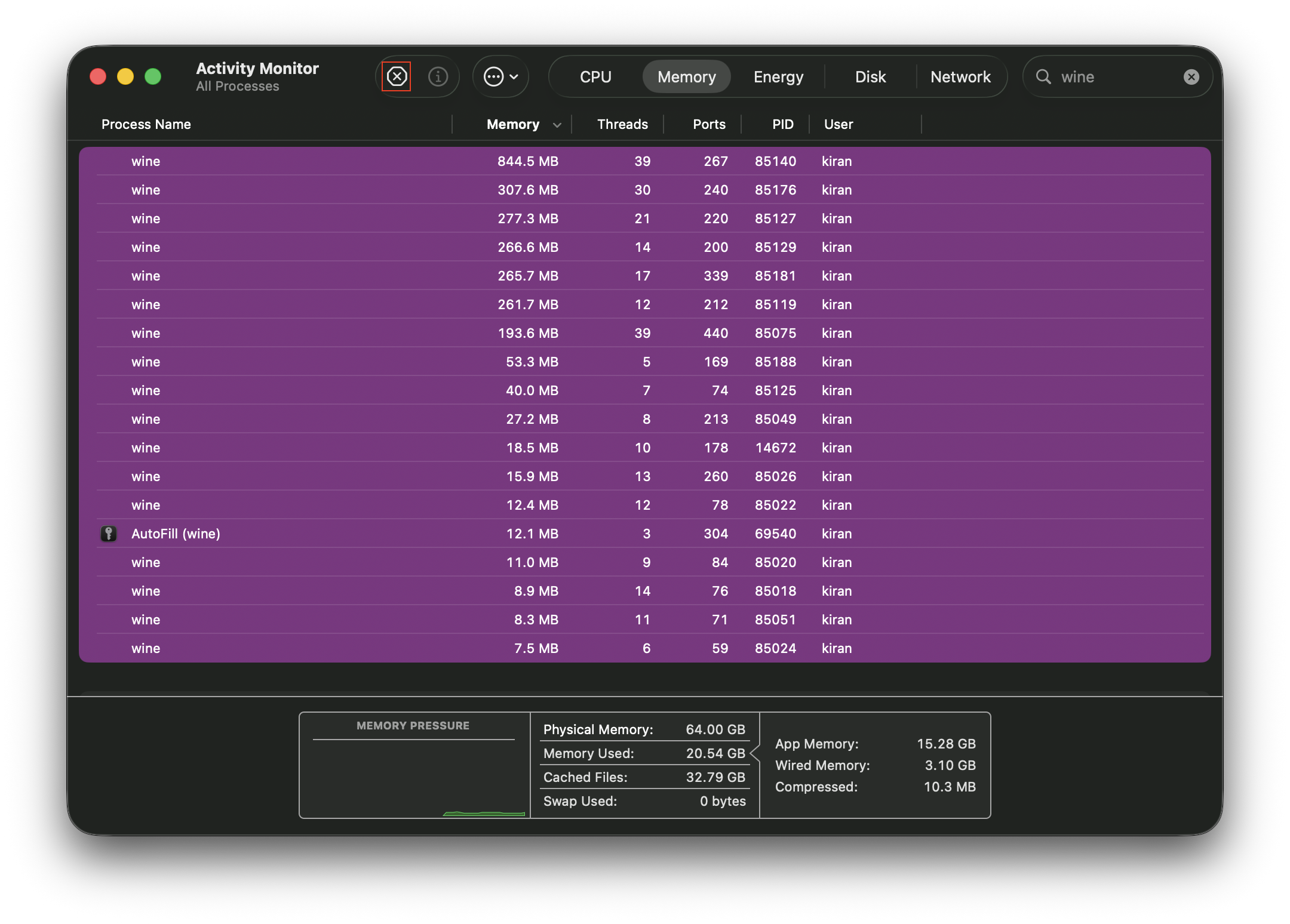
Method 2: Activity Monitor
Open Activity Monitor
In the search bar, type wine and hit Enter
Select all Wine processes with ⌘ + A
Once all Wine-related processes are selected, click the Stop icon
Click Quit
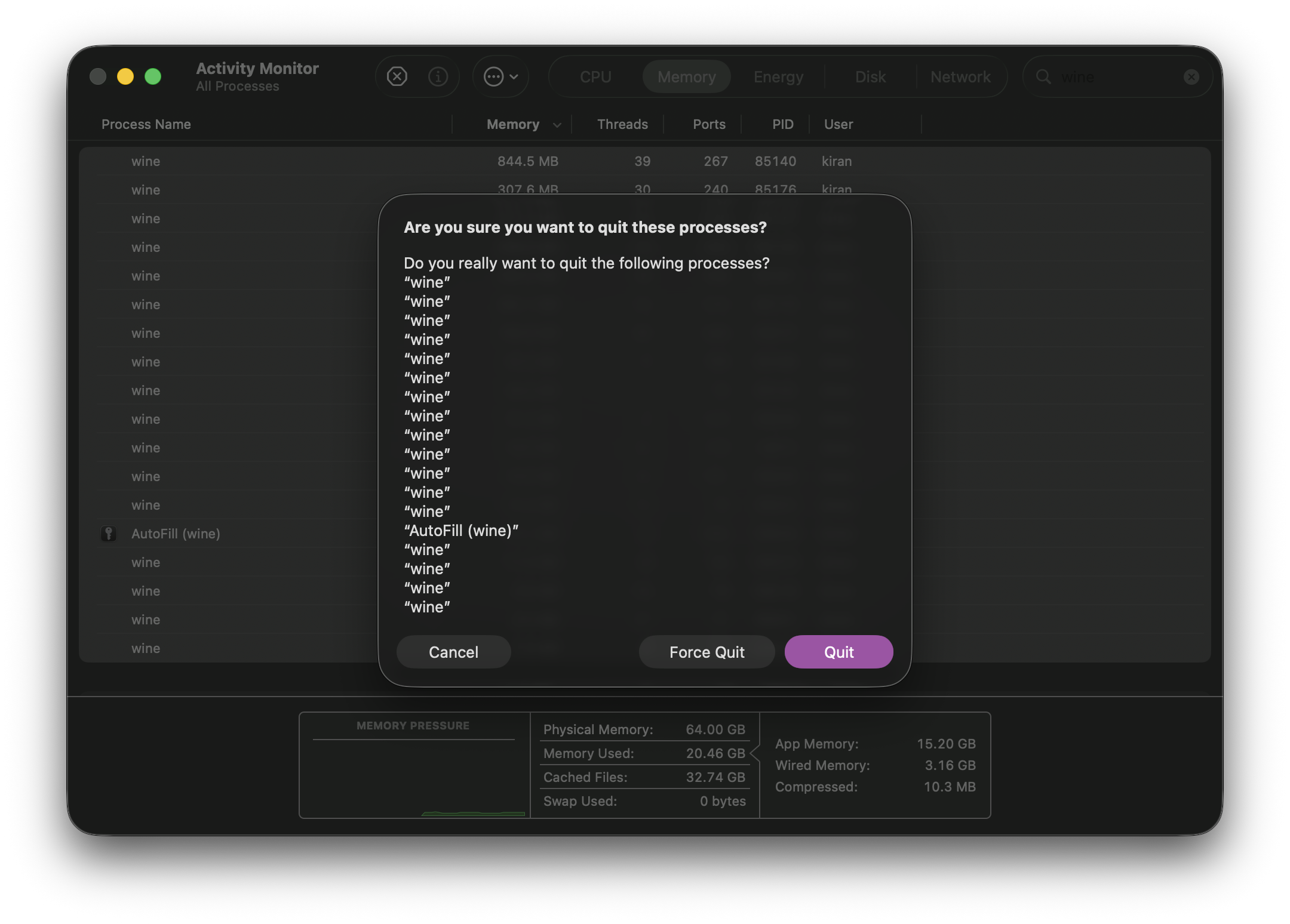
If not all of the processes end, you can try again with Force Quit
Appendix
Tips + Tricks
Launch games as an app
Executing scripts via CLI can be tedious sometimes, so it’s nice to launch it as an app instead. That way it’s just a click away!
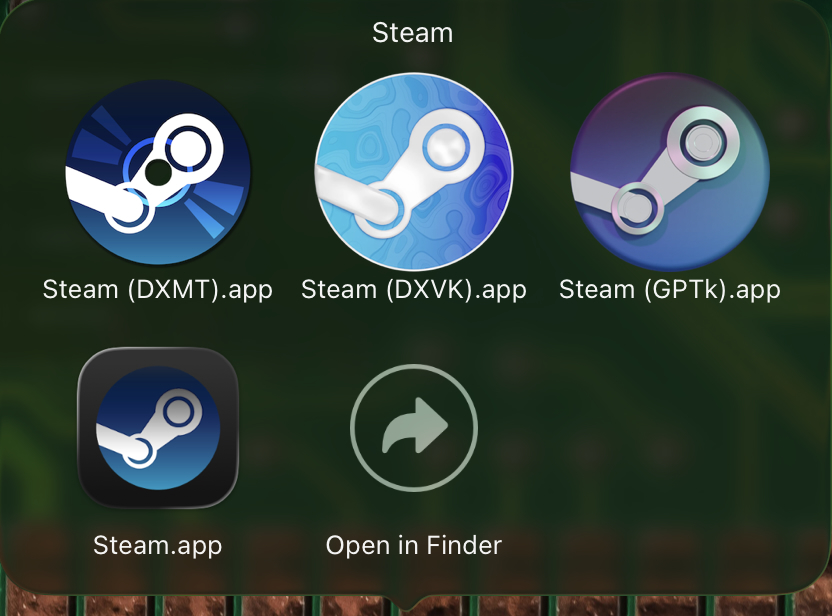
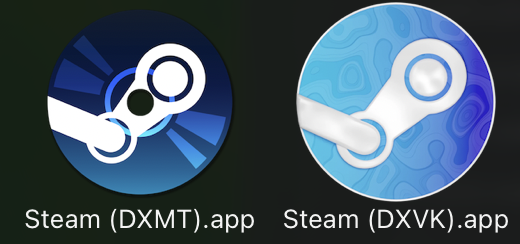 My custom apps for Windows version of Steam that uses DXMT and DXVK respectively
Method 1: Automator
You can use the Automator app to create a new Application that will run Steam when you click on its icon (similar to how Applications work)
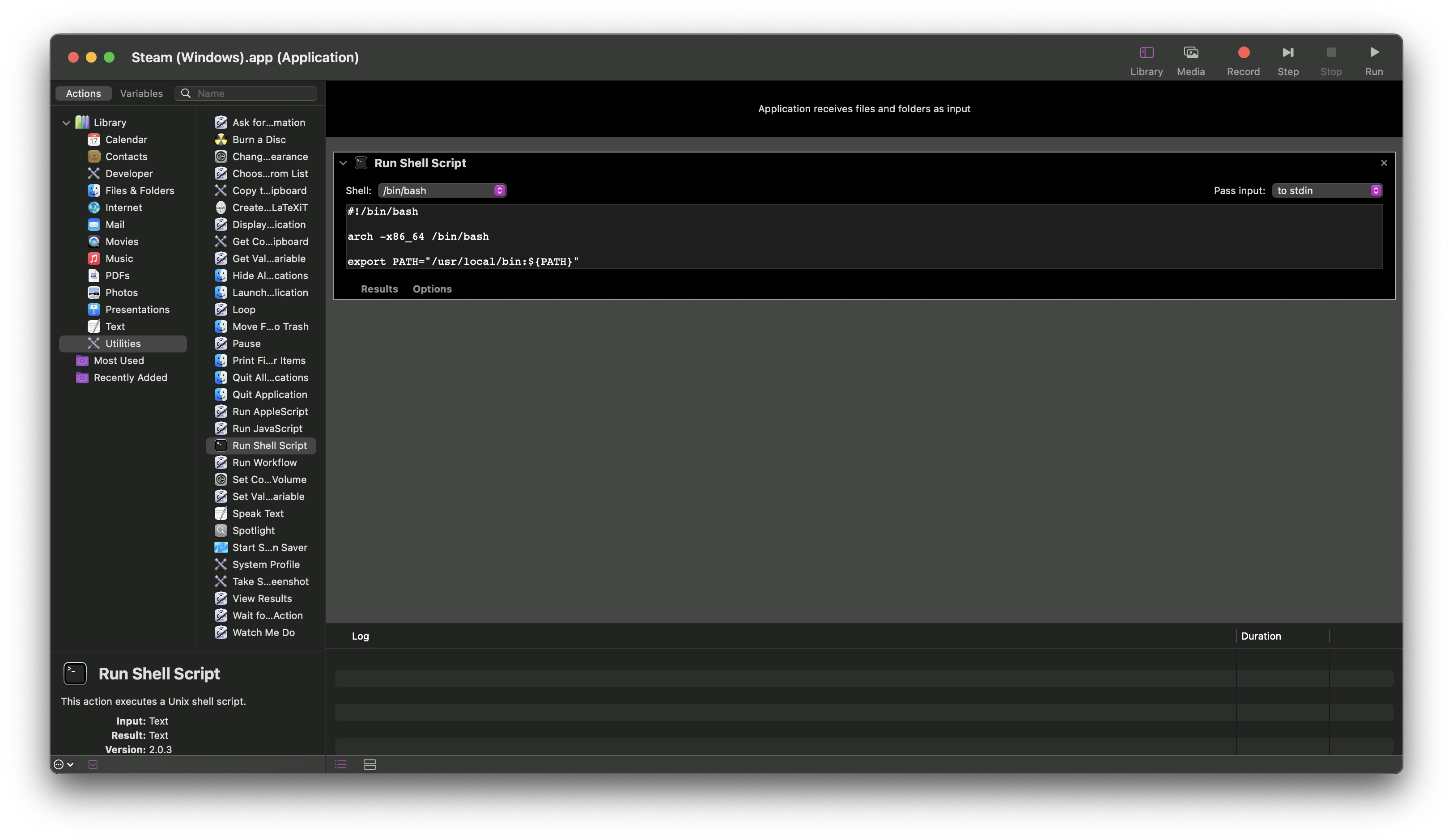
Open Automator
Select Application and click Choose
In the sidebar on the left, click Utilities, then double-click Run Shell Script
Select
/bin/bashas the shell and pass input to stdin, then paste the following in the textbox:1 2 3 4 5 6 7 8 9 10 11 12 13
#!/bin/bash arch -x86_64 /bin/bash export PATH="/usr/local/bin:${PATH}" export D3DM_SUPPORT_DXR=1 export ROSETTA_ADVERTISE_AVX=1 export WINEDLLOVERRIDES="dinput8=n,b;d3d11,d3d10,d3d12,dxgi=b" export WINEESYNC=1 export WINEDEBUG=-all export WINEPREFIX="$HOME/Games" wine "C:\Program Files (x86)\Steam\steam.exe" > /dev/null 2>&1 &
Once you save this automated application (file format Application, I have it saved as
Steam (Windows), though you can name it anything), you’ll want to set a custom icon to make it discernableCopy (i.e. right-click, then press Copy Image) the image you want to use as your icon (preferably
.icnsfile format)This is the app icon5 I use for Steam (Windows); you’ll need to convert it to Apple’s
.icnsfile format
Find the application you saved earlier, right-click it, then click Get Info
Click the default icon at the top (it’ll be outlined when you do), right above the Add Tags… textbox
Press ⌘ + V (i.e. CMD + V) to paste the image you just copied, and you’ll see the icon update accordingly
You can now run the Windows version of Steam anytime you click the app icon! This is much more user-friendly than running commands in the terminal each time.
Method 2: AppleScript
Taken from David Baumgold’s tutorial on installing Wine on Mac. I haven’t used this tutorial myself (I prefer my Bash scripts and Automator application), but I’m including this in case it’s helpful to anyone else.
Open Script Editor (in the
/Applications/Utilitiesdirectory)Enter the following in the window
1 2 3
tell application "Terminal" do script "WINEPREFIX=~/Games wine $PATH_TO_PROGRAM.exe" end tellReplace
$PATH_TO_PROGRAMwith the path from the Program Files directory to your program executable, and modify$WINEPREFIXas neededPress Compile button at the top of the window; if you want to run your script, press the Run button
Select File Format: Application in the save options, and leave Startup Screen unchecked to save your script
Open up the Finder, go to where you saved your script, and drag that file to your Dock
Method 3: Shortcuts
// TODO
Method 4: App Bundle
TODO: How to make custom Wine as app bundle so that I can set game mode. (since game-mode cmd is currently broken so I can’t set it that way.) this is bc macbook pro automatically enables game mode if it detects a game running. i think it determines it from plist in app bundle or sumn related. since i’m running via wine, i have to make one from scratch so mac recognizes it as a game and auto enables game mode for me. use bookmarked tut.
Folder shortcut
Continue reading if you want easy, quick, and convenient access to both your Mac AND Windows versions of Steam

Change directory to
Applications1
cd /ApplicationsCreate a new folder in
ApplicationstitledSteam, either manually (right-click, press New Folder, then enterSteamas its name) or via terminal1
mkdir -p Steam
Move
Steam.appandSteam (Windows).app(or whatever you named it in Method 1 Automator section) into your newSteamfolder (assuming you have both.apps in your/Applicationsdirectory), either manually (drag each.appintoSteamfolder) OR via terminal1
mv -i Steam.app Steam && mv -i "Steam (Windows).app" Steam
Find and download a folder icon you like (preferably
.icnsfile format)This is the folder icon I use

Once downloaded, select the folder icon and copy it, either with ⌘ + C (i.e. CMD + C), or you can manually right-click the icon and click Copy
Back in
/Applications, right-clickSteamfolder and click Get Info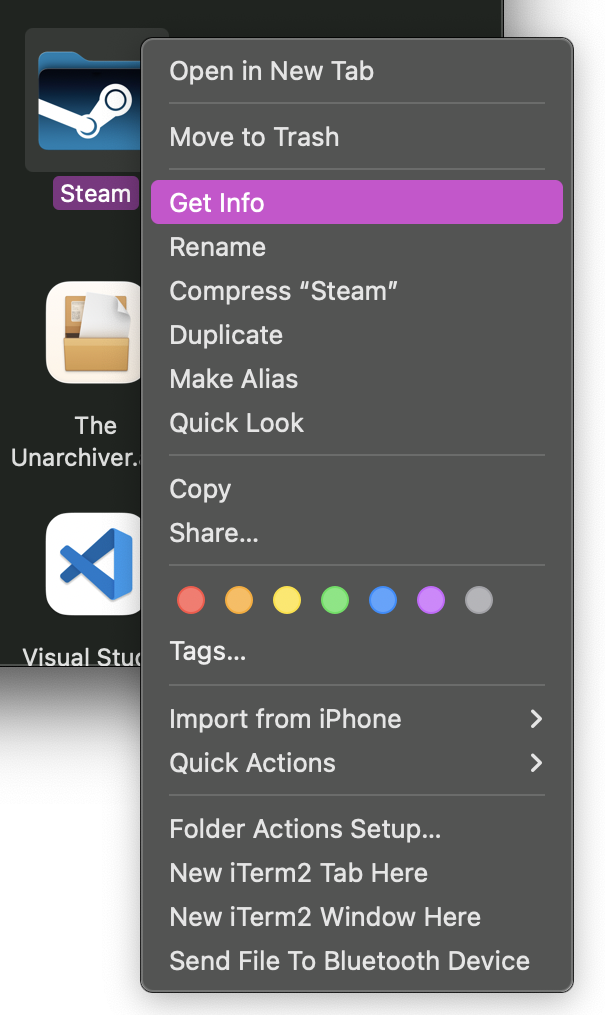
Click on the icon in the upper-left corner (it should be outlined in your system’s accent color; in my case it’s purple)
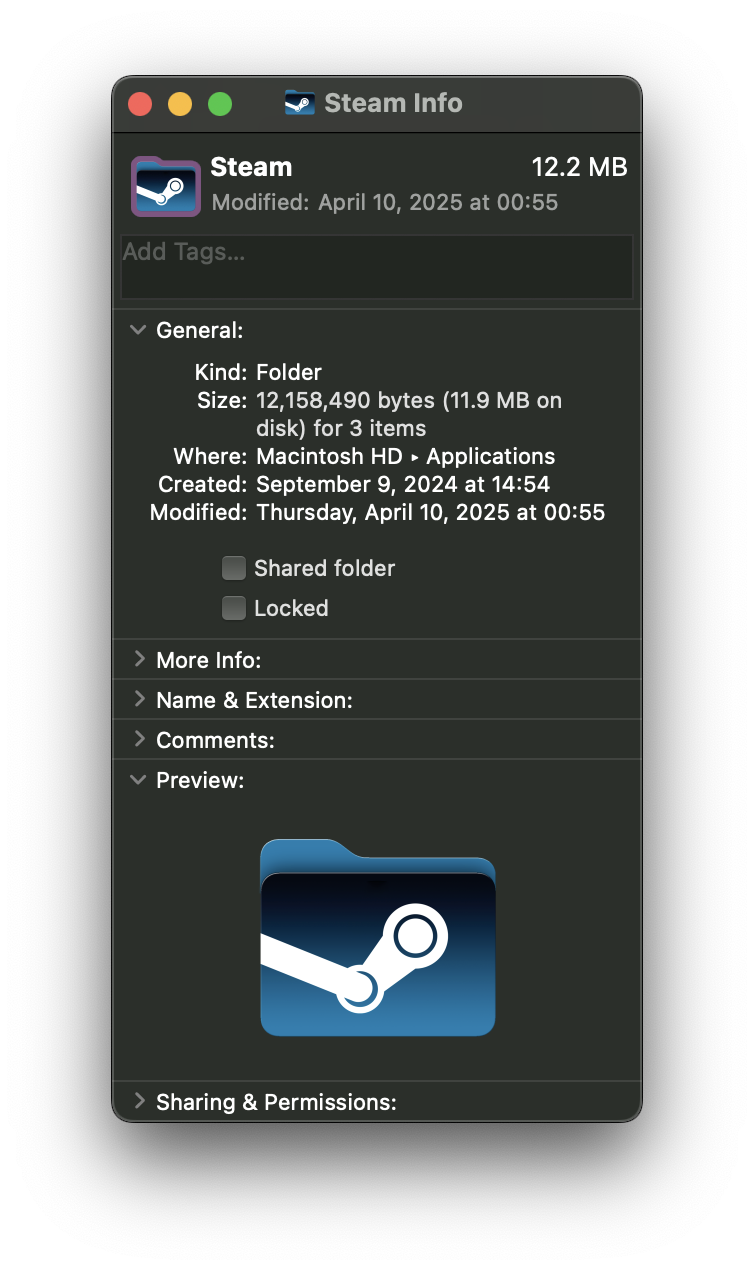
Paste the folder icon with ⌘ + V (i.e. CMD + V) to update
Steamfolder’s icon accordinglyNow that you have a custom
Steamfolder with both Mac and Windows versions of Steam (i.e.Steam.appandSteam (Windows).app), drag the folder into the dockTo adjust the appearance, right-click the
Steamfolder icon in the dock (that you just dragged)Make the following selections
- Under Display as, select Folder
- Under View content as, select Grid
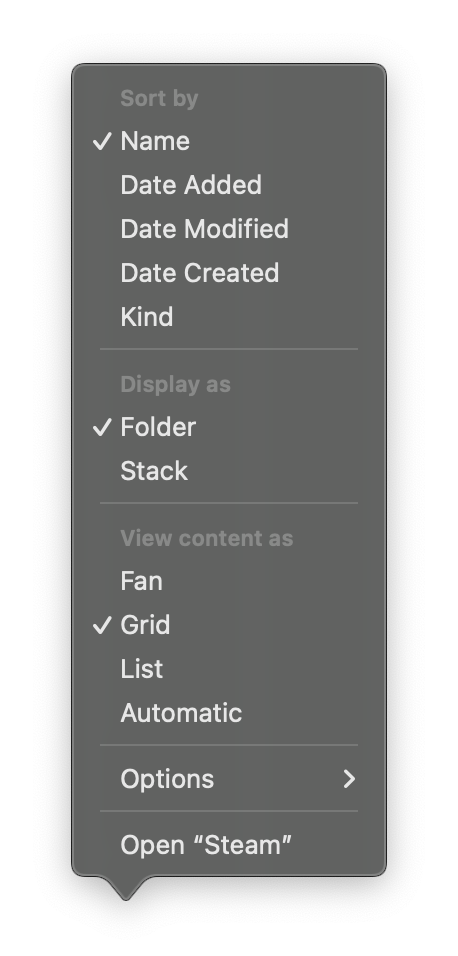
You now have a convenient way to access both versions of Steam via your dock! If you open the Steam folder and click on either of the .apps, it should launch as expected
Steam (Windows).apptakes longer to launch than the native Steam app due to the additional processes it has to run in the background
Set game mode
THIS NO LONGER WORKS WITH macOS 16!
See “Symbol not found” when setting game mode for more details.
This requires XCode, which is one of the Requirements (you should already have it by now).
1
/Applications/Xcode.app/Contents/Developer/usr/bin/gamepolicyctl game-mode set on
1
/Applications/Xcode.app/Contents/Developer/usr/bin/gamepolicyctl game-mode set off
1
/Applications/Xcode.app/Contents/Developer/usr/bin/gamepolicyctl game-mode set auto
Adjust game controller
Make sure your game controller is compatible with macOS. While Xbox and PlayStation are the most popular game controllers, I think other Bluetooth game controllers are compatible too (so you’re not limited to those two).6
Here’s a list of currently supported Xbox7 and PlayStation8 controllers as of this writing:
- Xbox Wireless Controller with Bluetooth (Model 1708)
- Xbox Wireless Controller Series S
- Xbox Wireless Controller Series X
- Xbox Elite Wireless Controller Series 2
- Xbox Adaptive Controller
- PlayStation DualShock 4 Wireless Controller
- PlayStation 5 DualSense Wireless Controller
- PlayStation 5 DualSense Edge Wireless Controller
I recommend disabling the “Home” button to prevent it from opening Launchpad; this can be useful when using Steam’s Big Picture mode
1
defaults write com.apple.GameController bluetoothPrefsMenuLongPressAction -integer 0I also recommend disabling the “Share” button
1
defaults write com.apple.GameController bluetoothPrefsShareLongPressSystemGestureMode -integer -1
Restart the Dock process to apply changes
1
killall Dock
Alternatively, you can logout and log back in again (though this is likely more time-consuming than executing the aforementioned command)
Update MoltenVK
MoltenVK is a layered implementation of Vulkan graphics and compute functionality, built on Apple’s Metal graphics and compute framework. This allows Vulkan applications to run on top of Metal on Apple’s macOS, iOS, and tvOS operating systems.
Refer to MoltenVK’s
README.mdfor steps on how to install MoltenVK from source
Method 1: Wine
Open terminal and set variables. E.g. for DXMT Wine 10.18:
1 2
WINE_LIB="$HOME/Wine/dxmt/10.18/lib" MVK_DYLIB="$HOME/Downloads/MoltenVK/MoltenVK/dylib/macOS/libMoltenVK.dylib"
Backup original copy by renaming
libMoltenVK.dylibin Wine build’s lib tolibMoltenVK_orig.dylib1
mv -i "$WINE_LIB/libMoltenVK.dylib" "$WINE_LIB/libMoltenVK_orig.dylib"
Move new MoltenVK dylib into Wine build’s lib
1
mv -i "$MVK_DYLIB" "$WINE_LIB"
Execute this command to avoid running into issues when trying to use
winecommand1
xattr -dr com.apple.quarantine "$WINEPATH"
Method 2: CrossOver
Assuming you already have CrossOver, it is possible to add its support for Windows Vulkan games (atop MoltenVK) to GPTk9. I also used this method to update MoltenVK for DXVK Wine build.
$(brew --prefix game-porting-toolkit)is equivalent to/usr/local/opt/game-porting-toolkit, which redirects to/usr/local/Cellar/game-porting-toolkit/1.1
Copy
x86_64-windows/vulkan-1.dllto GPTk1
cp -i /Applications/CrossOver.app/Contents/SharedSupport/CrossOver/lib/wine/x86_64-windows/vulkan-1.dll $(brew --prefix game-porting-toolkit)/lib/wine/x86_64-windows
Copy
i386-windows/vulkan-1.dllto GPTk for 32-bit support (OPTIONAL)1
cp -i /Applications/CrossOver.app/Contents/SharedSupport/CrossOver/lib/wine/i386-windows/vulkan-1.dll $(brew --prefix game-porting-toolkit)/lib/wine/i386-windows
Copy
libMoltenVK.dylibto GPTk1
cp -i /Applications/CrossOver.app/Contents/SharedSupport/CrossOver/lib64/libMoltenVK.dylib $(brew --prefix game-porting-toolkit)/lib/external
Set these environment variables
1 2 3
CX_APPLEGPTK_LIBD3DSHARED_PATH="$(brew --prefix game-porting-toolkit)/lib/external/libd3dshared.dylib" WINEDLLPATH_PREPEND="$(brew --prefix game-porting-toolkit)/lib/wine" WINEDLLOVERRIDES="dxgi,d3d9,d3d10core,d3d11=b;mf,mfplat,mfreadwrite=n"
It should be possible to source these files from other sources of Wine-Crossover, such as those provided by the Heroic Games Launcher (assuming you have not already modified it as described in the previous section. If you have, you should be able to download another version from Heroic.)
d3dcompiler_47is for DX12d3dcompiler_43is for DX11
Scripts
Bash Functions for Gaming
Save this script (i.e. gaming_funcs.sh), then add to your shell startup file. You can also find this script in my GitHub configs repo, as this version may or may not be outdated.
E.g. Here’s how I include it in my
.bashrcfile:
1
2
3
4
5
6
7
8
9
10
11
12
13
14
15
16
17
18
19
20
21
22
23
24
25
26
27
28
29
30
31
32
33
34
35
36
37
38
39
40
41
42
43
44
45
46
47
48
49
50
51
52
53
54
55
56
57
58
59
60
61
62
63
64
65
66
67
68
69
70
71
72
73
74
75
76
77
78
79
80
81
82
83
84
85
86
87
88
89
90
91
92
93
94
95
96
97
98
99
100
101
102
103
104
105
106
107
108
109
110
111
112
113
114
115
116
117
118
119
120
121
122
123
124
125
126
127
128
129
130
131
132
133
134
135
136
137
138
139
140
141
142
143
144
145
146
147
148
149
150
151
152
153
154
155
156
157
158
159
160
161
162
163
164
165
166
167
168
169
170
171
172
173
174
175
176
177
178
179
180
181
182
183
184
185
186
187
188
189
190
191
192
193
194
195
196
197
198
199
200
201
202
203
204
205
206
207
208
209
210
211
212
213
214
215
216
217
218
219
220
221
222
223
224
225
226
227
228
229
230
231
232
233
234
235
236
237
238
239
240
241
242
243
244
245
246
247
248
249
250
251
252
253
254
255
256
257
258
259
260
261
262
263
264
265
266
267
268
269
270
271
272
273
274
275
276
277
278
279
280
281
282
283
284
285
286
287
288
289
290
291
292
293
294
295
296
297
298
299
300
301
302
303
304
305
306
307
308
309
310
311
312
313
314
315
316
317
318
319
320
321
322
323
324
325
326
327
328
329
330
331
332
333
334
335
336
337
338
339
340
341
342
343
344
345
346
347
348
349
350
351
352
353
354
355
356
357
358
359
360
361
362
363
364
365
366
367
368
369
370
371
372
373
374
375
376
377
378
379
380
381
382
383
384
385
386
387
388
389
390
391
392
393
394
395
396
397
398
399
400
401
402
403
404
405
406
407
408
409
410
411
412
413
414
415
416
417
418
419
420
421
422
423
424
425
426
427
428
429
430
431
432
433
434
435
436
437
438
439
440
441
442
443
444
445
446
447
448
449
450
451
452
453
454
455
456
457
458
459
460
461
462
463
464
465
466
467
468
469
470
471
472
473
474
475
476
477
478
479
480
481
482
483
484
485
486
487
488
489
490
491
492
493
494
495
496
497
498
499
500
501
502
503
504
505
506
507
508
509
510
511
512
513
514
515
516
517
518
519
520
521
522
523
524
525
526
527
528
529
530
531
532
533
534
535
536
537
538
539
540
541
542
543
544
545
546
547
548
549
550
551
552
553
554
555
556
557
558
559
560
561
562
563
564
565
566
567
568
569
570
571
572
573
574
575
576
577
578
579
580
581
582
583
584
585
586
587
588
589
590
591
592
593
594
595
596
597
598
599
600
601
602
603
604
605
606
607
608
609
610
611
612
613
614
615
616
617
618
619
620
621
622
623
624
625
626
627
628
629
630
631
632
633
634
635
636
637
638
639
640
641
642
643
644
645
646
647
648
649
650
651
652
653
654
655
656
657
658
659
660
661
662
663
664
665
666
667
668
669
670
671
672
673
674
675
676
677
678
679
680
681
682
683
684
685
686
687
688
689
690
691
692
693
694
695
696
697
698
699
700
701
702
703
704
705
706
707
708
709
710
711
712
713
714
715
716
717
718
719
720
721
722
723
724
725
726
727
728
729
730
731
732
733
734
735
736
737
738
739
740
741
742
743
744
745
746
747
748
749
750
751
752
753
754
755
756
757
758
759
760
761
762
763
764
765
766
767
768
769
770
771
772
773
774
775
776
777
778
779
780
781
782
783
784
785
786
787
788
789
790
791
792
793
794
795
796
797
798
799
800
801
802
803
804
805
806
807
808
809
810
811
812
813
814
815
816
817
818
819
820
821
822
823
824
825
826
827
828
829
830
831
832
833
834
835
836
837
838
839
840
841
842
843
844
845
846
847
848
849
850
851
852
853
854
855
856
857
858
859
860
861
862
#!/usr/bin/env bash
############################################################################
# gaming_funcs.sh #
# #
# Bash functions for playing Windows games on Mac #
# ------------------------------------------------------------------------ #
# Setup: #
# 1. Switch architecture #
# `arch -x86_64 /bin/bash` #
# 2. Set up Wine environment #
# `set-wine <variant>` #
# #
# Usage: #
# * Download Windows Steam game to Wine prefix via SteamCMD #
# `dlg <WINEPREFIX_NAME> <APP_ID>` #
# * Move Windows Steam game between Wine prefixes #
# `mvdlg <APP_ID> <SOURCE_WINEPREFIX_NAME> <TARGET_WINEPREFIX_NAME>` #
# * Install Windows Steam into specific Wine prefix #
# `instm <WINEPREFIX_NAME>` #
# * Quit/stop a specific Wine prefix #
# `endwine <WINEPREFIX_NAME>` #
# * Run Wine with multiple arguments #
# `wine <program> [args...]` #
# * Launch Windows version of Steam #
# `steam` #
# * Set retina mode for Windows gaming via Wine (Options: on, off) #
# `retina <OPTION>` #
# * Set macOS Game Mode (Options: on, off, auto) #
# `game-mode <OPTION>` #
# * Clear Oblivion Remastered shader cache (used for debugging) #
# `clear-cache` #
# * Enable font smoothing (i.e. anti-aliasing) #
# `anti-alias` #
# * Configure settings for Far Cry 3, then launch Steam #
# `fc3` #
# #
# Examples: #
# ``` #
# arch -x86_64 /bin/bash #
# set-wine gptk #
# instm GPTk #
# dlg GPTk 3164500 #
# wine winecfg #
# retina on #
# game-mode on #
# mvdlg 3164500 GPTk DXMT #
# set-wine dxmt #
# steam #
# endwine DXMT #
# ``` #
# ------------------------------------------------------------------------ #
# https://gist.github.com/lynkos #
############################################################################
############################### CONSTANTS ##################################
# Print debug messages to console and stderr
ENABLE_DEBUG=1
# Base directories
readonly WINE_DIR="$HOME/Wine"
readonly BOTTLES_DIR="$HOME/Bottles"
# Uncomment for logging
# readonly LOG_DIR="$HOME/Logs"
# Resolution
readonly WIDTH=3024 # pixels (px)
readonly FORMULA_WIDTH=1512 # pixels (px)
readonly FORMULA_DPI=96 # 96dpi = 100% scaling in Windows
readonly DPI=$(printf '%.0f' $(bc -l <<< "scale=2; $FORMULA_DPI * $WIDTH / $FORMULA_WIDTH")) # 192 = ($FORMULA_DPI * $WIDTH / $FORMULA_WIDTH)
# Previous DPI: 216dpi
#
# Previous formula:
# readonly DIAGONAL=14.2 # inches (in)
# readonly HEIGHT=1964 # pixels (px)
# $(echo "scale=0; dpi = sqrt($WIDTH^2 + $HEIGHT^2) / $DIAGONAL; dpi / 1" | bc -l)
#
# Manually calc DPI: https://dpi.lv
# Steam
readonly STEAM_USER="anonymous"
readonly STEAMCMD_DIR="$HOME/SteamCMD"
readonly STEAMAPPS_DIR="drive_c/Program Files (x86)/Steam/steamapps"
readonly STEAMAPPS_DIR_WIN="C:\\Program Files (x86)\\Steam\\steamapps" # Double backslash since this var will only be used for printing (e.g. echo "$STEAMAPPS_DIR_WIN\\common")
# Print options
# FIXME: Rewrite to avoid `cd` error
readonly BOTTLES="$(init_dir=$(pwd) && cd $BOTTLES_DIR && /bin/ls --color=always -1d */ | sed 's|/||' | tr '\n' ',' | sed 's/,$//' | sed 's/,/, /g' && cd $init_dir)"
readonly VARIANTS="$(init_dir=$(pwd) && cd $WINE_DIR && /bin/ls --color=always -1d */ | sed 's|/||' | tr '\n' ',' | sed 's/,$//' | sed 's/,/, /g' && cd $init_dir)"
############################## WINE FUNCTIONS ##############################
# Set up Wine environment for a specific variant
# Execute alias `x86` (i.e. `arch -x86_64 /bin/bash`) beforehand
#
# set-wine <variant>
# E.g. `set-wine gptk`
set-wine() {
local variant="$1"
# Verify Wine variant
if [[ -z "$variant" ]]; then
_info "Usage: set-wine <variant>" >&2
_info "Available variants: $VARIANTS" >&2
return 1
fi
# Clear prev set, shared Wine env vars for clean transitions when switching between variants
# No sense in clearing env vars used by only ONE (1) Wine variant (aka are unique to a single variant), since there wouldn't be any conflicting configs/settings to worry about
unset MTL_HUD_ENABLED WINEESYNC WINEMSYNC WINEDLLOVERRIDES WINE_LARGE_ADDRESS_AWARE MVK_CONFIG_RESUME_LOST_DEVICE # WINECPUMASK
# TODO: End all currently running instances of Wine
# Env vars shared across all Wine variants
export ROSETTA_ADVERTISE_AVX=1
export WINEARCH=win64 # 64-bit Wine architecture
export WINEDEBUG=-all # Disable Wine debugging/logging # "+heap,+timestamp,+module,+pid,+relay,+snoop,+fps,+debugstr,+threadname,+seh,+memory,+d3dm"
# MoltenVK env vars; used by all Wine variants (since they're built with MoltenVK support)
# https://github.com/KhronosGroup/MoltenVK/blob/main/Docs/MoltenVK_Configuration_Parameters.md
export MVK_CONFIG_TRACE_VULKAN_CALLS=0 # No Vulkan call logging
export MVK_CONFIG_DEBUG=0 # Disable debugging
export MVK_CONFIG_LOG_LEVEL=0 # No logging
# Wine variant-specific configs
case "$variant" in
# Game Porting Toolkit
"gptk")
local winename="Game Porting Toolkit"
local variant_version="2.1"
local winepath="$WINE_DIR/gptk/2_1"
local wine_executable="wine64"
local wine_preloader="wine64-preloader"
local wineprefix="$BOTTLES_DIR/GPTk"
export MTL_HUD_ENABLED=1
export D3DM_SUPPORT_DXR=1
export D3DM_ENABLE_METALFX=0 # If `D3DM_ENABLE_METALFX=1`, set `WINEESYNC=0`
export WINEESYNC=1 # `0` if `D3DM_ENABLE_METALFX=1` else `1`
export WINEDLLOVERRIDES="dinput8=n,b;d3d12,d3d11,d3d10,dxgi=b" # "winemenubuilder.exe=d"
;;
# DirectX-Metal
"dxmt")
local winename="DirectX-Metal"
local variant_version="v0.70"
local winepath="$WINE_DIR/dxmt/10.18"
local wine_executable="wine"
local wine_preloader="wine"
local wineprefix="$BOTTLES_DIR/DXMT"
export MTL_HUD_ENABLED=1
export DXMT_METALFX_SPATIAL_SWAPCHAIN=0
export DXMT_CONFIG_FILE="$WINE_DIR/dxmt/dxmt.conf"
#export DXMT_CONFIG="d3d11.preferredMaxFrameRate=60;d3d11.metalSpatialUpscaleFactor=2.0;" # Alternative to DXMT_CONFIG_FILE
export DXMT_LOG_LEVEL=none
export DXMT_LOG_PATH=none # "$winepath/logs"
export DXMT_ENABLE_NVEXT=0
#export MTL_SHADER_VALIDATION=0
#export MTL_DEBUG_LAYER=0
#export MTL_CAPTURE_ENABLED=0
export WINEMSYNC=0
export WINEDLLOVERRIDES="dinput8=n,b;d3d11,d3d10core,dxgi=b" # winemenubuilder.exe=d
;;
# DirectX-Vulkan
"dxvk")
local winename="DirectX-Vulkan"
local variant_version="v1.10.3-20230507-repack"
local winepath="$WINE_DIR/dxvk/10.14"
local wine_executable="wine"
local wine_preloader="wine"
local wineprefix="$BOTTLES_DIR/DXVK"
export DXVK_HUD=full
export DXVK_ASYNC=1
export DXVK_STATE_CACHE=1
export DXVK_CONFIG_FILE="$WINE_DIR/dxvk/dxvk.conf"
export DXVK_LOG_LEVEL=none
export DXVK_LOG_PATH=none
export MVK_CONFIG_RESUME_LOST_DEVICE=1
export WINE_LARGE_ADDRESS_AWARE=1
export WINEDLLOVERRIDES="d3d11,d3d10core,dinput8=n,b" # "d3d11,d3d10core,d3d9,dxgi,dinput8=n,b"
;;
# CrossOver
"crossover")
local winename="CrossOver"
local variant_version="v23.7.1"
local winepath="$WINE_DIR/crossover/23.7.1"
local wine_executable="wine64" # "wine"
local wine_preloader="wine64-preloader" # "wine-preloader"
local wineprefix="$BOTTLES_DIR/CrossOver"
export MTL_HUD_ENABLED=1
export WINEESYNC=1
# export WINEDLLOVERRIDES="dinput8=n,b;d3d12,d3d11,d3d10,dxgi=b"
;;
*)
_err "Unknown variant '$variant'" >&2
echo "Valid variants: $VARIANTS" >&2
return 1
;;
esac
# Set up Wine env paths and executables
export PATH="$winepath/bin:$PATH"
export WINELOADER="$winepath/bin/$wine_preloader"
export WINEDLLPATH="$winepath/lib/wine"
export WINESERVER="$winepath/bin/wineserver"
export LD_LIBRARY_PATH="$winepath/lib:$LD_LIBRARY_PATH"
export DYLD_FALLBACK_LIBRARY_PATH="/usr/lib:$DYLD_FALLBACK_LIBRARY_PATH"
export WINE="$winepath/bin/$wine_executable"
export WINEPREFIX="$wineprefix"
export WINE_VERSION="$(_wine_version)"
export VARIANT_ID="$variant"
export VARIANT_NAME="$winename"
export VARIANT_VERSION="$variant_version"
_info "$winename translation environment successfully set!" >&2
echo -e "\nUsage:" >&2
echo -e " wine <program> [args...]\n" >&2
_wine_info
}
# Download Windows game to Steam for specific WINEPREFIX via SteamCMD
#
# dlg <WINEPREFIX_NAME> <APP_ID>
#
# E.g. `dlg DXMT 3164500`
dlg() {
if [[ $# -eq 2 ]]; then
# Get current path for later use
local initdir="$(pwd)"
# Assign user input to variable for better readability
local app_id="$2"
_dbug "Given app ID: '$app_id'"
# Path of given WINEPREFIX
local wineprefix="$BOTTLES_DIR/$1"
_dbug "Given Wine prefix: '$wineprefix'"
# Create temp directory to store download
local temp="$wineprefix/$STEAMAPPS_DIR/temp/$app_id"
mkdir -p "$temp"
_dbug "Temporarily storing download in '$STEAMAPPS_DIR_WIN\\temp\\$app_id'"
# Cleanup logic in case something goes wrong
trap "_err 'Something went wrong. Exiting...'; cd '$initdir'; return 1;" EXIT ERR
# Enter SteamCMD directory
cd "$STEAMCMD_DIR"
# Download game
./steamcmd.sh +@sSteamCmdForcePlatformType windows +force_install_dir "$temp" +login "$STEAM_USER" +app_update "$app_id" validate +quit
# Get appmanifest path
local app_manifest="$temp/steamapps/appmanifest_$app_id.acf"
_dbug "Appmanifest: '$app_manifest'"
# Get directory installation name from appmanifest
local dirname="$(sed -n 's/^[[:space:]]*"installdir"[[:space:]]*"\([^"]*\)".*/\1/p' "$app_manifest")"
_dbug "Directory name of downloaded game is: $dirname"
# Get game size from appmanifest (i.e. value for app ID key)
local size_on_disk="$(sed -n 's/^[[:space:]]*"SizeOnDisk"[[:space:]]*"\([^"]*\)".*/\1/p' "$app_manifest")"
_dbug "Disk size of $dirname is: $size_on_disk"
# TODO: If directory already exists, overwrite (or delete) it, else it'll exit; same with the upcoming directories
# Move and rename downloaded directory into common
mv "$temp" "$wineprefix/$STEAMAPPS_DIR/common/$dirname"
_dbug "Moved and renamed game from '$STEAMAPPS_DIR_WIN\\temp\\$app_id' to '$STEAMAPPS_DIR_WIN\\common\\$dirname'"
# Go to appmanifest(s) (i.e. .acf file(s))
cd "$wineprefix/$STEAMAPPS_DIR/common/$dirname/steamapps"
# Move appmanifest(s) into parent steamapps so Steam recognizes game is installed
mv *.acf ../../../
_dbug "Moved downloaded appmanifest(s) from '$STEAMAPPS_DIR_WIN\\common\\$dirname\\steamapps' to '$STEAMAPPS_DIR_WIN'"
# TODO: Delete child steamapps IFF empty or only contains empty dirs
# Go into parent steamapps
cd ../../../
# Register game in libraryfolders.vdf
_update_library_vdf "$app_id" "$size_on_disk"
_dbug "Registered game in '$STEAMAPPS_DIR_WIN\\libraryfolders.vdf'"
# Go back to initial directory
cd "$initdir"
# Reset (i.e. re-enable default processing of) signal
trap - EXIT ERR
else
_err "Invalid number of args. Must include:"
echo " * Name of WINEPREFIX (i.e. $BOTTLES)" >&2
printf ' * Steam App ID of game (find at \e]8;;https://steamdb.info\e\\SteamDB.info\e]8;;\e\\)\n' >&2
fi
}
# Move Steam game from one Wine prefix (e.g. DXMT, DXVK, GPTk, CrossOver, etc.) to another
#
# mvdlg <APP_ID> <SOURCE_WINEPREFIX_NAME> <TARGET_WINEPREFIX_NAME>
# E.g. `mvdlg 2623190 DXMT GPTk`
#
# TODO: Update `libraryfolders.vdf` (in BOTH bottles) after moving game
mvdlg() {
if [[ $# -ne 3 ]]; then
_err "Invalid number of args. Must include:"
printf ' * Steam App ID of game (find at \e]8;;https://steamdb.info\e\\SteamDB.info\e]8;;\e\\)\n' >&2
echo " * Name of source WINEPREFIX to move downloaded game from (i.e. $BOTTLES)" >&2
echo " * Name of target WINEPREFIX to move downloaded game to (i.e. $BOTTLES)" >&2
return 1
fi
# Source WINEPREFIX path
local source="$BOTTLES_DIR/$2"
# Confirm source WINEPREFIX exists
if [[ ! -d "$source" ]]; then
_err "Source WINEPREFIX does not exist: '$source'"
return 1
fi
_dbug "Source WINEPREFIX: '$source'"
# Target WINEPREFIX path
local target="$BOTTLES_DIR/$3"
# Confirm target WINEPREFIX exists
if [[ ! -d "$target" ]]; then
_err "Target WINEPREFIX does not exist: '$target'"
return 1
fi
_dbug "Target WINEPREFIX: '$target'"
# Given Steam game's app ID
local app_id="$1"
_dbug "Steam App ID: $app_id"
# Path to source appmanifest
local manifest="$source/$STEAMAPPS_DIR/appmanifest_$app_id.acf"
# Confirm source appmanifest exists
if [[ ! -f "$manifest" ]]; then
_err "Source appmanifest not found: '$manifest'"
return 1
fi
_dbug "Source appmanifest: '$manifest'"
# Get directory installation name from appmanifest
local dirname="$(sed -n 's/^[[:space:]]*"installdir"[[:space:]]*"\([^"]*\)".*/\1/p' "$manifest")"
# Confirm directory installation name exists
if [[ -z "$dirname" ]]; then
_err "Failed to extract install directory '$dirname' from '$manifest'"
return 1
fi
_dbug "Steam game: $dirname"
# Path to the game directory in source
local source_dir="$source/$STEAMAPPS_DIR/common/$dirname"
# Confirm game directory exists in source
if [[ ! -d "$source_dir" ]]; then
_err "Game directory not found: '$source_dir'"
return 1
fi
# Path to the target game directory
local target_dir="$target/$STEAMAPPS_DIR/common/$dirname"
# Ensure target common directory exists
mkdir -p "$target/$STEAMAPPS_DIR/common"
# Move game directory from source to target
if ! mv "$source_dir" "$target_dir"; then
_err "Failed to move game in '$STEAMAPPS_DIR_WIN\\common\\$dirname' from '$source' to '$target'"
return 1
fi
_dbug "Moved game in '$STEAMAPPS_DIR_WIN\\common\\$dirname' from '$source' to '$target'"
# Target appmanifest location
local target_manifest="$target/$STEAMAPPS_DIR/appmanifest_$app_id.acf"
# Move app manifest from source to target
if ! mv "$manifest" "$target_manifest"; then
_err "Failed to move appmanifest from '$manifest' to '$target_manifest'"
_err "For Steam to recognize the game, you will need to [manually] move it yourself"
return 1
fi
_dbug "Moved 'appmanifest_$app_id.acf' in '$STEAMAPPS_DIR_WIN' from '$source' to '$target'"
_info "Moved '$dirname' (App ID '$app_id') from '$source' to '$target'"
return 0
}
# Install Steam for specific Wine prefix
# instm <WINEPREFIX_NAME>
#
# E.g. `instm DXVK`
instm() {
if [[ $# -eq 1 ]]; then
# Create temporary file for downloaded Windows Steam installer
local temp_file="$(mktemp -t SteamSetup)"
# Cleanup logic in case there's an issue
trap "_err 'Something went wrong; performing cleanup...'; rm -rf $temp_file; trap - EXIT ERR; _info 'Cleanup complete. Exiting...'" EXIT ERR
# Download SteamSetup.exe (i.e. Windows Steam installer)
if ! curl -o "$temp_file" https://cdn.fastly.steamstatic.com/client/installer/SteamSetup.exe; then
_err "Failed to download Steam installer"
# Reset (i.e. re-enable default processing of) signal(s) before exiting
trap - EXIT ERR
return 1
fi
_dbug "Downloaded Steam installer to '$temp_file'"
# Install Windows Steam for WINEPREFIX
WINEPREFIX="$BOTTLES_DIR/$1" "$WINE" "$temp_file"
_info "Installed Steam in $BOTTLES_DIR/$1"
# Delete temporary Windows Steam installer
rm -f "$temp_file"
_dbug "Deleted temporary Windows Steam installer in '$temp_file'"
# Reset (i.e. re-enable default processing of) signal(s)
trap - EXIT ERR
else
_err "Invalid number of args. Specify name of ONE (1) bottle to install Steam into."
_info "Valid bottles: $BOTTLES"
fi
}
# Quit/stop a specific Wine prefix (e.g. DXMT, DXVK, GPTk, etc.)
#
# endwine <WINEPREFIX_NAME>
# E.g. `endwine DXMT`
endwine() {
if [[ $# -eq 0 ]]; then
# Use killwine if WINEPREFIX isn't set
if [[ -z "$WINEPREFIX" ]]; then
_info "WINEPREFIX not set; killing all Wine processes instead..."
killall -9 wineserver && killall -9 wine64-preloader && killall -9 wine
return $?
else
WINEPREFIX="$WINEPREFIX" wineserver -kw
fi
elif [[ $# -eq 1 ]]; then
WINEPREFIX="$BOTTLES_DIR/$1" wineserver -kw
else
_err "Invalid number of args. Specify name of ONE (1) bottle to kill."
_info "Valid bottles: $BOTTLES"
return 1
fi
_info "Successfully closed bottle!"
return 0
}
# Run Wine with multiple arguments using Wine env set up with `set-wine`
# Execute alias `x86` (i.e. `arch -x86_64 /bin/bash`) beforehand
#
# I.e.: `x86` --> `set-wine <variant>` --> `wine <program> [args...]`
wine() {
# Print short message if no program or arg is given (i.e. running `wine`)
if [[ $# -eq 0 ]]; then
echo "Usage: wine <program> [args...] Run the specified program" >&2
echo " wine --help Display help message and exit" >&2
echo " wine --version Output version information and exit" >&2
return 1
fi
# Print help message
if [[ "$1" == "--help" ]]; then
cat << 'EOF'
Run `arch -x86_64 /bin/bash` beforehand to ensure compatibility with x86_64 architecture
set-wine <variant> Set up Wine environment <gptk|dxmt|dxvk|crossover>
wine <program> [args...] Run Windows program in Wine environment configured with `set-wine`
endwine [bottle] Stop Wine server for bottle (defaults to $WINEPREFIX)
STEAM GAMING:
dlg <bottle> <app_id> Save Steam game via SteamCMD to specified bottle
mvdlg <app_id> <src> <dst> Move Steam game between bottles
instm <bottle> Install Windows Steam into specified bottle
steam Launch Windows Steam client
DISPLAY AND PERFORMANCE:
retina <on|off> Set retina mode for Windows gaming via Wine
game-mode <on|off|auto> Set macOS game mode
clear-cache Clear game shader caches
EXAMPLES:
x86 # Switch to x86_64 architecture
wine --help # Print help message
set-wine dxmt # Configure DirectX-Metal environment
dlg DXMT 3164500 # Download game ID 3164500 into DXMT bottle
mvdlg 2623190 DXMT GPTk # Move game from DXMT to GPTk bottle
wine notepad.exe # Run Windows Notepad
wine --version # Print currently configured environment
steam # Launch Steam client
EOF
return 0
fi
# Print Wine version + info
if [[ "$1" == "--version" ]]; then
_wine_info
return 0
fi
# Check if Wine env is configured
_is_env_set
# Uncomment for logging
# local log="$LOG_DIR/log.txt"
# echo "--- Starting Wine process at $(date) with WINEPREFIX $WINEPREFIX ---" > "$log"
# Execute Windows program
"$WINE" "$@" # >> "$log" 2>&1 # Uncomment (before `>>`) for logging
# Uncomment for logging
# echo "--- Exiting Wine process at $(date) ---" >> "$log"
}
############################## GAMING FUNCTIONS ##############################
# Set retina mode for Windows gaming
# Options: on, off
retina() {
# Input validation
if [[ $# -ne 1 ]]; then
echo "Usage: retina <on|off>" >&2
return 1
fi
# Check if Wine env is configured
_is_env_set
case "$1" in
# Enable retina rendering for high resolution displays
on)
_info "Enabling retina mode..."
wine reg add 'HKEY_CURRENT_USER\Software\Wine\Mac Driver' /v 'RetinaMode' /t REG_SZ /d 'Y' /f
wine reg add 'HKEY_CURRENT_USER\Control Panel\Desktop' /v 'LogPixels' /t REG_DWORD /d "$DPI" /f
;;
# Disable retina rendering and reset to standard DPI
off)
_info "Disabling retina mode..."
wine reg add 'HKEY_CURRENT_USER\Software\Wine\Mac Driver' /v 'RetinaMode' /t REG_SZ /d 'N' /f
wine reg add 'HKEY_CURRENT_USER\Control Panel\Desktop' /v 'LogPixels' /t REG_DWORD /d "$FORMULA_DPI" /f
;;
# Invalid options
*)
_err "Invalid retina mode option"
echo "Usage: retina <on|off>" >&2
return 1
;;
esac
}
# Set game mode for gaming
# Options: on, off, auto
game-mode() {
local mode="$1"
if [[ ! "$mode" =~ ^(on|off|auto)$ ]]; then
_err "Invalid game mode option"
echo "Usage: game-mode <on|off|auto>" >&2
return 1
fi
/Applications/Xcode.app/Contents/Developer/usr/bin/gamepolicyctl game-mode set "$mode"
_info "Game mode: $mode"
}
# Clear shader cache for Oblivion Remastered
clear-cache() {
rm -r $(getconf DARWIN_USER_CACHE_DIR)/d3dm/OblivionRemastered-Win64-Shipping.exe/shaders.cache
rm -r "$WINEPREFIX/$STEAMAPPS_DIR/shadercache"
rm -r "$HOME/Documents/My Games/Oblivion Remastered"
}
# Enable anti-aliased fonts
anti-alias() {
_info "Enabling anti-aliasing (i.e. font smoothing)..."
wine reg add 'HKEY_CURRENT_USER\Control Panel\Desktop' /v 'FontSmoothing' /t REG_SZ /d '2' /f
wine reg add 'HKEY_CURRENT_USER\Control Panel\Desktop' /v 'FontSmoothingOrientation' /t REG_DWORD /d 00000001 /f
wine reg add 'HKEY_CURRENT_USER\Control Panel\Desktop' /v 'FontSmoothingType' /t REG_DWORD /d 00000002 /f
wine reg add 'HKEY_CURRENT_USER\Control Panel\Desktop' /v 'FontSmoothingGamma' /t REG_DWORD /d 00000578 /f
}
# Update keyboard mappings for 'Option' and 'Command' keys
# Option --> Alt
# Command --> CTRL
fix-kbd() {
_info "Updating keyboard mapping..."
wine reg add 'HKEY_CURRENT_USER\Software\Wine\Mac Driver' /v 'LeftOptionIsAlt' /t REG_SZ /d 'Y'
wine reg add 'HKEY_CURRENT_USER\Software\Wine\Mac Driver' /v 'RightOptionIsAlt' /t REG_SZ /d 'Y'
_info "Mapped 'Option' key to 'Alt' key"
wine reg add 'HKEY_CURRENT_USER\Software\Wine\Mac Driver' /v 'LeftCommandIsCtrl' /t REG_SZ /d 'Y'
wine reg add 'HKEY_CURRENT_USER\Software\Wine\Mac Driver' /v 'RightCommandIsCtrl' /t REG_SZ /d 'Y'
_info "Mapped 'Command' key to 'CTRL' key"
}
# Launch Windows version of Steam
steam() {
# Check if Wine env is configured
_is_env_set
_info "Setting up Windows version of Steam..."
# Enable retina mode
retina on
# Enable font smoothing (anti-aliasing)
anti-alias
# Map 'Option' and 'Command' keys
fix-kbd
# Enable game mode
# game-mode on # Don't uncomment this line till game-mode func's fixed
_info "Steam configuration complete!"
# Start Steam
_info "Launching Steam..."
wine "C:\Program Files (x86)\Steam\steam.exe"
}
# Settings for FC3
fc3() {
# Check if Wine env is configured
_is_env_set
# TODO: End all running Wine processes
# endwine
_info "Configuring optimal settings for Far Cry 3..."
# Disable decorated window
_info "Disabling decorated windows..."
wine reg add 'HKEY_CURRENT_USER\Software\Wine\Mac Driver' /v 'Decorated' /t REG_SZ /d 'N' /f
# FC3-specific env vars
export WINEDLLOVERRIDES="dinput8,xaudio2_7=n,b;d3d11,d3d10core,dxgi=b" # winemenubuilder.exe=d
export WINE_LARGE_ADDRESS_AWARE=1
# export WINECPUMASK=0xff
# Run Steam (to launch FC3)
steam
}
############################## HELPER FUNCTIONS ##############################
# Check if Wine variant is set
_is_env_set() {
if [[ -z "$WINE" ]]; then
_err "No Wine environment configured." >&2
echo "Run 'set-wine <variant>' to set up a Wine environment." >&2
echo "Available variants: $VARIANTS" >&2
return 1
fi
}
# Register Steam game in libraryfolders.vdf
#
# _update_library_vdf <app_id> <size_on_disk>
# E.g. `_update_library_vdf 1623730 31616467506`
_update_library_vdf() {
# Steam game's app ID
local app_id="$1"
# Size of Steam game
local size_on_disk="$2"
# Create temporary backup
local libraryfolders_backup="$(mktemp libraryfolders.vdf.backup.XXXXXX)"
cp libraryfolders.vdf "$libraryfolders_backup"
_dbug "Created backup for libraryfolders.vdf at '$libraryfolders_backup'"
# Temporary file for editing
local libraryfolders_temp="$(mktemp libraryfolders.vdf.temp.XXXXXX)"
_dbug "Created temporary file for editing libraryfolders.vdf at '$libraryfolders_temp'"
# Include app ID and game size for installation record
_dbug "Updating value for app ID '$app_id' with game size '$size_on_disk' in libraryfolders.vdf"
awk -v app_id="$app_id" -v size_on_disk="$size_on_disk" '
# Parse libraryfolders.vdf
BEGIN {
in_lib=0
in_apps=0
found_main_lib=0
app_exists=0
}
# Find main section in "libraryfolder" (i.e. "0")
/^[[:space:]]*"0"[[:space:]]*$/ {
in_lib=1
found_main_lib=1
print
next
}
# Skip all other sections
/^[[:space:]]*"[1-9][0-9]*"[[:space:]]*$/ {
in_lib=0
print
next
}
# Get "apps" key
in_lib && found_main_lib && /^[[:space:]]*"apps"[[:space:]]*$/ {
in_apps=1
print
next
}
# Open "apps"
in_apps && /^[[:space:]]*{[[:space:]]*$/ {
print
next
}
# Check if this line is an app entry that matches our target app_id
in_apps && /^[[:space:]]*"[0-9]+"[[:space:]]+/ {
# Extract app ID
curr_app_id=$1
gsub(/"/, "", curr_app_id)
if (curr_app_id == app_id) {
# Update its value
printf "\t\t\t\"%s\"\t\t\"%s\"\n", app_id, size_on_disk
app_exists=1
next
}
print
next
}
# Close "apps"
in_apps && /^[[:space:]]*}[[:space:]]*$/ {
# Only insert new entry if we never found an existing one
if (app_exists == 0) {
printf "\t\t\t\"%s\"\t\t\"%s\"\n", app_id, size_on_disk
}
print
in_apps=0
next
}
# Close main section in "libraryfolder"
in_lib && found_main_lib && /^[[:space:]]*}[[:space:]]*$/ {
in_lib=0
found_main_lib=0
print
next
}
# Pass all other lines
{ print }
' "libraryfolders.vdf" > "$libraryfolders_temp"
# Check if the operation succeeded
if grep -q "\"$app_id\"" "$libraryfolders_temp"; then
# Delete backup since operation was successful
rm "$libraryfolders_backup"
_dbug "Removed libraryfolders.vdf backup at '$libraryfolders_backup'"
# Rename edited file to replace original copy
mv "$libraryfolders_temp" "libraryfolders.vdf"
_dbug "Updated libraryfolders.vdf at '$libraryfolders_temp'"
else
# Restore backup
_err "Failed to update libraryfolders.vdf. Restoring backup..."
mv "$libraryfolders_backup" "libraryfolders.vdf"
rm "$libraryfolders_temp"
_dbug "Backup restored!"
fi
}
# Extract Wine version number from Wine version command (i.e. `wine --version`)
#
# `_wine_version`
# I.e. `wine-12.7.7` results in `12.7.7`
_wine_version() {
# Check if Wine env is configured
_is_env_set
# Get Wine version; if unknown, exit early since there's no number to extract
local wine_version="$($WINE --version 2>/dev/null || _err 'Unknown'; return 1)"
# Extract version number "xxx" from string formatted "wine-xxx" (e.g. get "2", "5.3", "12.4.1" from "wine-2", "wine-5.3 ...", "... wine-12.4.1", etc.)
echo "$wine_version" | sed -n 's/.*wine-\([0-9][0-9.]*\).*/\1/p'
}
# Print currently active Wine variant + environment status
_wine_info() {
# Check if Wine env is configured
_is_env_set
echo "Current configuration:" >&2
echo " Graphics: $VARIANT_NAME ($VARIANT_ID) $VARIANT_VERSION" >&2
echo " Wine Version: $WINE_VERSION" >&2
echo " Wine Architecture: $WINEARCH" >&2
echo " Wine Prefix: $WINEPREFIX" >&2
echo " Executable: $WINE" >&2
}
# Prepends a blue '[INFO]' to a given string
#
# `_info <string_input>`
# E.g. `_info "File size: 4 GB"` outputs `[INFO] File size: 4 GB`
_info() {
printf "\e[36m[INFO]\e[0m %s\n" "$1" >&2
}
# Prepends an orange '[WARNING]' to a given string
#
# `_warn <string_input>`
# E.g. `_warn "Permanently delete item? (Y/N)"` outputs `[WARNING] Permanently delete item? (Y/N)`
_warn() {
printf "\e[33m[WARNING]\e[0m %s\n" "$1" >&2
}
# Prepends a red '[ERROR]' to a given string
#
# `_err <string_input>`
# E.g. `_err "404 Not Found"` outputs `[ERROR] 404 Not Found`
_err() {
printf "\e[31m[ERROR]\e[0m %s\n" "$1" >&2
}
# If enabled (i.e. `ENABLE_DEBUG=1`), prepends a purple '[DEBUG]' to a given string
#
# `_dbug <string_input>`
# E.g. `_dbug "Hello World"` outputs `[DEBUG] Hello World`
_dbug() {
[ "$ENABLE_DEBUG" -eq 1 ] && printf "\e[35m[DEBUG]\e[0m %s\n" "$1" >&2
}
Steam Installer
This script automatically installs the latest version of Windows Steam into a given Wine prefix.
// TODO Steam installer script for PREFIX, Wine version.
1
2
3
4
5
6
7
8
9
10
11
12
13
14
15
16
17
18
19
20
21
22
23
#!/usr/bin/env bash
# Create temporary file to store download
temp_file="$(mktemp -t SteamSetup)"
# Cleanup logic in case there's an issue
trap "echo 'Something went wrong; performing cleanup...'; rm -rf $temp_file; trap - EXIT ERR; echo 'Cleanup complete. Exiting...'" EXIT ERR
# Download Windows SteamSetup.exe via Steam
curl -o "$temp_file" https://cdn.fastly.steamstatic.com/client/installer/SteamSetup.exe
# Environment variables
export WINEPREFIX="$HOME/Games"
export WINE="wine"
# Install Windows Steam into WINEPREFIX
WINEPREFIX="$WINEPREFIX" "$WINE" "$temp_file"
# Delete temporary Windows Steam installer
rm -rf "$temp_file"
# Reset (i.e. re-enable default processing of) signal(s)
trap - EXIT ERR
DXMT Installer
1
2
3
4
5
6
7
8
9
10
11
12
13
14
15
16
17
18
19
20
21
22
23
24
25
26
27
28
29
30
31
32
33
34
35
36
37
38
39
40
41
42
43
44
45
46
47
48
49
50
#!/usr/bin/env bash
# Install DXMT
# Constants
bottle="$HOME/Bottles/DXMT"
winepath="$HOME/Wine/dxmt/10.18"
winelib="$winepath/lib/wine"
winelib_unix="$winelib/x86_64-unix"
winelib_win="$winelib/x86_64-windows"
dxmt_url="https://github.com/3Shain/dxmt/releases/download/v0.70/dxmt-v0.70-builtin.tar.gz"
# Create temporary directory
temp_dir="$(mktemp -d)"
echo "Created temporary directory $temp_dir"
# Cleanup logic in case there's an issue
trap "echo 'Something went wrong; performing cleanup...'; rm -rf $temp_dir; trap - EXIT ERR; echo 'Cleanup complete. Exiting...'" EXIT ERR
# Download and extract DXMT into temporary directory
curl -sqL "$dxmt_url" | tar zxvf - -C "$temp_dir" --strip-components=1
echo "Downloaded DXMT into $temp_dir"
# Move/copy library files into your Wine library
# TODO: If file with same name exists, create backup of original file (aka implement `mv -b` cmd for macOS)
mv -i "$temp_dir/x86_64-unix/winemetal.so" "$winelib_unix"
echo "Moved winemetal.so into $winelib_unix"
cp -i "$temp_dir/x86_64-windows/winemetal.dll" "$winelib_win"
echo "Copied winemetal.dll into $winelib_win"
mv -i "$temp_dir/x86_64-windows/winemetal.dll" "$bottle/drive_c/windows/system32/"
echo "Moved winemetal.dll into $bottle/drive_c/windows/system32/"
mv -i "$temp_dir/x86_64-windows/d3d11.dll" "$winelib_win"
echo "Moved d3d11.dll into $winelib_win"
mv -i "$temp_dir/x86_64-windows/dxgi.dll" "$winelib_win"
echo "Moved dxgi.dll into $winelib_win"
mv -i "$temp_dir/x86_64-windows/d3d10core.dll" "$winelib_win"
echo "Moved d3d10core.dll into $winelib_win"
# Delete temporary directory
rm -rf "$temp_dir"
echo "Deleted temporary directory $temp_dir"
# Reset (i.e. re-enable default processing of) signal(s)
trap - EXIT ERR
echo "DXMT installation complete!"
Winetricks Installer
This script is taken directly from Winetricks GitHub repository4.
Method 1: sudo
1
2
3
4
5
6
7
8
9
10
11
12
13
14
15
16
17
18
19
20
21
22
23
24
25
26
27
28
29
30
31
32
33
34
35
36
37
38
39
40
41
42
43
44
45
46
47
48
49
50
51
52
53
#!/bin/sh
# Create and switch to a temporary directory writeable by current user. See:
# https://www.tldp.org/LDP/abs/html/subshells.html
cd "$(mktemp -d)" || exit 1
# Use a BASH "here document" to create an updater shell script file.
# See:
# https://www.tldp.org/LDP/abs/html/here-docs.html
# > outputs stdout to a file, overwriting any pre-existing file
# << takes input, directly from the script itself, till the second '_EOF_SCRIPT' marker, as stdin
# the cat command hooks these 2 streams up (stdin and stdout)
###### create update_winetricks START ########
cat > update_winetricks <<_EOF_SCRIPT
#!/bin/sh
# Create and switch to a temporary directory writeable by current user. See:
# https://www.tldp.org/LDP/abs/html/subshells.html
cd "\$(mktemp -d)"
# Download the latest winetricks script (master="latest version") from Github.
curl -O https://raw.githubusercontent.com/Winetricks/winetricks/master/src/winetricks
# Mark the winetricks script (we've just downloaded) as executable. See:
# https://www.tldp.org/LDP/GNU-Linux-Tools-Summary/html/x9543.htm
chmod +x winetricks
# Move the winetricks script to a location which will be in the standard user PATH. See:
# https://www.tldp.org/LDP/abs/html/internalvariables.html
sudo mv winetricks /usr/bin
# Download the latest winetricks BASH completion script (master="latest version") from Github.
curl -O https://raw.githubusercontent.com/Winetricks/winetricks/master/src/winetricks.bash-completion
# Move the winetricks BASH completion script to a standard location for BASH completion modules. See:
# https://www.tldp.org/LDP/abs/html/tabexpansion.html
sudo mv winetricks.bash-completion /usr/share/bash-completion/completions/winetricks
# Download the latest winetricks MAN page (master="latest version") from Github.
curl -O https://raw.githubusercontent.com/Winetricks/winetricks/master/src/winetricks.1
# Move the winetricks MAN page to a standard location for MAN pages. See:
# https://www.pathname.com/fhs/pub/fhs-2.3.html#USRSHAREMANMANUALPAGES
sudo mv winetricks.1 /usr/share/man/man1/winetricks.1
_EOF_SCRIPT
###### create update_winetricks FINISH ########
# Mark the update_winetricks script (we've just written out) as executable. See:
# https://www.tldp.org/LDP/GNU-Linux-Tools-Summary/html/x9543.htm
chmod +x update_winetricks
# We must escalate privileges to root, as regular Linux users do not have write access to '/usr/bin'.
sudo mv update_winetricks /usr/bin/
Method 2: su
The repository also contains an alternative updater script implementation using su instead of sudo:
1
2
3
4
5
6
7
8
9
10
11
12
13
14
15
#!/bin/sh
cd "$(mktemp -d)"
cat > update_winetricks <<_EOF_SCRIPT
#!/bin/sh
cd "\$(mktemp -d)"
curl -O https://raw.githubusercontent.com/Winetricks/winetricks/master/src/winetricks
curl -O https://raw.githubusercontent.com/Winetricks/winetricks/master/src/winetricks.bash-completion
chmod +x winetricks
su root sh -c 'mv winetricks /usr/bin ; mv winetricks.bash-completion /usr/share/bash-completion/completions/winetricks'
_EOF_SCRIPT
chmod +x update_winetricks
su root sh -c 'mv update_winetricks /usr/bin/'
Automate Steam Downloads
If you’d prefer to do this manually, refer to Method 2 SteamCMD. Alternatively, check out Method 1 Steam Console for an alternate solution.
1
2
3
4
5
6
7
8
9
10
11
12
13
14
15
16
17
18
19
20
21
22
23
24
25
26
27
28
29
30
31
32
33
34
35
36
37
38
39
40
41
42
43
44
45
46
47
48
49
50
51
52
53
54
55
56
57
58
59
60
61
62
63
#!/usr/bin/env bash
# Download Windows game to Steam for specific WINEPREFIX via SteamCMD
#
# dlg <WINEPREFIX_NAME> <APP_ID>
#
# E.g. `dlg DXMT 3164500`
dlg() {
# Path containing all WINEPREFIX's
local bottles="$HOME/Bottles"
if [[ $# -eq 2 ]]; then
# Get current path for later use
local initdir="$(pwd)"
# Path of given WINEPREFIX
local wineprefix="$bottles/$1"
echo "Wine prefix: '$wineprefix'"
# Create temp directory named <APP_ID> to store download
local temp="$wineprefix/drive_c/Program Files (x86)/Steam/steamapps/temp/$2"
mkdir -p "$temp"
echo "Temporarily storing download in 'C:\\Program Files (x86)\\Steam\\steamapps\\temp\\$2'"
# Cleanup logic in case there's an issue
trap "echo 'Something went wrong; performing cleanup...'; rm -rf $temp; trap - EXIT ERR; cd $initdir; echo 'Cleanup complete. Exiting...'" EXIT ERR
# Enter SteamCMD directory
cd "$HOME/SteamCMD"
# Steam username
local steam_user="YOUR_STEAM_USERNAME"
# Download game
./steamcmd.sh +@sSteamCmdForcePlatformType windows +force_install_dir "$temp" +login "$steam_user" +app_update "$2" validate +quit
# Get actual directory name from appmanifest
local dirname="$(sed -n 's/^[[:space:]]*"installdir"[[:space:]]*"\([^"]*\)".*/\1/p' "$wineprefix/drive_c/Program Files (x86)/Steam/steamapps/temp/$2/steamapps/appmanifest_$2.acf")"
echo "Directory name of downloaded game is: $dirname"
# Move and rename downloaded directory into common
mv "$temp" "$wineprefix/drive_c/Program Files (x86)/Steam/steamapps/common/$dirname"
echo "Moved and renamed game from 'C:\\Program Files (x86)\\Steam\\steamapps\\temp\\$2' to 'C:\\Program Files (x86)\\Steam\\steamapps\\common\\$dirname'"
# Go to appmanifest(s) (i.e. .acf file(s))
cd "$wineprefix/drive_c/Program Files (x86)/Steam/steamapps/common/$dirname/steamapps"
# Move appmanifest(s) so Steam recognizes game is installed
mv *.acf ../../../
echo "Moved downloaded appmanifest(s) from 'C:\\Program Files (x86)\\Steam\\steamapps\\common\\$dirname\\steamapps' to 'C:\\Program Files (x86)\\Steam\\steamapps'"
# Go back to initial directory
cd "$initdir"
# Reset (i.e. re-enable default processing of) signal(s)
trap - EXIT ERR
else
echo "ERROR: Invalid number of args. Must include:"
echo " * Name of WINEPREFIX (i.e. $(/bin/ls --color=always -dm $bottles/*/ | tr -d '\n' | sed "s|$bottles/||g"))"
printf ' * Steam App ID of game (find at \e]8;;https://steamdb.info\e\\SteamDB.info\e]8;;\e\\)\n'
fi
}
MetalFX Integration
Enable MetalFX
1
2
3
4
5
6
7
8
9
10
11
12
13
14
15
16
17
18
19
20
21
22
23
24
25
26
27
28
29
30
31
32
33
34
35
#!/usr/bin/env bash
# Old version
version="v3b2" # Game Porting Toolkit 3.0 Beta 2
# Wine prefix path
bottle="$HOME/Games"
# Wine lib path
wine="$HOME/Wine/gptk/3.0b3/wine/lib/wine"
# Enter directory
cd "$wine"
# Backup old versions
mv x86_64-unix/nvngx.so "x86_64-unix/nvngx-$version.so"
mv x86_64-windows/nvngx.dll "x86_64-windows/nvngx-$version.dll"
mv "$bottle/drive_c/windows/system32/nvngx.dll" "$bottle/drive_c/windows/system32/nvngx-$version.dll"
mv "$bottle/drive_c/windows/system32/nvapi64.dll" "$bottle/drive_c/windows/system32/nvapi64-$version.dll"
# Rename nvngx-on-metalfx.so to nvngx.so
mv x86_64-unix/nvngx-on-metalfx.so x86_64-unix/nvngx.so
# Rename nvngx-on-metalfx.dll to nvngx.dll
mv x86_64-windows/nvngx-on-metalfx.dll x86_64-windows/nvngx.dll
# Move new nvngx.dll into Wine prefix system32
cp x86_64-windows/nvngx.dll "$bottle/drive_c/windows/system32"
# Move new nvapi64.dll into Wine prefix system32
cp x86_64-windows/nvapi64.dll "$bottle/drive_c/windows/system32"
export D3DM_ENABLE_METALFX=1
echo "MetalFX Integration: ENABLED"
Disable MetalFX
1
2
3
4
5
6
7
8
9
10
11
12
13
14
15
16
17
18
19
20
21
22
23
24
25
26
27
28
29
30
#!/usr/bin/env bash
# Old version
version="v3b2" # Game Porting Toolkit 3.0 Beta 2
# Wine prefix path
bottle="$HOME/Games"
# Wine lib path
wine="$HOME/Wine/gptk/3.0b3/wine/lib/wine"
# Enter directory
cd "$wine"
# Remove new nvngx.dll from Wine prefix system32
rm -rf "$bottle/drive_c/windows/system32/nvngx.dll"
# Remove new nvapi64.dll from Wine prefix system32
rm -rf "$bottle/drive_c/windows/system32/nvapi64.dll"
# Rename backed up files
mv "$bottle/drive_c/windows/system32/nvngx-$version.dll" "$bottle/drive_c/windows/system32/nvngx.dll"
mv "$bottle/drive_c/windows/system32/nvapi64-$version.dll" "$bottle/drive_c/windows/system32/nvapi64.dll"
# Undo backup
# TODO
export D3DM_ENABLE_METALFX=0
echo "MetalFX Integration: DISABLED"
Game Porting Toolkit 2.1
This script is taken directly from Game Porting Toolkit 2.1. Full credit goes to Apple.
1
2
3
4
5
6
7
8
9
10
11
12
13
#!/bin/zsh
# Copyright (c) 2023-2025 Apple Inc. All right reserved.
if [ -z "$1" ]; then
echo "Usage: $0 <wine-prefix-path> <executable>"
fi
exe_path="cmd.exe"
if [ ! -z "$2" ]; then
exe_path="$2"
fi
MTL_HUD_ENABLED=1 WINEESYNC=1 WINEPREFIX="$1" `brew --prefix game-porting-toolkit`/bin/wine64 "$exe_path" 2>&1 | grep "D3DM"
Troubleshooting
Game Porting Toolkit
Most of this section is taken directly from different Game Porting Toolkit’s README.md file.
Game won’t run and crashes with an invalid instruction or complains about lack of certain instruction extensions
Invalid instruction crashes are sometimes caused when the Rosetta 2 instruction translation layer is unable to translate CPU instructions.
You may be able to recompile a version of your game without certain instructions in order to evaluate its potential on Apple Silicon with the Game Porting Toolkit when you hit this error. You may also be able to use the ROSETTA_ADVERTISE_AVX environment variable to ensure your game recognizes available translation instruction extensions.
When porting your code natively to Apple Silicon there are a variety or NEON and ARM instructions which offer high-performance replacements for AVX / AVX2, BMI, F16c and other less common instruction set extensions.
Game won’t run because its anti-cheat or DRM software is incompatible with Wine translation
You may be able to rebuild a custom version of your game in your Windows development environment with anti-cheat or DRM disabled for your own evaluation purposes.
When porting your code natively to Apple Silicon and macOS, contact your anti-cheat or DRM provider—most have native Apple Silicon solutions for your native build, or you may find that existing macOS solutions like Hardened Runtime, Application Sandbox, and Application Attestation prevent forms of cheating or tampering that concern you.
Game won’t run because it thinks the version of Windows is too old
First, make sure you have selected an appropriate Windows version in winecfg. This affects the major and minor Windows versions that are reported to your game.
If your game checks for a specific minimum or an exact build version, you can alter this value by changing the CurrentBuild and CurrentBuildNumber values of the HKEY_LOCAL_MACHINE\Software\Microsoft\Windows NT registry key. You must perform this step after selecting a Windows version in winecfg.
Run the following commands, replacing «BUILD_NUMBER» with the specific build number your game checks for; if you’re unsure, build 19042 should work for most games:
1
2
3
wine reg add 'HKEY_LOCAL_MACHINE\Software\Microsoft\Windows NT\CurrentVersion' /v CurrentBuild /t REG_SZ /d «BUILD_NUMBER» /f
wine reg add 'HKEY_LOCAL_MACHINE\Software\Microsoft\Windows NT\CurrentVersion' /v CurrentBuildNumber /t REG_SZ /d «BUILD_NUMBER» /f
/usr/local/bin/wineserver -k
The last command will shut down the virtual Windows environment to ensure that all components agree on the Windows version the next time you launch your game.
Game won’t run because it requires Mono, .NET, or the MSVCRT runtime
The evaluation environment for Windows games does not pre-install these runtime support packages. If your game makes use of one of these packages, consider searching for and downloading appropriate installers (.exe or .msi) and installing them to your evaluation environment. Additional runtime installers can be run on your environment by just launching the installer and following its installation instructions:
1
wine <some-installer.exe>
.MSI packages can be installed by launching the Windows uninstaller application and choosing to install a downloaded .msi package:
1
wine uninstaller
Game won’t boot anymore despite no changes
Try clearing the shader cache
1
2
3
cd $(getconf DARWIN_USER_CACHE_DIR)/d3dm
cd «GAME_NAME»
rm -r shaders.cache
Enable experimental MetalFX integration
This ONLY works for macOS 16 AND Game Porting Toolkit 3.0!
Refer to Method 1 Prebuilt on how to download Game Porting Toolkit 3.0
To enable experimental MetalFX integration:
Rename
wine/x86_64-unix/nvngx-on-metalfx.sotowine/x86_64-unix/nvngx.so(if this hasn’t already been done)Rename
wine/x86_64-windows/nvngx-on-metalfx.dlltowine/x86_64-windows/nvngx.dll(if this hasn’t already been done)Copy both
nvngx.dllandnvapi64.dllto thewindows\system32directory your Wine prefix’s virtual C: drive (open$WINEPREFIX/drive_c/windows/system32)Rename old versions in
system32tonvngx_orig.dllandnvapi64_orig.dllSet
D3DM_ENABLE_METALFX=1to convert DLSS functions to MetalFX (where possible)
Refer to MetalFX Integration for Bash script.
Steam
steamwebhelper not responding
Complete the following steps if you updated Steam to the latest version and/or get an error along the lines of:
1
steamwebhelper, a critical Steam component, is not responding. The Steam UI will not be usable.
This error is common when using an outdated version of Wine with a new version of Steam.
If you haven’t already, set your
WINEPREFIX(aka bottle), otherwise it’ll default to$HOME/.wine1
export WINEPREFIX="$HOME/Games"
Enter your
WINEPREFIX(aka bottle)1
cd "$WINEPREFIX"
Run
cmd.exe1
"$WINE" "C:\windows\system32\cmd.exe"
Enter your Steam directory
1
cd "drive_c\Program Files (x86)\Steam"
Try
"Z:\Users\<YOUR_USERNAME>\<YOUR_BOTTLE_NAME>\drive_c\Program Files (x86)\Steam"if the previous command doesn’t work, where<YOUR_USERNAME>is your Mac username and<YOUR_BOTTLE_NAME>is$WINEPREFIXwithout$HOMEDowngrade your Steam version
Running an outdated version of Steam is not recommended by Valve due to possible security risks. Proceed at your own risk.
This will restore an older Steam version from 3/6/2025
1
steam.exe -forcesteamupdate -forcepackagedownload -overridepackageurl http://web.archive.org/web/20250306194830if_/media.steampowered.com/client -exitsteam
If that doesn’t work, try this Steam version from 1/28/2025
1
steam.exe -forcesteamupdate -forcepackagedownload -overridepackageurl http://web.archive.org/web/20250128if_/media.steampowered.com/client -exitsteam
If that doesn’t work, try this Steam version from 5/20/2024
1
steam.exe -forcesteamupdate -forcepackagedownload -overridepackageurl http://web.archive.org/web/20240520if_/media.steampowered.com/client -exitsteam
If that doesn’t work, try this Steam version from 7/2/2023
1
steam.exe -forcesteamupdate -forcepackagedownload -overridepackageurl https://web.archive.org/web/20230702125953if_/media.steampowered.com/client -exitsteam
Visit the Internet Archive / Wayback Machine to view all archived versions of Steam from 10/17/2007 to present.
Exit
1
exitCreate/update
steam.cfg1
cat <<EOF > $WINEPREFIX/drive_c/Program\ Files\ \(x86\)/Steam/steam.cfg
Enter the following (to disable auto-update)
1 2 3
BootStrapperInhibitAll=enable BootStrapperForceSelfUpdate=disable EOF
Restart Steam
1
"$WINE" "C:\Program Files (x86)\Steam\steam.exe"
Optional args for
steam.exe(tho including them caused some issues):
Steam download freezes
This is if you’re unable to download a game via Steam (GUI/app). Usually it’ll go up to a certain percentage (often 80%) and then immediately drops (i.e. stops downloading, graph goes flat to 0), giving an error like “content servers unreachable”, “corrupt download”, “content unavailable”, etc.
You may need to add Steam as a trusted device10:
System Settings > Privacy & Security > App Management
Method 1: Steam Console
Source11
Make sure you have the native Steam app for macOS
Use
~instead of$HOMEfor any paths!
Open your web browser (e.g. Firefox, Chrome, Safari, etc.) and enter
steam://open/consolein the URL barOnce Steam (for macOS) opens, click the Console tab
Enter the following in the bottom prompt to enable downloading Windows games via macOS Steam
1
@sSteamCmdForcePlatformType windows
Either through SteamDB.info or via the store page’s link, find and copy the app ID (e.g.
3527290) of the game you want to downloadEnter the following in the console, where
<APP_ID>is the app ID (e.g.3164500) of the game you want to download1
app_install <APP_ID>
If you need a beta access, include the following flag, where
<CHANNEL_NAME>is the channel name1
-beta <CHANNEL_NAME>
Once the app is done downloading, which you can see in your Steam’s Download Manager, right click it and go to Manage > Browse Local Files to open Finder’s window with the game files inside; this should be in path
$HOME/Library/Application Support/Steam/steamapps/common/<YOUR_GAMES_NAME>, where<YOUR_GAMES_NAME>is the name of the game you want to downloadMove all of the aforementioned game files to the same location (i.e.
$WINEPREFIX/drive_c/Program Files (x86)/Steam/steamapps/common/<YOUR_GAMES_NAME>) inside your Windows Steam installationTwo folders up (i.e. path
$HOME/Library/Application Support/Steam/steamapps/), move the fileappmanifest_<APP_ID>.acf, where<APP_ID>is your game’s Steam app ID, to the same location (i.e.$WINEPREFIX/drive_c/Program Files (x86)/Steam/steamapps/) inside your Windows Steam installation. E.g.appmanifest_3164500.acfRun your Windows Steam installation as normal and the game should appear as downloaded in your Steam library
Method 2: SteamCMD
If you already have SteamCMD installed, go straight to Step #3.
Open terminal and create
SteamCMDdirectory1
mkdir $HOME/SteamCMD && cd $HOME/SteamCMD
Download and extract SteamCMD
1
curl -sqL "https://steamcdn-a.akamaihd.net/client/installer/steamcmd_osx.tar.gz" | tar zxvf -
Run SteamCMD
1
./steamcmd.sh
Set your app directory, where
<APP_PATH>is where you want to save the game. In this case, it’ll be in your Wine prefix’s ($WINEPREFIX)steamappsdirectory (i.e.$WINEPREFIX/drive_c/Program Files (x86)/Steam/steamapps/common/)1
force_install_dir <APP_PATH>
If you are running SteamCMD from your path env or installed it as a package, it will return an error if you try to use
.as a directory. A workaround for this is to use the absolute path to the current directory.When downloading/downloaded via SteamCMD:
- Downloaded
appmanifestis in<APP_PATH>/steamapps/directory - Downloaded
appmanifestshould be [moved] in$WINEPREFIX/drive_c/Program Files (x86)/Steam/steamapps/directory <APP_PATH>/steamapps/can be deleted AFTER itsappmanifesthas been moved to$WINEPREFIX/drive_c/Program Files (x86)/Steam/steamapps/directory<APP_PATH>/!steamapps/contains everything [that should be] in the game’s source folder (i.e.$WINEPREFIX/drive_c/Program Files (x86)/Steam/steamapps/common/<GAME_NAME>/)
- Downloaded
Login to your Steam account, where
<STEAM_USERNAME>is your Steam username (oranonymousif you don’t want to login, though you won’t be able to download your purchased games)1
login <STEAM_USERNAME>
Valve recommends setting the install directory BEFORE logging in
Install or update the app using the
app_updatecommand, where<APP_ID>is the app’s Steam Application ID. If you don’t know the Steam Application ID for the server, tool, or game you want to download, use steamdb.info to locate it.1
app_update <APP_ID> [-beta <BETA_NAME>] [-betapassword <BETA_PASSWORD>] [validate]
- Dedicated server list
- Use the
-beta <BETA_NAME>option to download a beta branch - For beta branches protected by a password, include the
-betapassword <BETA_PASSWORD>option to be able to download from them - Add
validateto the command to check all the server files to make sure they match SteamCMD files; this command is useful if you think files may be missing or corrupted. However, this will overwrite any changed files to the server default; any files that aren’t part of the default installation will not be affected. Therefore, it is recommended you use this command only on initial installation and if there are server issues.
Log off Steam servers once finished
1
quit
ALTERNATIVELY, continue reading if you want to use a script instead
Create a file
install_game.txtwith the following contents, and replace the :1 2 3 4 5 6 7 8 9 10 11 12 13 14 15 16
@ShutdownOnFailedCommand 1 @NoPromptForPassword 1 @sSteamCmdForcePlatformType windows // Install game into <APP_PATH> force_install_dir <APP_PATH> // Log into your Steam account login <STEAM_USERNAME> <STEAM_PASSWORD> // OR if you don't want to login, remove the previous line and uncomment the next line // login anonymous // To find your Steam game's app ID: https://steamdb.info app_update <APP_ID> validate quit
Run script with the
+runscriptoption1
./steamcmd.sh +runscript install_game.txt
- If you get an error like
Failed to load script file '<SCRIPT_NAME>', try providing an absolute path, e.g./absolute/path/to/<SCRIPT_NAME> - If you get an error like
Failed to install app '<APP_ID>' (No subscription), the game/server you are trying to download either requires a login or that you have purchased the game. You will therefore have to log in with a Steam username and password (i.e. uselogin <STEAM_USERNAME> <STEAM_PASSWORD>instead oflogin anonymous).
- If you get an error like
The aforementioned script is functionally the same as:
1
./steamcmd.sh +@sSteamCmdForcePlatformType windows +force_install_dir <APP_PATH> +login <STEAM_USERNAME> +app_update <APP_ID> validate +quit
For the sake of convenience, I’ve written a bash function to download a Steam app into a given WINEPREFIX’s Steam directory. You can find this function at Automate Steam Downloads.
Memory
Dynamically allocate VRAM
Allocate memory for VRAM, where DESIRED_VRAM_MB is an integer number of how many MB of VRAM you want to allocate.12
1
sudo sysctl iogpu.wired_limit_mb=DESIRED_VRAM_MB
To set it permanently:
1
2
3
4
sudo touch /etc/sysctl.conf
sudo chown root:wheel /etc/sysctl.conf
sudo chmod 0644 /etc/sysctl.conf
echo "iogpu.wired_limit_mb=DESIRED_VRAM_MB" >> /etc/sysctl.conf
Set video memory size
Sometimes Game Porting Toolkit and your game not properly communicating with each other about how much Video RAM your system has (more than likely, GPTk is not getting the correct value from your system).13
You may need this setting if you have the following symptoms:
- Strange rendering
- Crash/Freeze on launch
- A log file that says something like:
1 2
fixme:d3d_texture:texture_init Failed to create surface 0x35c4fc68, hr 0x8876017c err:d3d:resource_init Out of adapter memory
Click the Apple icon in the upper-left corner and select About This Mac
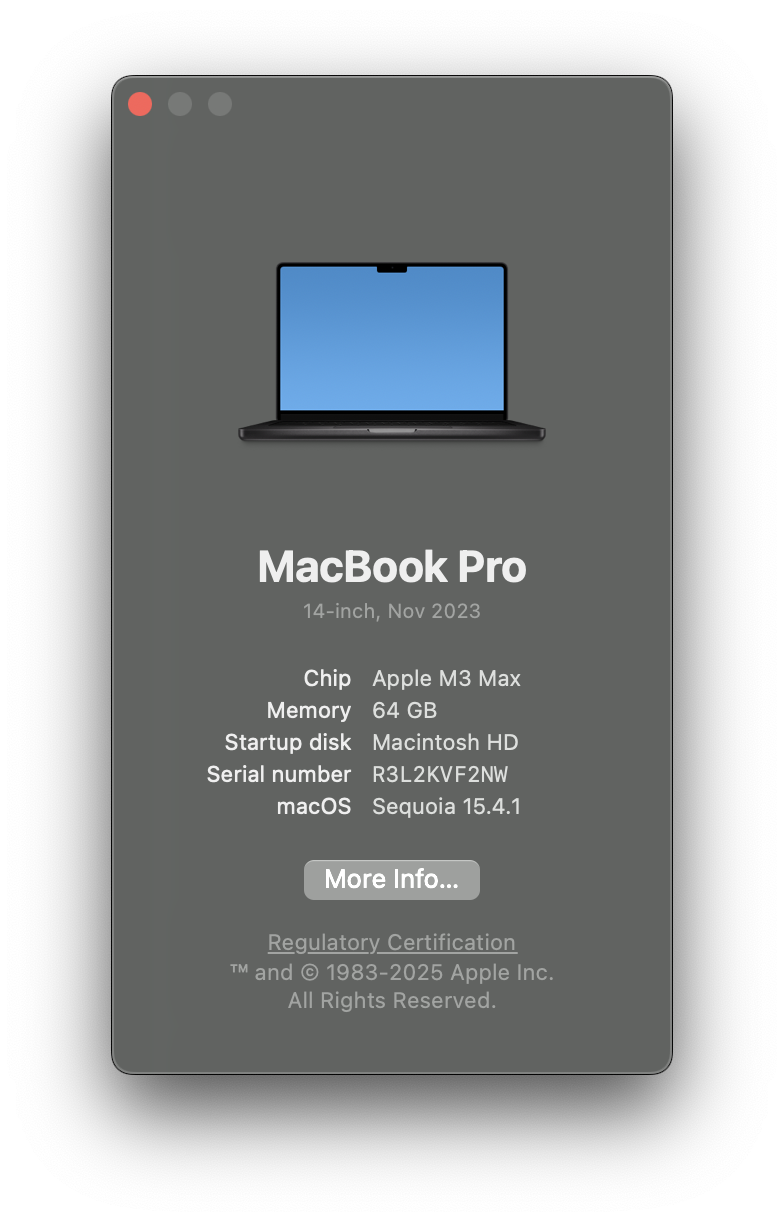
Note the value next to
Memory(e.g.64 GB), multiply it by either2or3, divide by either3or4, and round the result down if it’s not a whole number64 * 2 / 3 = 128 / 3 ≈ 42Your final answer is the approximate amount of VRAM you have. This is an approximation since MacBook Pro M-series uses unified memory (i.e. memory is shared between CPU and GPU), so there’s only RAM, not VRAM. Technically the amount of VRAM you have is equal to the amount of RAM, but in practice it’s less since some of that RAM is reserved by the system to prevent instability.
Switch architecture
1
arch -x86_64 /bin/bash
Open
regedit1
wine regedit
Navigate to
HKEY_LOCAL_MACHINE\Software\WineIf
Direct3Disn’t already there, right-clickWineand navigate to NewClick Key
Input
Direct3D, then press Enter to save its nameTo rename a key, right-click it and click Rename
Double-click
Direct3Dto openRight-click anywhere that isn’t a key (i.e. right-click anywhere in the white space)
Navigate to New and click String Value
Input
VideoMemorySize, then press Enter to save its nameDouble-click
VideoMemorySizeto set its value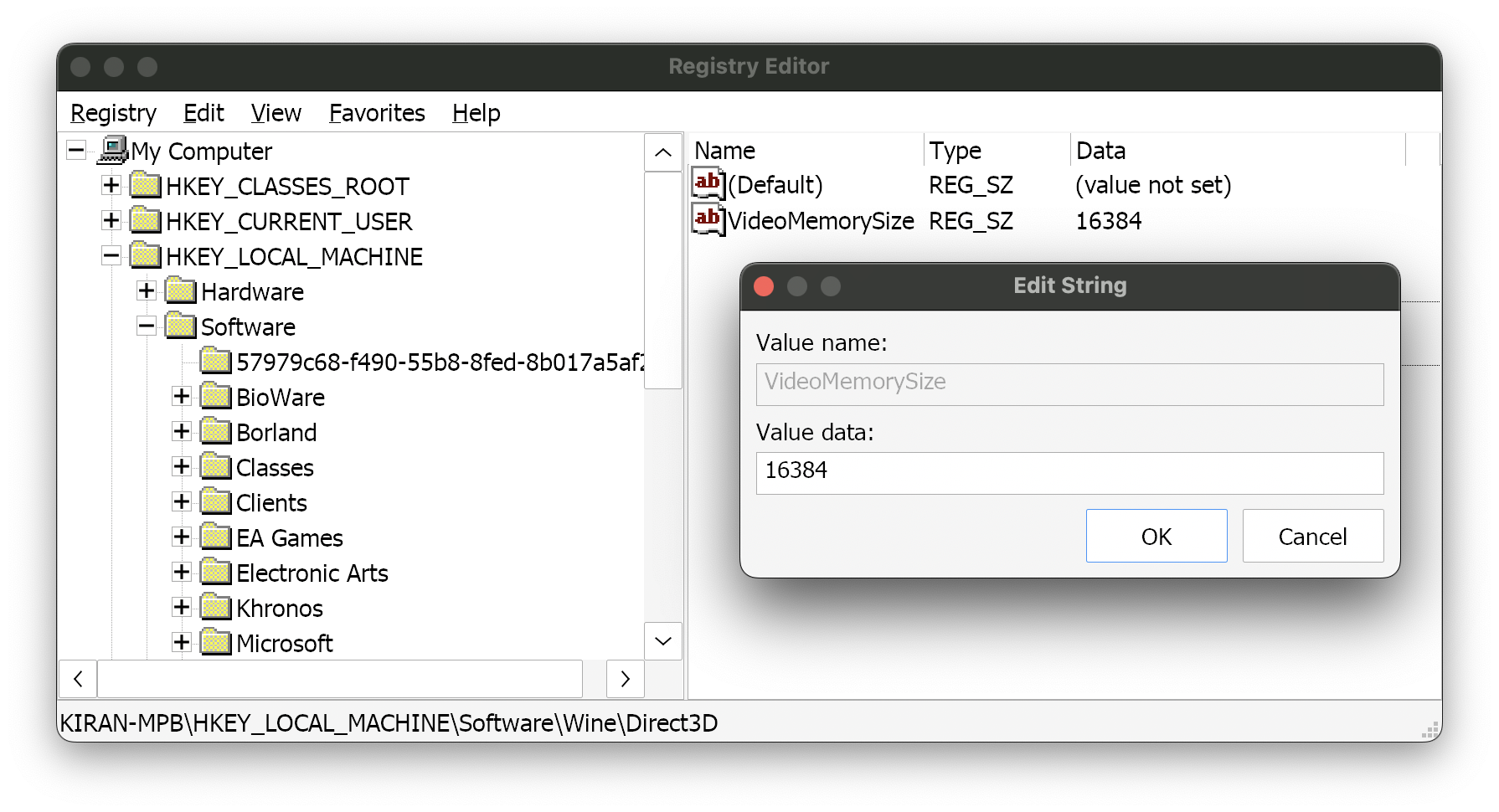
Under
Value data:, enter16384(i.e. 16.384 GB), click OK, then closeregedit
I recommend experimenting with the value (in MB) of VideoMemorySize. Some users say 4096 is better, etc. Might need to do some trial and error.
32bit games crash after 4GB RAM
Set the following environment variable:
1
export WINE_LARGE_ADDRESS_AWARE=1
Wine
HKEY_CURRENT_USER\Software\Wine\Mac Driver14
Disable window decorations
The heuristics that Wine uses to decide whether or not to trim off the edges of windows and replace them with the platform-native window decorations are imperfect. The Mac driver, like the X11 driver, has a registry setting to turn off window decorations for situations like this.15
1
wine reg add 'HKEY_CURRENT_USER\Software\Wine\Mac Driver' /v 'Decorated' /t REG_SZ /d 'N' /f
To re-enable window decorations:
Disable vertical sync (vsync)
1
wine reg add 'HKEY_CURRENT_USER\Software\Wine\Mac Driver' /v 'AllowVerticalSync' /t REG_SZ /d 'N' /f
Prevent Wine from creating filetype associations
This method prevents the creation of filetype associations but retains the creation of XDG .desktop files (that you might see e.g. in menus).
1
wine reg add "HKEY_CURRENT_USER\Software\Wine\FileOpenAssociations" /v 'Enable' /d 'N'
Allow Wine to run
After downloading binary files online (e.g. Wine builds, etc.), you won’t be able to run it immediately since macOS’s blocks it as a safety feature.
To allow it to run, execute this command (PATH_TO_WINE_DIRECTORY is the path to your Wine directory)
1
xattr -dr com.apple.quarantine PATH_TO_WINE_DIRECTORY
So, for example, if you want to do it for your DXMT Wine 10.19 build in "$HOME/Wine/dxmt/10.19", it’d look like:
1
xattr -dr com.apple.quarantine "$HOME/Wine/dxmt/10.19"
If you prefer to do this manually (which can get pretty tedious since you’d need to do this for every single file):
Open System Settings
Go to Privacy & Security, then scrolling down to Security section
Manually click the Allow button for each Wine-related file after running some
winecommand
Restore original DLL files
1
 wineboot -u
Pixelated and limited display resolution
Enable Retina (aka high resolution mode)
1
wine reg add 'HKEY_CURRENT_USER\Software\Wine\Mac Driver' /v 'RetinaMode' /t REG_SZ /d 'Y' /f
Some games will not run with Retina mode enabled; to disable:
To check if it’s set:
1
wine reg query 'HKEY_CURRENT_USER\Software\Wine\Mac Driver' /v 'RetinaMode'
Adjust DPI scaling level
You can adjust scaling to 100% (96 DPI = 100% scaling), or you can also use whatever DPI value you prefer
1
wine reg add 'HKEY_CURRENT_USER\Control Panel\Desktop' /v 'LogPixels' /t REG_DWORD /d 96 /f
Set drivers
1
wine reg add 'HKEY_CURRENT_USER\Software\Wine\Drivers' /v 'Graphics' /t REG_SZ /d 'mac,x11' /f
Enable noflicker
1
wine reg add 'HKEY_CURRENT_USER\Software\Wine\Mac Driver' /t REG_SZ /v 'ForceOpenGLBackingStore' /d 'Y' /f
Restrict Wine processes to subset of available cores
Pass a CPU mask through the WINECPUMASK environment variable16
1
export WINECPUMASK=0xff
This will tie Wine processes (including wineserver) to the first 8 cores and limit the number of reported cores to 8. You may also get a performance gain if the mask specifies the cores of one core complex (CCX). E.g. this Bash script computes the mask for the first CCX:
1
2
3
4
5
6
7
8
9
#!/usr/bin/env bash
local model_name="$(sysctl -n machdep.cpu.brand_string)"

NUM_CPUS=$(sysctl -n hw.logicalcpu)
echo "$NUM_CPUS-core CPU"

CCX_MASK=$(((1 << $NUM_CPUS / 2) - 1))
echo -n "first CCX mask: "
printf "0x%x\n" $CCX_MASK
With this patch The Forest goes from 23 to 40 fps on a 16 core Ryzen CPU
Check prefix architecture
You can manually print the value of $WINEARCH (which should be either win64 or win32)
1
echo "$WINEARCH"
You can also read the system registry of $WINEPREFIX; depending on the architecture, it should output #arch=win32, #arch=win64, or Unknown
1
reg_arch="$(grep '#arch' $WINEPREFIX/system.reg)" && echo "${reg_arch#'#arch='}" || echo "Unknown"
This should print value after #arch= (i.e. win32 or win64) or “Unknown” if #arch is not in system.reg
1
2
3
4
5
prefix="#arch="
reg_val="#arch=win64"
wine_arch=${reg_val#"$prefix"}
echo "${wine_arch}"
win64
Audio
Some games have messed up and/or crackling audio
This fix17 was recommended for audio crackling in Far Cry 318, where it sounds like it’s coming out a Geiger counter
Open Audio MIDI Setup app
Select your speaker on the left, then click on the drop down menu at the right side
Change the output to 96,000Hz (default should be set to 44,000hz I think)
Some games don’t have sound
Some games (e.g. Cities Skylines, Starcraft 2 and Heroes of the Storm) stopped having any sound at some point. This may be due to the extra audio drivers installed as plugin by Microsoft Teams. Simply remove the audio driver:
1
sudo rm -rf /Library/Audio/Plug-Ins/HAL/MSTeamsAudioDevice.driver
Removing the Teams audio drivers does not prevent Teams from working normally; apparently they’re an optional module during Teams setup
There have been similar reports for other games that also had sound problems and after users removed any extra audio drivers, sound started working again. Looking into this problem I saw similar reports about Zoom audio drivers as well.19
Alternatively, you may have to override certain Wine DLLs20:
1
export WINEDLLOVERRIDES="xaudio2_7=n,b"
Fonts
Unreadable or missing fonts
If you don’t have any fonts installed, you can link all of the system fonts so they are accessible from Wine:
1
cd "$WINEPREFIX/drive_c/windows/Fonts" && for i in /usr/share/fonts/**/*.{ttf,otf}; do ln -s "$i"; done
Wine uses FreeType to render fonts, and FreeType’s defaults changed a few releases ago. Try using the following environment variable when running programs in Wine:
1
FREETYPE_PROPERTIES="truetype:interpreter-version=35"
Another option is to install Microsoft’s TrueType fonts into your wine prefix. If this does not help, try running winetricks corefonts first, then winetricks allfonts as a last resort.
After running such programs, kill all Wine servers and run winecfg. Fonts should be legible now.
Font smoothing
Font smoothing improves the font’s display resolution and font rendering.
Method 1: Winetricks
1
winetricks fontsmooth=rgb
Method 2: Regedit
Enable anti-alias
1
2
3
wine reg add 'HKEY_CURRENT_USER\Software\Wine\X11 Driver' /v 'ClientSideAntiAliasWithCore' /t REG_SZ /d 'Y' /f
wine reg add 'HKEY_CURRENT_USER\Software\Wine\X11 Driver' /v 'ClientSideAntiAliasWithRender' /t REG_SZ /d 'Y' /f
wine reg add 'HKEY_CURRENT_USER\Software\Wine\X11 Driver' /v 'ClientSideWithRender' /t REG_SZ /d 'Y' /f
If the fonts look somehow smeared, disable anti-aliased fonts
1
2
3
wine reg add 'HKEY_CURRENT_USER\Software\Wine\X11 Driver' /v 'ClientSideAntiAliasWithCore' /t REG_SZ /d 'N' /f
wine reg add 'HKEY_CURRENT_USER\Software\Wine\X11 Driver' /v 'ClientSideAntiAliasWithRender' /t REG_SZ /d 'N' /f
wine reg add 'HKEY_CURRENT_USER\Software\Wine\X11 Driver' /v 'ClientSideWithRender' /t REG_SZ /d 'N' /f
Enable subpixel smoothing/rendering/anti-aliasing (ClearType) RGB
1
2
3
4
wine reg add 'HKEY_CURRENT_USER\Control Panel\Desktop' /v 'FontSmoothing' /t REG_SZ /d '2' /f
wine reg add 'HKEY_CURRENT_USER\Control Panel\Desktop' /v 'FontSmoothingOrientation' /t REG_DWORD /d 00000001 /f
wine reg add 'HKEY_CURRENT_USER\Control Panel\Desktop' /v 'FontSmoothingType' /t REG_DWORD /d 00000002 /f
wine reg add 'HKEY_CURRENT_USER\Control Panel\Desktop' /v 'FontSmoothingGamma' /t REG_DWORD /d 00000578 /f
Disable subpixel smoothing
1
2
3
4
wine reg add 'HKEY_CURRENT_USER\Control Panel\Desktop' /v 'FontSmoothing' /t REG_SZ /d '0' /f
wine reg add 'HKEY_CURRENT_USER\Control Panel\Desktop' /v 'FontSmoothingOrientation' /t REG_DWORD /d 00000001 /f
wine reg add 'HKEY_CURRENT_USER\Control Panel\Desktop' /v 'FontSmoothingType' /t REG_DWORD /d 00000000 /f
wine reg add 'HKEY_CURRENT_USER\Control Panel\Desktop' /v 'FontSmoothingGamma' /t REG_DWORD /d 00000578 /f
Enable standard font smoothing
1
2
3
4
wine reg add 'HKEY_CURRENT_USER\Control Panel\Desktop' /v 'FontSmoothing' /t REG_SZ /d '2' /f
wine reg add 'HKEY_CURRENT_USER\Control Panel\Desktop' /v 'FontSmoothingOrientation' /t REG_DWORD /d 00000001 /f
wine reg add 'HKEY_CURRENT_USER\Control Panel\Desktop' /v 'FontSmoothingType' /t REG_DWORD /d 00000001 /f
wine reg add 'HKEY_CURRENT_USER\Control Panel\Desktop' /v 'FontSmoothingGamma' /t REG_DWORD /d 00000578 /f
HKEY_CURRENT_USER\Control Panel\Desktop Keys:
FontSmoothing |
|
FontSmoothingType |
|
FontSmoothingGamma |
|
FontSmoothingOrientation |
|
Keyboard
Fix keyboard shortcuts
Wine by default maps the keys differently than native macOS applications. It’s possible to change some of the keyboard mappings.
Map Option as Alt:
1
2
wine reg add 'HKEY_CURRENT_USER\Software\Wine\Mac Driver' /v 'LeftOptionIsAlt' /t REG_SZ /d 'Y'
wine reg add 'HKEY_CURRENT_USER\Software\Wine\Mac Driver' /v 'RightOptionIsAlt' /t REG_SZ /d 'Y'
Map Command as CTRL:
1
2
wine reg add 'HKEY_CURRENT_USER\Software\Wine\Mac Driver' /v 'LeftCommandIsCtrl' /t REG_SZ /d 'Y'
wine reg add 'HKEY_CURRENT_USER\Software\Wine\Mac Driver' /v 'RightCommandIsCtrl' /t REG_SZ /d 'Y'
Keyboard input not working
This could be caused by the window manager not switching focus.
Method 1: Winetricks
1
winetricks usetakefocus=n
Method 2: Regedit
Toggle all the Window settings, click Apply, then change them back.
If that does not work, go to the Graphics tab of winecfg, disable the Allow the window manager… options, or set windowed mode with Emulate a virtual desktop.
If the keyboard still does not work after unfocusing the application, try editing the registry
1
wine reg add 'HKEY_CURRENT_USER\Software\Wine\X11 Driver' /t REG_SZ /v 'UseTakeFocus' /d 'N' /f
Shaders
You can view and/or delete the shader caches if you run into any issues, like Game won’t boot anymore despite no changes
D3DM shader caching
1
$(getconf DARWIN_USER_CACHE_DIR)/d3dm
Example contents
1
2
3
4
5
6
7
CrashReportClient.exe                 MassEffectLauncher.exe
EADesktop.exe                         MCC-Win64-Shipping.exe
EALaunchHelper.exe                    OblivionRemastered-Win64-Shipping.exe
EpicWebHelper.exe                     Palworld-Win64-Shipping.exe
GhostOfTsushima.exe                   Schedule I.exe
GoW.exe                               SkyrimSE.exe
IGOProxy64.exe                        steamwebhelper.exe
The shaders for each game are in the shaders.cache subdirectory in each game directory. E.g. cached shaders for Schedule I would be in $(getconf DARWIN_USER_CACHE_DIR)/d3dm/Schedule I.exe/shaders.cache
DXMT shader caching
1
$(getconf DARWIN_USER_CACHE_DIR)/dxmt
Example contents
1
2
EpicWebHelper.exe           steamwebhelper.exe
Palworld-Win64-Shipping.exe
Miscellaneous
“Symbol not found” when setting game mode
You may get this error if setting game-mode (e.g. /Applications/Xcode.app/Contents/Developer/usr/bin/gamepolicyctl game-mode set auto)
1
2
3
4
dyld[52755]: Symbol not found: _$s2os6LoggerV10GamePolicyE4toolACvau
  Referenced from: <EF9CA6F2-E5BD-35B1-ACC3-E45E7CBB0AD4> /Applications/Xcode.app/Contents/Developer/usr/bin/gamepolicyctl
  Expected in:     <7962FD29-508F-3668-87F7-68AC93844B60> /System/Library/PrivateFrameworks/GamePolicy.framework/Versions/A/GamePolicy
Abort trap: 6
This may be due to a version mismatch (especially if you recently updated your OS without updating XCode). To fix, update XCode and then try running game-mode again.
gamepolicyctltool may have been compiled against an older version ofGamePolicy.frameworkthan the one installed on your system. This often happens when you have mismatched Xcode and macOS versions.
DXVK runs out of memory and crashes
With the following repeated in the terminal
1
[mvk-warn] VK_ERROR_OUT_OF_POOL_MEMORY: VkDescriptorPool exhausted pool of (x) descriptors. Allocating descriptor dynamically.
You should allocate enough memory [in the pool] by creating multiple pools.
VK_ERROR_OUT_OF_POOL_MEMORY:
- Used to determine when to allocate a new descriptor pool.
- Returned if allocation fails due to no more space in the descriptor pool (and not because of system or device memory exhaustion).
Applications fail to start
Some older games and applications assume that the current working directory is the same as that which the executable is in. Launching these executables from other locations will prevent them from starting correctly. Use cd path_containing_exe before invoking Wine to rule this possibility out.
“Operation not permitted” error
macOS often restricts Terminal/iTerm access to certain system-related directories, which can cause the “Operation not permitted” error when trying to delete certain files.
To grant full disk access:
Open System Preferences
Go to Privacy & Security > Full Disk Access
Grant Terminal/iTerm full disk access (if it’s not already listed, click the Plus (+) button to add an application and choose Terminal/iTerm)
Environment Variables
Wine
| Name | Description | Options | Example |
|---|---|---|---|
WINE | Specify which version of Wine to use, if you have multiple different versions. | Wine path (i.e. /path/to/your/wine) | WINE="/usr/local/bin/wine64" |
WINEPREFIX | Directory where Wine stores its data (default is $HOME/.wine). This directory is also used to identify the socket which is used to communicate with the wineserver. All wine processes using the same wineserver (i.e. same user) share certain things like registry, shared memory, and config file. By setting WINEPREFIX to different values for different wine processes, it is possible to run a number of truly independent wine processes. | WINEPREFIX="$HOME/Bottles/DXMT" | |
WINESERVER | Specifies the path and name of the wineserver binary. If not set, Wine will look for a file named "wineserver" in the path and in a few other likely locations. | WINESERVER=$HOME/Wine/dxmt/10.18/bin/wineserver | |
WINEDEBUG | Turns debugging messages on or off; can be used to silence logs, enable detailed logging for components, or filter specific messages. The syntax of the variable is of the form [class][+|-]channel[,[class2][+|-]channel2]class is optional and can be one of the following: err, warn, fixme, or trace. If class is not specified, all debugging messages for the specified channel are turned on. Each channel will print messages about a particular component of Wine. The following character can be either + or - to switch the specified channel on or off respectively. If there is no class part before it, a leading + can be omitted. Note that spaces are not allowed anywhere in the string. |
| |
WINEDLLPATH | Specifies the path(s) in which to search for builtin dlls and Winelib applications. This is a list of directories separated by :. In addition to any directory specified in WINEDLLPATH, Wine will also look in the installation directory. | WINEDLLPATH= | |
WINEDLLOVERRIDES | Defines the override type and load order of dlls used in the loading process for any dll. There are currently two types of libraries that can be loaded into a process address space: native windows dlls (native) and Wine internal dlls (builtin). The type may be abbreviated with the first letter of the type (n or b). The library may also be disabled (''). Each sequence of orders must be separated by commas.Each dll may have its own specific load order. The load order determines which version of the dll is attempted to be loaded into the address space. If the first fails, then the next is tried and so on. Multiple libraries with the same load order can be separated with commas. It is also possible to use specify different loadorders for different libraries by separating the entries by ;.The load order for a 16-bit dll is always defined by the load order of the 32-bit dll that contains it (which can be identified by looking at the symbolic link of the 16-bit .dll.so file). For instance if ole32.dll is configured as builtin, storage.dll will be loaded as builtin too, since the 32-bit ole32.dll contains the 16-bit storage.dll. |
| |
WINEPATH | Specifies additional path(s) to be prepended to the default Windows PATH environment variable. This is a list of Windows-style directories separated by ;.For a permanent alternative, edit (create if needed) the PATH value under the HKEY_CURRENT_USER\Environment registry key. | WINEPATH= | |
WINEARCH | Specifies the Windows architecture to support. The architecture supported by a given Wine prefix is set at prefix creation time and cannot be changed afterwards. When running with an existing prefix, Wine will refuse to start if WINEARCH doesn't match the prefix architecture. It is possible however to switch freely between win64 and wow64 with an existing 64-bit prefix. |
| WINEARCH=win64 |
WINE_LARGE_ADDRESS_AWARE | Prevents 32bit games from crashing after reaching 4GB of RAM. | 0 (OFF), 1 (ON) | WINE_LARGE_ADDRESS_AWARE=1 |
WINE_D3D_CONFIG | Specifies Direct3D configuration options. It can be used instead of modifying the HKEY_CURRENT_USER\Software\Wine\Direct3D registry key. The value is a comma- or semicolon-separated list of key-value pairs. If an individual setting is specified in both the environment variable and the registry, the former takes precedence. | WINE_D3D_CONFIG="renderer=vulkan;VideoPciVendorID=0xc0de" | |
WINEESYNC | Enables Eventfd Synchronization (ESync), which reduces overhead from thread synchronization by replacing Windows synchronization objects with eventfd objects. Improves multithreaded application and game performance. Available on Linux and macOS. | 0 (OFF), 1 (ON) | WINEESYNC=1 |
WINEMSYNC | Intended for Mac Synchronization (MSync), adapting synchronization improvements like ESync/FSync for macOS systems using Mach ports. Aims to reduce overhead on macOS similarly to how FSync helps Linux. Experimental, still relatively new, and less mature than ESync/FSync. | 0 (OFF), 1 (ON) | WINEMSYNC=0 |
WINE_FULLSCREEN_FSR | Enables FidelityFX Super Resolution (FSR) upscaling when Wine runs fullscreen apps. Good for boosting low-res games on Mac displays. | 0 (OFF), 1 (ON) | WINE_FULLSCREEN_FSR=1 |
WINE_FULLSCREEN_FSR_STRENGTH | Controls image sharpness when FidelityFX Super Resolution (FSR) upscaling (i.e. WINE_FULLSCREEN_FSR) is enabled. Defaults to 5. | A number from 5 (minimum) to 0 (maximum) | WINE_FULLSCREEN_FSR_STRENGTH=3 |
WINE_NO_FULLSCREEN | Forces Wine apps to run in a window even if they want fullscreen. Useful for compatibility. | 0 (OFF), 1 (ON) | WINE_NO_FULLSCREEN=0 |
VKD3D_FEATURE_LEVEL | 12_2, 4, etc. | VKD3D_FEATURE_LEVEL=12_2 | |
GST_DEBUG | Controls logging level for GStreamer (used by Wine for media playback). Useful if games/apps involve video/audio playback issues. | 3 (info level), 4 (debug level) | Example |
LC_ALL | Sets the system-wide locale for Wine and its programs. Important for avoiding weird character encoding issues (especially in older games). | en_US or en_US.UTF-8 (forces US English encoding) | LC_ALL=en_US.UTF-8 |
DISPLAY | Specifies the X11 display to use. | DISPLAY= | |
AUDIODEV | Set the device for audio input / output. Default /dev/dsp. | AUDIODEV=/dev/dsp | |
MIXERDEV | Set the device for mixer controls. Default /dev/mixer. | MIXERDEV=/dev/mixer | |
MIDIDEV | Set the MIDI (sequencer) device. Default /dev/sequencer. | MIDIDEV=/dev/sequencer |
D3DMetal
Environment variables can be used to control some aspects of translation and emulation in the evaluation environment.
| Name | Description | Options | Example |
|---|---|---|---|
D3DM_SUPPORT_DXR | Defaults to 0 (OFF) on M1 & M2 Macs, and to 1 (ON) for M3 & later Macs. Setting this environment variable to 1 (ON) enables DirectX Raytracing (aka DXR) features in D3DMetal’s DirectX 12 translation layer, so games querying for DXR support will find the support level and expected interfaces of DXR. | 0 (OFF), 1 (ON) | D3DM_SUPPORT_DXR=1 |
ROSETTA_ADVERTISE_AVX | Defaults to 0 (OFF). On macOS 15 Sequoia, setting this environment variable to 1 (ON) causes the CPU instruction translation layer to publish cpuid information to translated applications when running in the evaluation environment, so games querying instruction set extension capabilities before utilizing them can conditionally control their use of instruction extensions. This setting does not modify the availability of the instruction set in Rosetta; it only controls whether the processor advertises its support for these extensions. | 0 (OFF), 1 (ON) | ROSETTA_ADVERTISE_AVX=1 |
D3DM_ENABLE_METALFX | On macOS 16, setting this environment variable to 1 (ON) causes DLSS functions to be converted to MetalFX where possible. Setting this environment variable to 0 (OFF) causes DLSS functions to be not be available. | 0 (OFF), 1 (ON) | D3DM_ENABLE_METALFX=1 |
DXMT
| Name | Description | Options | Example |
|---|---|---|---|
DXMT_ENABLE_NVEXT | Enable [implemented subset of] NVIDIA vendor extensions and load nvapi64.dll and nvngx.dll. It is NOT recommended to always enable this extension, because the game may use certain techniques that is only fast on NVIDIA hardware but extremely slow on others. Use it when it's actually beneficial.Current implemented features: HDR *, DLSS SuperResolution (translated to MetalFX Temporal Scaler) *: NOT ALL GAMES REQUIRE vendor extension to enable HDR, especially if it's released recently and/or targets Windows 11. | 0 (OFF), 1 (ON) | DXMT_ENABLE_NVEXT=1 |
MTL_SHADER_VALIDATION | Enable Metal shader validation layer for DXMT. | 0 (OFF), 1 (ON) | MTL_SHADER_VALIDATION=0 |
MTL_DEBUG_LAYER | Enable Metal API validation layer for DXMT. | 0 (OFF), 1 (ON) | MTL_DEBUG_LAYER=0 |
MTL_CAPTURE_ENABLED | Enable Metal frame capture for DXMT. | 0 (OFF), 1 (ON) | MTL_CAPTURE_ENABLED=0 |
DXMT_LOG_LEVEL | Controls message logging for DXMT. | none, error, warn, info, debug | DXMT_LOG_LEVEL=warn |
DXMT_LOG_PATH | Changes path where DXMT log files are stored. Log files in the given directory will be called app_d3d11.log, app_dxgi.log, etc., where app is the name of the game executable. Set to none to disable log file creation entirely without disabling logging (i.e. log messages will still be printed to stderr). | /some/directory, none | DXMT_LOG_PATH=$HOME/dxmt/logs |
DXMT_CAPTURE_FRAME | Automatically captures n-th frame. Useful for debugging a replay. | n (i.e. any positive integer) | DXMT_CAPTURE_FRAME=3 |
DXMT_CAPTURE_EXECUTABLE | Must be set to enable Metal frame capture. Press F10 to generate a capture. The captured result will be stored in the same directory as the executable. | "executable name without extension" | DXMT_CAPTURE_EXECUTABLE="Palworld" |
DXMT_METALFX_SPATIAL_SWAPCHAIN | Enable MetalFX spatial upscaler on output swapchain. By default it will double the output resolution. Set d3d11.metalSpatialUpscaleFactor to a value between 1.0 and 2.0 to change the scale factor. | 0 (OFF), 1 (ON) | DXMT_METALFX_SPATIAL_SWAPCHAIN=1 |
DXMT_CONFIG_FILE | Sets path to the DXMT configuration file. Check dxmt.conf in DXMT GitHub repository for reference. | /path/to/dxmt.conf | DXMT_CONFIG_FILE=/Users/lynkos/dxmt/dxmt.conf |
DXMT_CONFIG | Can be used to set config variables through the environment instead of a configuration file using the same syntax. ; is used as a separator. Set d3d11.preferredMaxFrameRate to enforce the application's frame pacing being controlled by Metal. The value must be a factor of your display's refresh rate (e.g. 15, 30, 40, 60, 120 are valid for a 120hz display). | "DXMT config variables separated with ;" | DXMT_CONFIG="d3d11.preferredMaxFrameRate=30;d3d11.metalSpatialUpscaleFactor=1.5;" |
DXVK
| Name | Description | Options | Example |
|---|---|---|---|
DXVK_ASYNC | Enables async shader compilation in DXVK. Reduces stutter by allowing shaders to compile in the background, but may cause visual glitches. Needs a patched version of DXVK to work. | 0 (OFF), 1 (ON) | DXVK_ASYNC=1 |
DXVK_HUD | Controls a HUD which can display FPS and some stat counters. |
| DXVK_HUD=1 |
DXVK_FRAME_RATE | Can be used to limit the frame rate. Alternatively, the configuration file can be used. | 0 uncaps the frame rate, while any positive value will limit rendering to the given number of frames per second | DXVK_FRAME_RATE=15 |
DXVK_FILTER_DEVICE_NAME | Some applications do not provide a method to select a different GPU. In that case, DXVK can be forced to use a given device. Selects devices with a matching Vulkan device name, which can be retrieved with tools such as vulkaninfo. Matches on substrings, so "VEGA" or "AMD RADV VEGA10" is supported if the full device name is "AMD RADV VEGA10 (LLVM 9.0.0)", for example. If the substring matches more than one device, the first device matched will be used. Note: If the device filter is configured incorrectly, it may filter out all devices and applications will be unable to create a D3D device. | DXVK_FILTER_DEVICE_NAME="Device Name" | |
DXVK_STATE_CACHE | Enables state cache in DXVK. | 0 (OFF), 1 (ON) | DXVK_STATE_CACHE=0 |
DXVK_STATE_CACHE_PATH | Specifies a directory where to put the cache files. Defaults to the current working directory of the application. | DXVK_STATE_CACHE_PATH=/some/directory |
MoltenVK
This section is still under construction. Please refer to MoltenVK’s configuration parameters file for the full list.
| Name | Type | Description | Options | Default | Example |
|---|---|---|---|---|---|
MVK_CONFIG_ACTIVITY_PERFORMANCE_LOGGING_STYLE | Enumeration | If the MVK_CONFIG_PERFORMANCE_TRACKING parameter is enabled, this parameter controls when MoltenVK should log activity performance events. |
| 0 | MVK_CONFIG_ACTIVITY_PERFORMANCE_LOGGING_STYLE=1 |
MVK_CONFIG_ADVERTISE_EXTENSIONS | UInt32 | Controls which extensions MoltenVK should advertise it supports in vkEnumerateInstanceExtensionProperties() and vkEnumerateDeviceExtensionProperties(). This can be useful when testing MoltenVK against specific limited functionality. Any prerequisite extensions are also advertised. If bit 1 is included, all supported extensions will be advertised. A value of zero means no extensions will be advertised. | The value of this parameter is a Bitwise-OR of the following values:
| 1 | MVK_CONFIG_ADVERTISE_EXTENSIONS=2 |
MVK_CONFIG_API_VERSION_TO_ADVERTISE | UInt32 | Controls the Vulkan API version that MoltenVK should advertise in vkEnumerateInstanceVersion(), after MoltenVK adds the VK_HEADER_VERSION component. |
| 4210688 (Decimal number for VK_API_VERSION_1_4) | MVK_CONFIG_API_VERSION_TO_ADVERTISE=12 |
MVK_CONFIG_AUTO_GPU_CAPTURE_OUTPUT_FILE | String | If MVK_CONFIG_AUTO_GPU_CAPTURE_SCOPE is any value other than 0, this is the path to a file where the automatic GPU capture will be saved. If this parameter is an empty string (the default), automatic GPU capture will be handled by the Xcode user interface.If this parameter is set to a valid file path, the Xcode scheme need not have Metal GPU capture enabled, and in fact the app need not be run under Xcode's control at all. This is useful in case the app cannot be run under Xcode's control. A path starting with ~ can be used to place it in a user's home directory. | Some string value | "" (i.e. empty string) | MVK_CONFIG_AUTO_GPU_CAPTURE_OUTPUT_FILE="~/save/path/here" |
NAME | TYPE | DESC |
| DEFAULT | EXAMPLE |
Logging
This subsection is taken directly from Game Porting Toolkit’s
README.mdfile and has been modified in some parts
- Logging output will appear in the Terminal window in which you launch your game as well as the system log, which can be viewed with
/System/Applications/Utilities/Console.app - Log messages from the evolution environment for Windows games are prefixed with D3DM and are logged to the system log using the “D3DMetal” category. By default the
ee4wg*scripts will filter to just the D3DM-prefixed messages. - If you are experiencing an issue and want to send logging information through https://feedbackassistant.apple.com, please attach and send the full logs without filtering to D3DM
The provided
bin/ee4wg*scripts can be copied onto your path to facilitate different forms of logging and launching. You can run these scripts from any shell; you don’t need to switch to the Rosetta environment first.
Debugging with Metal Debugger
This subsection is taken directly from Game Porting Toolkit’s
README.mdfile and has been modified in some parts
Compile your shaders with embedded debug information (https://developer.apple.com/metal/shader-converter/#shader) by passing
-Zi -Qembed_debugto the DX CompilerIn CrossOver, select a bottle to launch your game from
Enable D3DMetal in the Advanced Settings for the bottle
Launch your game by clicking Run Command, choosing your game executable, and inserting the following environment variables to enable Metal debugging and processing of debug information:
1
2
 MTL_CAPTURE_ENABLED=1
 D3DM_DXIL_PROCESS_DEBUG_INFORMATION=1
In Xcode, click Debug > Debug Executable… from the menubar and select
CrossOver.app(this is just to get a workspace window open)In the visible Scheme options, click the Options tab and change GPU Frame Capture from Automatically to Metal
Close Scheme
Click Debug > Attach to Process from the menubar and select your launched game process
After the debugger attaches to the process, you can capture your Metal workload
If
lldbsuspends the process due to handlingSIGUSR1, you will need to run the following commands to ignore this signal and continue the process:1 2 3
process handle -pass false -stop false -notify false SIGUSR1 continue
To clear terminal:
- CTRL + L
clear
Reenable SIP after you finish debugging
Further Reading
- Game Porting Toolkit (AppleGamingWiki)
- Game Porting Toolkit (Apple Developer)
- MacOS FAQ (Wine)
- Building Wine
- Wine User’s Guide
- macOS Building (Wine)
- Installation of Wine via sources
- Wine (Arch Linux)
- How to Properly Build Wine on macOS
- The Nightmare that has been Building Wine
- Metal Shader Converter
- Steam Command Line Options
- Edit binary
- Wine Windows Steam Gives “content servers unreachable” error
- macOS dylib injection
- How to Permanently Disable Steam Client Webhelper
- CrossOver Source
- macOS Wine Builds (GitHub)
- DXVK macOS
- DXVK
- CrossOver Source Code
- Editing Bottle Registry Keys
- Kegworks Winery
- Steam Console parameters aka command-line options
- DXMT Wiki
- CrossOver User Guide
- How to Install Apple Game Porting Toolkit (GPTK) on macOS
References
Some app icons I’ve made over the last couple of days. Spotify, Steam, Discord, and Chrome (Cycles) (/r/Blender) ↩︎
Connect a wireless game controller to your Apple device (Apple Support) ↩︎
Connect an Xbox wireless game controller to your Apple device (Apple Support) ↩︎
Connect a PlayStation wireless game controller to your Apple device (Apple Support) ↩︎
Steam doesn’t download games through Whiskey… It just simply stops all the network download and disk writing. Any idea why? (/r/MacGaming) ↩︎
Allocate macOS VRAM dynamically (/r/MacGaming), Increase VRAM allocation (/r/LocalLLaMA), Adjust VRAM/RAM split on Apple Silicon (GitHub), and Optimizing VRAM Settings for Using Local LLM on macOS (Fine-tuning: 1) ↩︎
Memory Leak When Using the Game Porting Toolkit (/r/MacGaming) and Setting your Video Memory Size (CrossOver) ↩︎
Far Cry 3 Audio Crackling issues (comment) (/r/MacGaming) ↩︎
Can someone help me with this in game no sound problem? (/r/MacGaming) ↩︎
Mac Mini M1 Some games don’t have sound - SOLVED (issue caused by MS Teams audio driver) (/r/MacGaming) ↩︎
Far Cry 4, Crossover 25.0.1, Macbook Pro M4 pro : Performance test (/r/MacGaming) ↩︎